
- Version
- 3.1
- Studio or maker
- Anybox LTD
- Languages
- Russian, English, German, Arabic, Bulgarian, Hungarian, Vietnamese, Greek, Danish, Hebrew, Indonesian, Spanish, Italian, Chinese (Traditional), Chinese (Simplified), Korean, Malay, Norwegian, Polish, Portuguese, Romanian, Slovak, Thai, Turkish, Ukrainian, Finnish, French, Hindi, Croatian, Czech, Swedish, Japanese
- Activation
- Included
- Runs on macOS
- macOS 13 or later
- Chip type
- Apple Silicon, Intel 64-bit
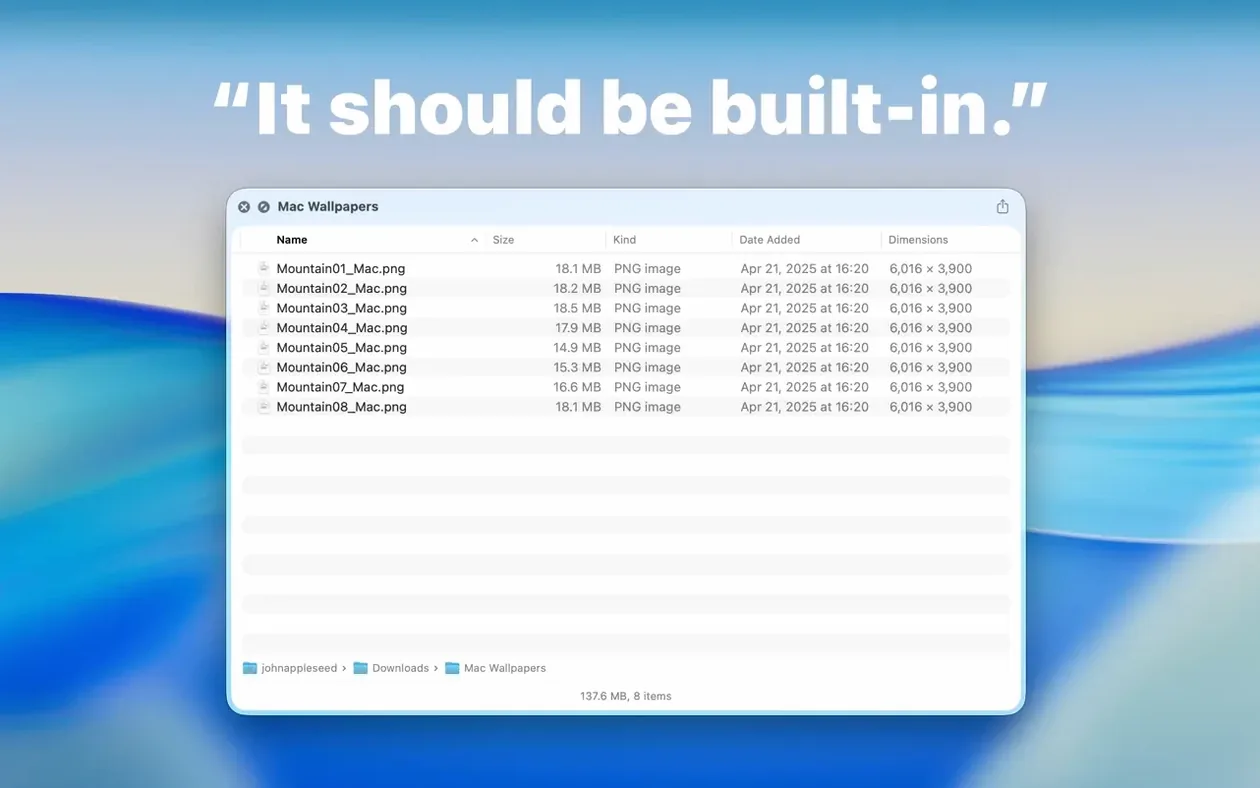
Finder lets you preview files easily. Folders aren't as simple — you have to open them or switch to list view. Folder Preview Pro fixes that by adding a Quick Look extension that shows folder contents when you press Space or Command-Y.
Good for
- Quickly checking what's inside a folder without opening it
- Dragging files out of the preview in list or icon view (added in version 3.1)
- Browsing archives — ZIP, TAR, GZ, 7Z, and RAR — directly in Quick Look
- Navigating into subfolders level by level using the Contents item in the context menu
- Working with Dual Columns view for a side-by-side look at folder structure
Keep in mind
- Quick Look must be enabled in System Settings before the extension works
- Requires macOS 13 or later; works on both Apple Silicon and Intel Macs
- Installation is a simple drag to Applications from the disk image
- Folder size information now appears in the toolbar under the folder name, not the status bar
Forgetting to set preview limits in Folder Preview Pro
Even a straightforward tool like Folder Preview Pro has a few habits that trip people up at first. Here are the ones I see most often in the game club, where students test things before I recommend them.
Forgetting to enable Quick Look in System Settings.
The app can't do anything until Quick Look itself is turned on. A few people install it, press Space, and get nothing — then assume the extension is broken. Go to System Settings, search for Quick Look, and make sure the toggle is on. After that, Folder Preview Pro works as part of that system.
Expecting every folder to show a preview instantly.
Some folders hold hundreds of files or nested subfolders. The Dual Columns view helps, but if you press Space on a folder full of large video files or a massive ZIP archive, the preview takes a moment to populate. Beginners sometimes think it froze. A short wait is normal — especially with archives over a few gigabytes.
Ignoring the Contents menu.
The Contents item in the context menu is one of version 3.1's best additions, but it's easy to miss. Instead of pressing Space again to go deeper, beginners keep closing the preview and opening the folder. Right-click inside the Quick Look panel and use Contents to step into subfolders one level at a time. It saves clicks.
Not customizing the columns.
By default, you see a few standard columns like name and size. Right-click the column headers and you can show or hide what matters for your task — modification date, kind, file type. New users often complain they can't see something that's already there, just hidden.
How a school office organizer saves hours with Folder Preview Pro
A colleague of mine, the school's administration coordinator, handles dozens of shared folders each week. Teachers send her ZIP archives with worksheets, scanned documents, and reference materials for the next term. She used to unzip each one, open the folder, and browse through the files to check if everything was there. On a busy Monday, that took half an hour.
With Folder Preview Pro, she presses Space on an archive in Finder. Quick Look shows her the contents immediately — ZIP, TAR, GZ, 7Z, or RAR — without extracting anything. If she needs to dig into a subfolder inside the archive, she uses the Contents menu to move down a level. If a file inside the archive needs to go to a teacher's folder, she drags it straight out of the preview. No extra unzipping, no extra windows.
The Dual Columns view helped her compare two similar archives side by side without opening either one fully. She found it especially useful when organizing term resources by subject and grade. The whole process became part of her Finder habit, not a separate task.
Folder Preview Pro works on macOS 13 or later, Apple Silicon and Intel
Folder Preview Pro runs on macOS 13 or later. It works on both Apple Silicon and Intel Macs — the same download covers both architectures. The installation follows the usual routine: open the downloaded disk image, drag the app to your Applications folder, then launch it from Launchpad once the copy finishes.
After that, you use it entirely inside Finder. Press Space or Command-Y on any folder to see its contents in Quick Look. The archive preview handles the formats listed earlier — ZIP, TAR, GZ, 7Z, and RAR — so you don't need separate archive tools just to look inside. For very large archives, version 3.1 added size limit options of 5 GB and 10 GB, so you can choose how deep into big files you want the preview to go.
Folder size information now sits in the toolbar under the folder name, not the status bar as before. It's a small detail, but once you know where to look, it's handy for a quick check before copying or moving a folder.
The language list is broad — over thirty languages, from Arabic to Japanese — so it adapts to your system language without extra setup. No hidden steps, no surprises. Just a Quick Look extension that stays out of your way until you need it.
- macOS 13 or later
- Apple Silicon or Intel processor
Questions I keep getting
Does Folder Preview Pro work with archives?
Yes, version 3.1 includes archive preview support for ZIP, TAR, GZ, 7Z, and RAR files.
How to install
- Open the downloaded disk image.
- Drag the app to the Applications folder.
- After copying finishes, launch the app from Launchpad.
Similar apps






Sign in or join the club to leave a comment.
Nobody has commented yet.