- Version
- 1.8
- Studio or maker
- Aviorrok
- Languages
- Russian, English, German, Hebrew, Spanish, Italian, Chinese (Simplified), Korean, Portuguese, Slovak, Turkish, French, Japanese
- Activation
- Not required
- Runs on macOS
- macOS 11 or later
- Chip type
- Apple Silicon, Intel 64-bit
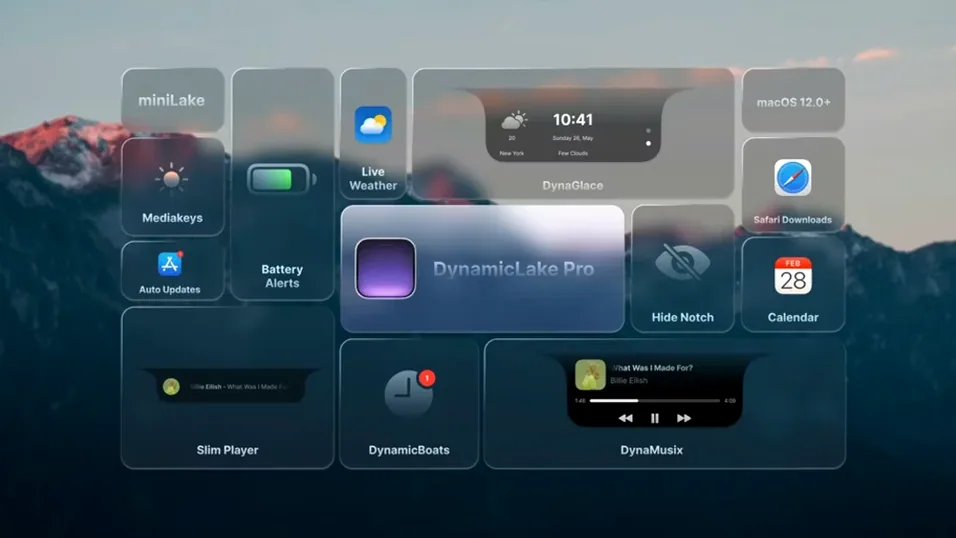
In version 1.8, DynamicLake Pro expands its notification system with quick replies for several apps and introduces DynaSwitcher, which lets you switch between open applications with Option+Tab. The update also refines the existing DynaMusic module for smoother music control with on-screen animation.
What DynamicLake Pro does
DynamicLake Pro extends macOS with a Dynamic Island-style interface, similar to what you might know from recent iPhones. It places unobtrusive widgets and alerts around the camera notch or menu bar area of your Mac. The app includes DynaGlance for real-time schedule and weather updates, DynaConnect for Bluetooth connection alerts, and DynaKeys for controlling volume, brightness, and keyboard backlight.
For teachers, designers, and anyone juggling multiple apps
This utility suits anyone who wants glanceable information without switching contexts. Teachers checking lesson times, designers monitoring file transfers, or anyone who juggles multiple apps will find the quick notifications and music controls useful. The interface supports thirteen languages, including English, German, Russian, Spanish, and Simplified Chinese. It runs on both Intel and Apple Silicon Macs with macOS 11 or later.
How it works with your existing menu bar and notch
Will it interfere with other menu bar apps? DynamicLake Pro sits in the menu bar area and uses the space around the notch on newer Macs. It does not remove or replace your existing menu bar items. If you use another app that also places widgets near the notch, you might see overlap, but DynamicLake Pro lets you adjust the widget position in its preferences so you can shift things left or right.
Does it work with Stage Manager or full-screen apps? Yes. When you enter full-screen mode, DynamicLake Pro adapts and shows its notifications and controls as overlays rather than occupying the top area. Stage Manager works alongside it without any special configuration. The widget panel simply dims or hides when you are in a full-screen app and reappears when you move the cursor to the top of the screen.
Do I need to keep it running all the time? The app runs as a background process once launched, and it is designed to stay active so its widgets and notifications remain available. You can quit it from the menu bar icon if you want to pause it temporarily. It does not add a login item by default, so you will need to add it yourself if you want it to start automatically when you log in.
Can I turn off individual modules? Yes. The preferences panel lists each module separately. You can disable DynaMusic if you do not use music controls, or turn off DynaConnect if Bluetooth alerts are not helpful for you. This lets you keep only the pieces you actually use.
Widgets not appearing after launch? Fix accessibility permissions
Widgets do not appear after launching. This usually happens when the app has not been given accessibility permissions. macOS 11 and later require explicit permission for apps that display overlays. Open System Preferences, go to Privacy & Security, then Accessibility, and make sure DynamicLake Pro is checked. Restart the app afterward.
Notifications show up but quick replies do not work. Quick replies depend on the source app supporting reply actions through macOS notifications. Some apps like Messages and Mail work well; others may not expose a reply action. If a quick reply button does not appear, check that the sending app supports inline replies in its own notification settings first.
Option+Tab does not switch apps. DynaSwitcher uses Option+Tab as its default shortcut, but if you have another app that already uses that key combination, they will conflict. Open DynamicLake Pro preferences and change the shortcut under DynaSwitcher settings to a different combination like Control+Tab or Option+Grave accent.
Bluetooth connection alerts do not trigger. DynaConnect monitors system Bluetooth events, but some third-party Bluetooth devices or utilities can interfere. Try disconnecting the device and reconnecting it. If the issue persists, check that Bluetooth is turned on in macOS and that the device is paired normally through System Settings first.
Music controls show no animation. DynaMusic relies on media playback information from compatible apps like Music, Spotify, or VLC. If the app you use does not report track changes properly, the animation may not trigger. Switch to a supported app or check that media notifications are enabled in the music app's settings.
Checking the weather without leaving your current app
I start my day by checking the weather for the afternoon. DynamicLake Pro shows the current temperature and a brief forecast in DynaGlance, which sits neatly near the notch. I do not need to open a weather app or a browser tab. Next, I look at my calendar appointments for the day. DynaGlance pulls the next event from the macOS Calendar app and displays it as a small card. I see that I have a department meeting at 11, so I know to plan my morning lessons around it.
While preparing a worksheet, I receive a notification from Messages. A student has sent a question about homework. The notification appears as a compact bubble near the top of the screen, and a quick reply button lets me type an answer without leaving Pages. I reply, and the bubble disappears. A few minutes later, I get a Bluetooth alert from DynaConnect that my headphones have connected automatically.
Mid-morning, I switch between Pages, Safari, and the school's grade portal. DynaSwitcher lets me cycle through them with Option+Tab, showing a small icon preview of each app. I do not need to use Mission Control or click the Dock. When I play a music track during break, DynaMusic shows the track title and a pulsing animation next to the notch. The volume slider in DynaKeys lets me adjust it without reaching for the keyboard's function keys.
At the end of the session, I glance at DynaGlance again to check if any meetings remain. The app has already updated with the next day's first appointment, so I can plan my after-school time accordingly.
Adjust widget position first for notchless Macs
Open DynamicLake Pro preferences right after launching. The first setting to adjust is the widget position. If you have a notchless Mac, center or left alignment often looks better than the default. Set the offset so the widgets do not overlap your menu bar clock or Wi-Fi icon.
Next, go through the modules list and disable anything you do not need. For a quiet work setup, turn off DynaConnect and DynaMusic to reduce visual clutter. Keep DynaGlance and DynaKeys for practical daily use. If you prefer a smaller interface, enable miniLake in the appearance section. miniLake shows the same information in a more compact form that takes up less screen space.
Under DynaSwitcher, check the assigned shortcut. Change it if Option+Tab conflicts with another app you use regularly. Under notifications, decide which apps can show quick replies. By default, it enables for Messages, Mail, and a few others. You can add or remove apps from the list.
Show only high-priority notifications during a lesson
You are teaching a class and want to keep an eye on important messages without stopping your lesson. Start by setting DynamicLake Pro to show only high-priority notifications. Open preferences, go to the notification section, and choose the apps that matter: Messages from the school principal, Calendar for period changes, and Mail for urgent parent emails. Disable everything else temporarily.
During the lesson, you keep the MacBook open on your desk. When a notification arrives, it appears as a small bubble near the notch. You see the sender and the first few words without clicking anything. If it is urgent, you can use the quick reply button directly from the bubble to send a short response without opening the full app. The students see only the top of the screen, and the bubble disappears after a few seconds.
DynaGlance shows the current period time and the next break. You can check it by glancing upward rather than opening the Calendar app. When the lesson ends, you use DynaSwitcher to jump to the grade portal or the next lesson plan. The whole setup keeps your attention on the class while still letting you handle the occasional important message.
- macOS 11 or later
- Intel or Apple Silicon
Questions I keep getting
Does DynamicLake Pro work with music apps?
Yes, it includes DynaMusic, which provides music control with on-screen animation for playback, volume, and track changes.
How to install
- Open the downloaded disk image file.
- Drag the app icon into the Applications folder alias inside the disk image.
- After the copy finishes, launch DynamicLake Pro from Launchpad.
Similar apps




Sign in or join the club to leave a comment.
Nobody has commented yet.