
- Version
- 4.13.1
- Studio or maker
- Charlie Monroe Software
- Languages
- Russian, English, German, Arabic, Afrikaans, Bengali, Bulgarian, Vietnamese, Greek, Danish, Hebrew, Indonesian, Spanish, Italian, Chinese (Traditional), Chinese (Simplified), Korean, Dutch, Norwegian, Persian, Polish, Portuguese, Slovak, Thai, Turkish, Ukrainian, Filipino, French, Hindi, Czech, Swedish, Japanese
- Activation
- Included
- Runs on macOS
- macOS 11 or later
- Chip type
- Apple Silicon, Intel 64-bit
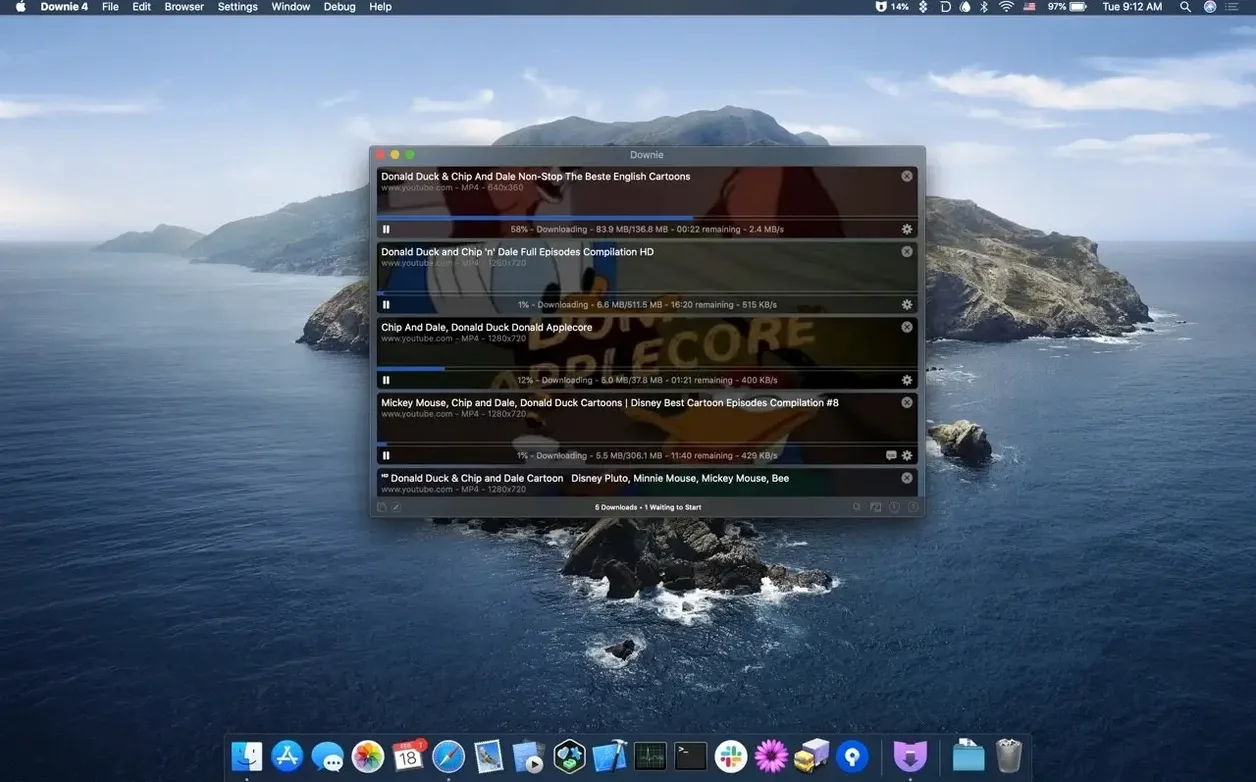
Downie 4.13.1 keeps the same dependable video fetching that made it a staple on many Macs, but the latest version fine-tunes the experience. It runs natively on both Apple Silicon and Intel Macs, so it feels right at home next to your other tools.
Grab a video by pasting or dragging
Copy a link and Downie picks it up, or drag a URL into the window. The download starts right away, no extra clicks.
Search and manage downloads
You can search for video content inside the app, and import CSV or XML files to batch-process downloads with your own titles. Handy when you have a list of clips to save.
Pair with Permute for post-processing
Downie works alongside Permute to convert or adjust the videos you just fetched. Browser extensions also let you trigger downloads straight from your browser, so the app fits neatly into your usual workflow.
How Downie fits with other apps and macOS features
Downie sits comfortably in a small ecosystem of tools that make video handling easier. The most obvious companion is Permute, the media converter from the same developer. Once Downie finishes a download, you can hand it off to Permute to change the format, adjust the resolution, or merge separate parts of a downloaded video into a single file. This pairing saves you from juggling two apps manually.
The browser extensions work with Safari, Chrome, and Firefox. After you install the extension, a small button appears in your browser toolbar. Click it when you are on a video page, and the download starts without leaving the tab. No copying and pasting URLs.
macOS features like Quick Look work with your saved videos after they finish downloading. You can also use Automator or Shortcuts to move completed files into specific folders, rename them, or add them to a media library. Downie does not have its own automation actions, but the files land in a predictable location, so you can build workflows around that.
For users who manage large collections, the CSV and XML import options let you combine Downie with a spreadsheet or a script. You can prepare a list of links, add custom titles in the file, and let Downie process them in order.
Will Downie work on my version of macOS?
Will Downie work on my version of macOS?
The app requires macOS 11 or later, which covers Big Sur and everything newer. It runs on both Apple Silicon and Intel Macs without extra setup.
Does it support websites I actually use?
The developer lists support for over 1,200 websites, including YouTube, Vimeo, Facebook, Instagram, and many others. If the site plays video in a browser, Downie can usually fetch it.
Can I save just the audio from a video?
Yes. The app has an option to extract the audio track and save it as a separate file. This is useful for music videos, podcast clips, or lecture recordings.
Will it download 4K video?
It can save YouTube videos in 4K resolution, as long as the source offers that quality.
Does it convert videos automatically?
Downie can convert downloads to MP4 format during the fetching process. No extra steps.
Can I use it in more than one language?
The app is translated into 32 languages, including English, German, French, Spanish, Japanese, Chinese, and many more. The interface switches when your system language matches one of them.
Downloading video clips for a climate presentation
You are preparing a presentation on climate data and need clips from several news reports. You find the first video on a news site, copy its URL, and switch to Downie. The app detects the link and starts downloading before you even release the paste command.
While the first video saves, you search for another clip inside Downie itself. The search feature pulls up results from supported sites, and you pick the one you need. You add it to the queue.
The third video is a long lecture you only want the audio from. You paste the link and select the audio-only option from the download settings. Downie fetches the audio track and saves it as an MP3 file.
After all three items finish, you open Permute to convert the audio to a lower bitrate for sharing by email. You also use it to merge the two video clips into one timeline. The whole process, from finding the first video to having a single merged file, takes a few minutes.
Where did my downloaded video go?
Not checking the download location before starting.
By default, Downie saves files to the Downloads folder. Some users wonder where their videos went because they expected them on the desktop. Check the preferences first and set a folder you will remember.
Downloading videos that are already in an unwanted format.
Beginners sometimes forget the auto-convert option and end up with a file they cannot open. If you need MP4 specifically, enable the conversion setting before you paste the link.
Overlooking the browser extension.
Many new users copy and paste every URL manually. The browser extension saves that step. Once installed, one click in the toolbar starts the download from any video page.
Ignoring the queue order.
Downie processes downloads one after another. If you add multiple items, they line up in the order you added them. If you need one video immediately, pause the others or move it to the top of the list.
Not updating the app.
Websites change their video delivery methods. An outdated version of Downie might fail on a site that updated last week. Keeping the app current helps avoid those failures.
With a little attention to these details, Downie becomes a tool you reach for regularly, whether you are saving a single clip or organizing a batch of videos for a project.
- macOS 11 or later
- Apple Silicon or Intel 64-bit
Questions I keep getting
Does Downie support Apple Silicon Macs?
Yes, Downie runs natively on both Apple Silicon and Intel 64-bit Macs.
Can I use a browser extension with Downie?
Downie offers browser extensions that let you start downloads directly from your browser.
What languages is Downie available in?
Downie is translated into 32 languages, including English, German, Spanish, French, and Japanese.
How to install
- Mount the downloaded disk image by double-clicking it.
- Drag the app to the Applications folder alias inside the image.
- Open the app from Launchpad once the copy finishes.
Similar apps





Sign in or join the club to leave a comment.
Nobody has commented yet.