
- Version
- 2.6.1
- Studio or maker
- Thomas Tempelmann
- Languages
- English
- Activation
- K'ed by TNT team
- Runs on macOS
- OS X 10.11 or later
- Chip type
- Apple Silicon, Intel 64-bit
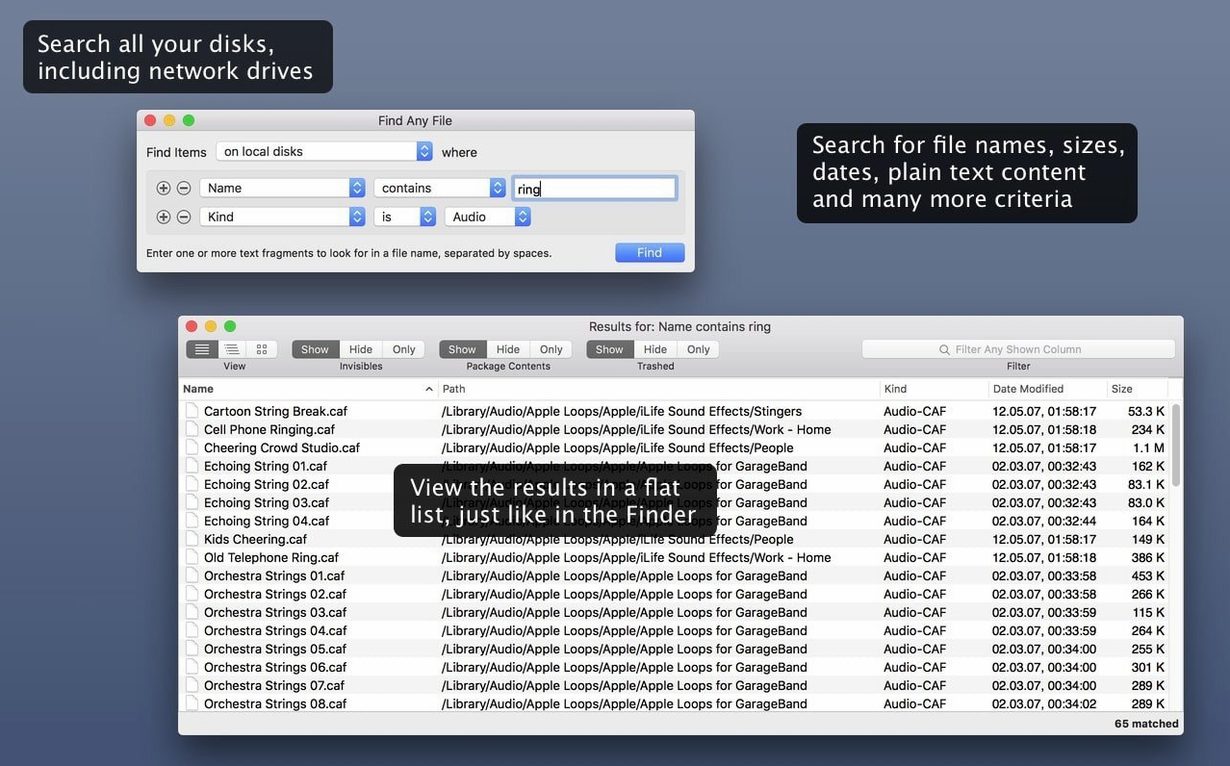
Version 2.6.1 of Find Any File works from macOS 10.11 up through what may be version 27. It searches disks directly instead of using a database, so it can look through server volumes and other drives that Spotlight never indexes. The developer presents it as a companion to Spotlight, not a replacement for searching email, Word, or PDF documents.
Finding a missing project file on an external drive
Plug in the drive, open Find Any File, and set the search scope to that disk. Type part of the file name and a date range if you remember roughly when you last saved it. The app scans the disk on the spot — no waiting for an index to update. Results appear as it finds them, and you can open the file's location directly from the window.
Using it alongside Spotlight
For everyday searches inside your home folder, Spotlight is faster because it reads a pre-built index. Find Any File fills the gap when that index does not cover the disk you need, or when you want columns like Comments, Trashed, and Hidden — those were added in version 2.6. Tembo is another tool mentioned on the developer page for improving Spotlight results, but Find Any File has a different approach: it reads the disk directly, every time.
How Find Any File differs from EasyFind
EasyFind is another Mac app that searches by file name and content without using an index. Both can find files inside bundles and system folders. EasyFind has a simpler interface and focuses on fast plain text searches. Find Any File gives you more control over the search scope — you can pick specific disks or folders, and the results display in a hierarchical folder view that shows where each file lives in the folder tree. EasyFind shows results as a flat list, which can be harder to navigate when you are looking for files deep inside a project folder.
Tembo tries to improve Spotlight by rebuilding its index and offering a different results view. It still relies on the Spotlight database at its core. Find Any File skips the database entirely. If the Spotlight index is damaged or missing files on a server volume, Tembo will not help. Find Any File reads the disk directly, so it can find anything that is physically there, including files inside packages and hidden system directories.
Neither EasyFind nor Tembo covers quite the same ground. Find Any File is the tool I reach for when I need certainty that I have seen every file in a given location, not just the ones an index remembers.
Recovering a deleted .pages file from a network volume
One of the teachers in my building stores student project files on a network volume shared across the school. A student deleted a folder by accident last term, and the teacher needed to find a specific .pages file from two months ago. Spotlight on the server volume showed nothing — it does not index that drive. The teacher had been using the school's backup system to recover the file, but the backup only runs at night. Find Any File found the file by name and a date range in under a minute, even though it was sitting in a Trash folder on the network volume that Finder hides. The Comments column, added in version 2.6, also helped locate files that had been stored with notes in the Finder info window. That saved the teacher from restoring from backup and waiting until the next morning.
Workflow: searching a USB drive for a file by name and text content
Here is how I walk a student through a real task with Find Any File, start to finish.
- Insert the USB drive and wait for it to appear on the desktop.
- Open Find Any File. In the search window, select the USB drive from the list of volumes. Do not use the default "Home Folder" scope.
- Type part of the file name in the "Name contains" field. If the student remembers a word inside the document, type that word in the "Text contains" field. Find Any File only searches plain text files, not Word or PDF, so this works best for .txt, .rtf, or source code files.
- Leave the date fields empty or set a rough range if you know the file was created or modified within a specific month.
- Press Return. The app begins scanning the drive. Results appear in the main window as it finds them, grouped in a folder tree so you can see where each file lives.
- Double-click a file in the results to open it. Right-click and choose "Show in Finder" to reveal the enclosing folder if you need to move or copy it.
This workflow takes about thirty seconds once the drive is connected. No index to build, no preferences to set. It just works on whatever disk you plug in.
- AppleScript support added in the 2.6 release.
- Columns for Comments, Trashed, and Hidden added.
- Finding comments became more reliable.
- macOS OS X 10.11 or later
- Intel and Apple Silicon (both architectures)
- Interface language: English
Questions I keep getting
Can Find Any File replace Spotlight for searching PDFs?
No. The developer states it is not a replacement for searching email, Word, PDF, and similar documents.
What was added in the 2.6 release?
AppleScript support, columns for Comments, Trashed, and Hidden, and more reliable finding of comments.
How to install
- Mount the disk image and run Open Gatekeeper friendly.
- Press Enter to bypass Gatekeeper in the Terminal window.
- Drag the app to the Applications folder.
- Start the app when copying is complete.
Similar apps





Sign in or join the club to leave a comment.
Nobody has commented yet.