
- Version
- 5.3.0
- Studio or maker
- Damir Tursunovic
- Languages
- English, German, Chinese (Simplified), Dutch
- Activation
- Included
- Runs on macOS
- macOS 12 or later
- Chip type
- Apple Silicon, Intel 64-bit
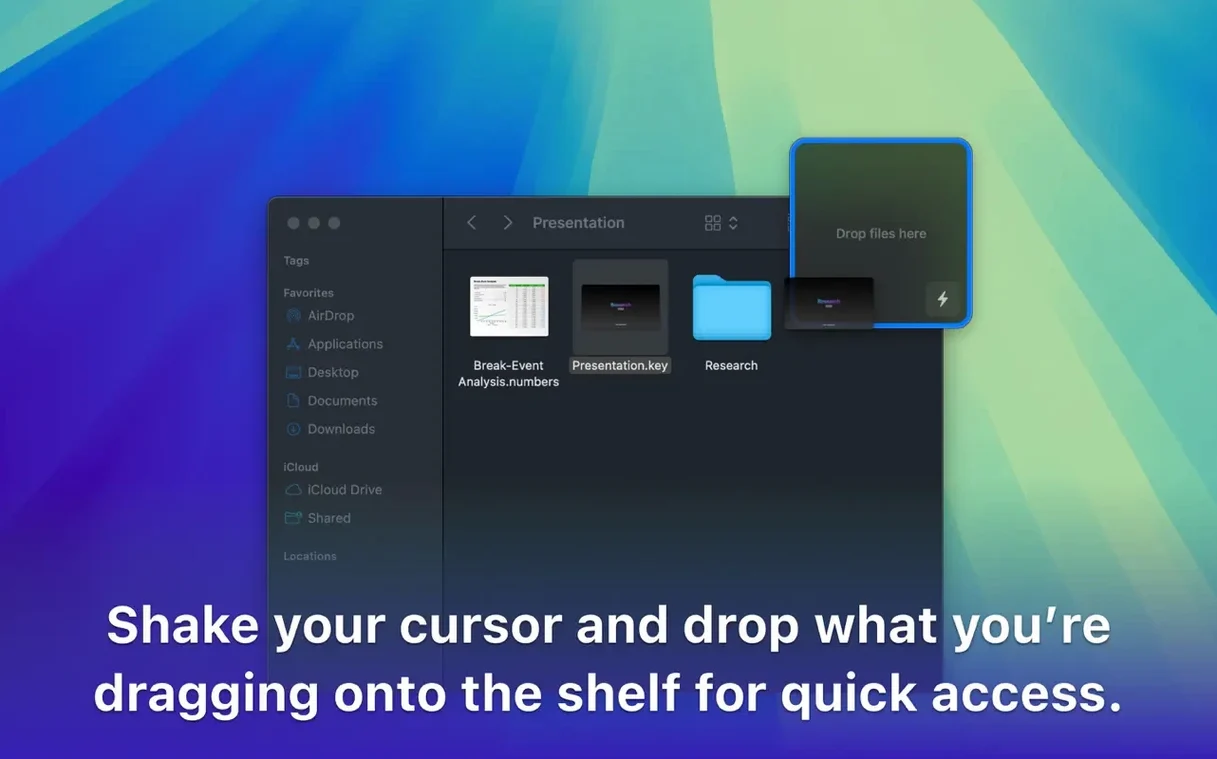
You already use drag and drop every day—moving files between folders, attaching images to emails, copying text between apps. Dropover builds on that habit by giving you a temporary floating shelf where you can stage items before you drop them where they need to go. It works with files, folders, images, links, and text, and lets you switch between apps or Finder windows before releasing everything at once.
Runs on macOS 12 or later, Intel or Apple Silicon
Dropover version 5.3.0 requires macOS 12 or later. It runs on both Intel and Apple Silicon Macs. The interface is available in English, German, Simplified Chinese, and Dutch.
Customize size, transparency, position, and connect cloud services
Once installed, you can customize the shelf’s size, transparency, and position to suit your screen layout. From the shelf you can archive, rename, or share items, and you can integrate it with cloud services like Google Drive and Dropbox. It also works with Shortcuts for more advanced automation.
How Dropover compares with similar Mac tools
There are a few other apps that try to make drag and drop easier on Mac, but Dropover approaches it a differently. Yoink is probably the closest alternative—it also creates a floating shelf for temporary file storage. Where Dropover stands apart is in its integration depth: it appears in right-click context menus and share sheets, so you can send items to the shelf without dragging them first. Yoink focuses more on the shelf itself and feels more like a visual clipboard for files.
Unclutter takes a different angle. It gives you a panel that slides down from the top of the screen and holds file storage, a clipboard manager, and a quick note area all in one. Dropover is more focused—it does just one thing (staging drag and drop items) and does it without adding extra features you might not need. If you only want a place to collect files while navigating between folders and apps, Dropover keeps things simpler.
Dropshelf is another option, but it relies on a horizontal panel at the bottom of the screen and has a more visual, almost iOS-like feel. Dropover gives you more control over the shelf’s position and transparency, which matters if you use a non-standard screen layout or need the shelf tucked into a corner without blocking other windows.
None of these apps replace each other exactly—it comes down to whether you prefer a shelf that stays out of the way until you need it (Dropover) versus one that is always visible or tied to a specific screen edge.
Best for frequent file movers between apps
People who move files between multiple applications throughout the day will feel the benefit most. If you regularly grab images from a browser, attach them to an email, then copy a link into a document, Dropover saves you from switching windows over and over again. Teachers and office workers who organize folders by hand, pulling files from downloads, shared drives, and email attachments, will find the shelf a practical middle ground.
Dropover also suits anyone who uses cloud services like Google Drive or Dropbox as part of their daily workflow. Instead of uploading files one by one, you can gather them in the shelf first and then drag them to the browser or sync folder in one go. For people who rename or archive files before sending them, the shelf’s built-in options for those tasks keep you from opening a separate app or Finder window each time.
If you use macOS Shortcuts, Dropover extends that further. You can build automations that send items to the shelf, process them, and then move or share them—useful for repetitive tasks like sorting screenshots or organizing downloaded assets.
Make the shelf more opaque for bright screens
After installing Dropover, open its preferences and adjust the shelf transparency. The default setting is fine for most screens, but if you work with bright backgrounds or multiple overlapping windows, making the shelf slightly more opaque helps you spot files at a glance without squinting. Next, set the shelf position to a corner of the screen where it won’t interfere with your other apps. The lower right is a popular choice because it stays away from the menu bar and the dock.
Hotkeys are the other setting to enable early. Assigning a keyboard shortcut to open or hide the shelf means you never have to reach for the mouse when you want to clear it out or check what is inside. This is especially useful if you already use keyboard shortcuts for copy, paste, and window switching.
Appears only when dragging, uses little space
Dropover runs on macOS 12 and newer, and works on both Intel and Apple Silicon Macs. The app is small and uses very little screen space when the shelf is not active—it only appears when you start dragging items or summon it with a hotkey. You control the shelf size, so if you prefer a compact strip for a few files or a wider panel for many items, that choice is up to you. The interface uses standard Mac controls, so nothing about the look or feel will surprise you if you are used to native macOS apps. The shelf stays on top of other windows while you work, and dismisses itself when you drop the items or clear it manually.
- macOS 12 or later
- Intel or Apple Silicon
- Interface languages: English, German, Simplified Chinese, Dutch
Questions I keep getting
Does Dropover work with cloud storage services?
Yes, it can integrate with services like Google Drive and Dropbox, so you can stage files from those folders.
Can I customize how the shelf looks?
You can adjust the shelf’s size, transparency, and position on screen.
What kinds of items can I put in the shelf?
The shelf handles files, folders, images, links, and text.
How to install
- Mount the downloaded disk image to access the app.
- Drag the app to the Applications folder alias inside the disk image.
- Open Launchpad and launch the app after the copy finishes.
Similar apps



Sign in or join the club to leave a comment.
Nobody has commented yet.