
- Version
- 20.1.7 (9559)
- Studio or maker
- Micromat Inc.
- Languages
- English
- Activation
- Included
- Runs on macOS
- macOS 10.13 or later
- Chip type
- Apple Silicon, Intel 64-bit
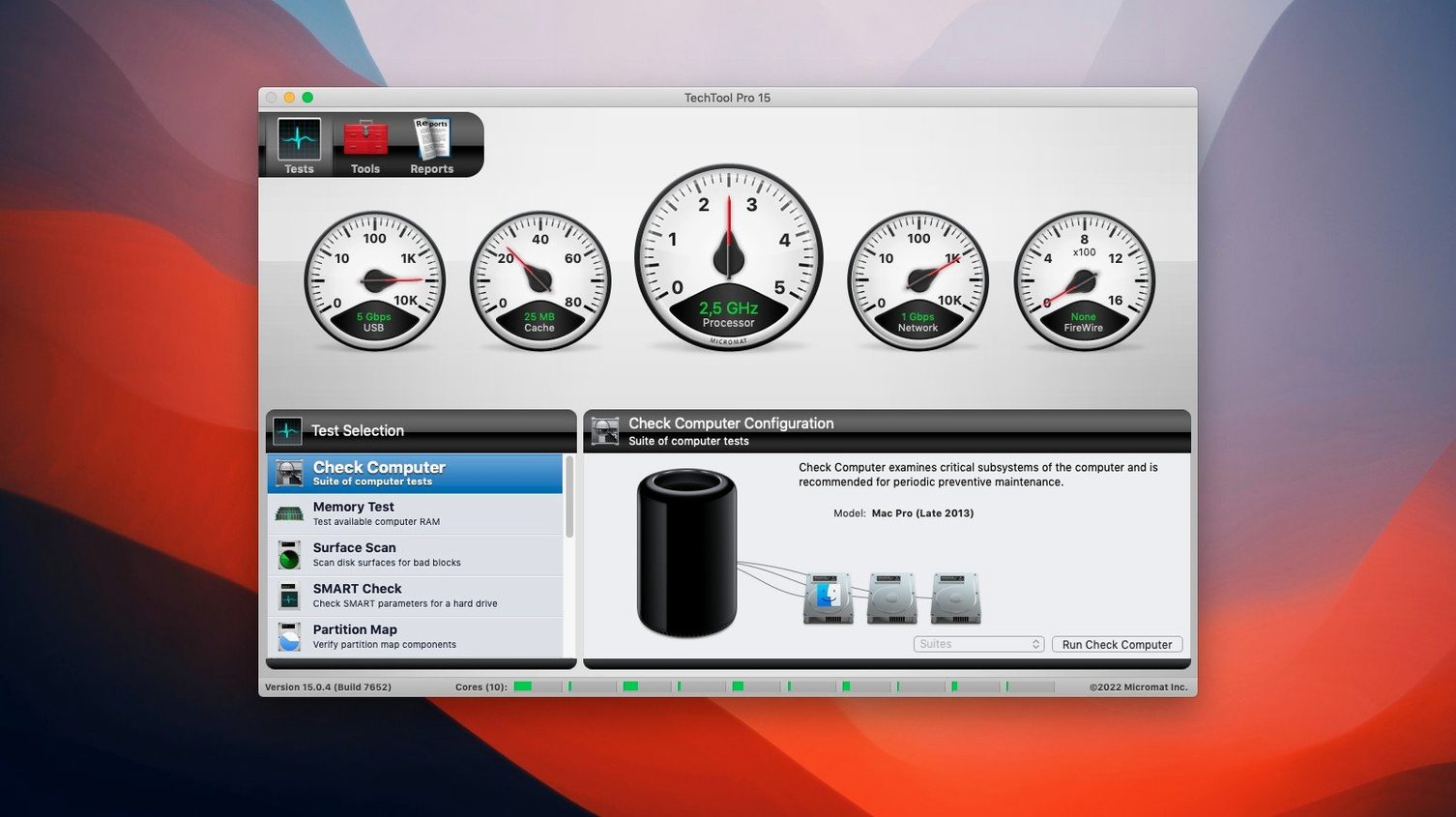
Techtool Pro runs on any Mac with macOS 10.13 High Sierra or later, including both Intel and Apple Silicon machines. It is a focused utility for diagnosing hardware problems, repairing damaged volumes, and recovering lost data. Here is how the main features work in a typical repair workflow.
- Create bootable media with Protogo. Before working on a troubled drive, install Techtool Pro onto a USB stick or external drive. This gives you a clean environment to run diagnostics without interference from the system you are fixing.
- Run hardware tests. The utility checks memory, storage, and sensors. If it finds a problem, Techtool Protection can display an on-screen alert and send an email notification to whoever manages the machine.
- Scan and repair volumes. This step handles damaged volumes, including SSDs. It can restore file access permissions and fix the directory structure so the drive mounts and works again.
- Recover files from bad blocks. If the drive has physical damage, Techtool Pro can detect bad blocks and attempt to retrieve the data stored there. It can also recover deleted files and lost data from formatted or damaged partitions.
- Clone and verify. The volume cloning feature creates a byte-for-byte copy of a drive. Version 20.1.7 corrected an issue where a File Sync clone could fail during verification, making this step more reliable.
For schools or small offices, the configuration monitoring feature scans connected Macs on a local network and reports hardware and software changes. It is a practical way to keep an eye on lab machines without visiting each one.
A school IT coordinator might use Techtool Pro differently than a home user. Imagine you manage a lab of twenty iMacs used by students aged twelve to sixteen. One morning, a machine refuses to boot past the gray screen. You do not want to reimage it yet because a student's project folder is still on the desktop. With Techtool Pro, you boot from a Protogo USB, run a volume repair, and recover the files onto an external drive. The whole process takes under an hour instead of the half-day a reimage would cost. The same coordinator can set up Techtool Protection to email alerts whenever a lab Mac's hard drive starts reporting SMART warnings, catching problems before they become emergencies.
Why running Techtool Pro from a damaged system fails
New users often skip the Protogo step. They install Techtool Pro on the same drive they want to repair, run a scan, and wonder why the tool reports errors it cannot fix. Running diagnostics from inside a damaged system is like asking a plumber to fix a pipe while water is still running. Boot from external media, and the results are cleaner.
Another common error is running a volume repair without first backing up the data. Techtool Pro is reliable, but any repair operation on a damaged drive carries a small risk. A beginner sees a failed volume and clicks repair immediately. A better approach is to clone the drive first, then attempt repairs on the clone. If something goes wrong, the original is still there.
Some users also ignore the SMART monitoring feature until it is too late. They buy Techtool Pro, run a single test, see no problems, and close the app. The real value is in continuous monitoring. Set up Techtool Protection once, let it check the drive's SMART status daily, and it will warn you when a drive is heading toward failure. That warning gives you time to back up and order a replacement drive.
A workflow for recovering a single deleted file
Suppose you deleted a file from an external SSD a week ago and emptied the trash. Here is a direct workflow using Techtool Pro.
- Prepare a Protogo drive. Connect a USB stick with at least 8 GB of space. Open Techtool Pro and use the Protogo feature to create a bootable copy of the utility. Restart the Mac while holding the Option key and select the Protogo drive as the boot device.
- Run a volume scan. Once booted from the USB, select the external SSD from the device list. Choose the volume repair option. Techtool Pro scans the drive's file system and identifies deleted file entries that are still recoverable. This scan does not change anything on the drive yet.
- Mark files for recovery. When the scan completes, the utility presents a list of recoverable files sorted by name and date. Find the file you need, check its size and last modified date to confirm it is the right one, and select it.
- Save recovered data. Choose a destination that is not the same drive you are scanning. An external hard drive or a network share works well. Techtool Pro writes the recovered file to that location. The original SSD remains unchanged, so you can repeat the process if the first attempt does not produce a usable file.
For a school environment, this workflow is useful when a student accidentally deletes an essay or a project file. It avoids the need to restore from a backup server and gets the student back to work before the end of the class period.
- macOS 10.13 High Sierra or later
- Intel or Apple Silicon processor
- Interface language: English
Questions I keep getting
Can Techtool Pro fix a Mac that won't start?
Yes. You can use the integrated Protogo feature to create a bootable USB drive with Techtool Pro installed. Booting from that drive lets you run diagnostics and repair the internal volume even if the normal startup is broken.
Does Techtool Pro work on Apple Silicon Macs?
Yes, it runs natively on both Intel and Apple Silicon Macs. The system requirement is macOS 10.13 High Sierra or newer.
How to install
- Mount the downloaded disk image.
- Run the standard installer and follow the prompts.
- Use the SN.txt file included in the download to activate the software.
Similar apps





Sign in or join the club to leave a comment.
Nobody has commented yet.