
- Version
- 2.4.0
- Studio or maker
- iZotope
- Languages
- English
- Activation
- DRM-free
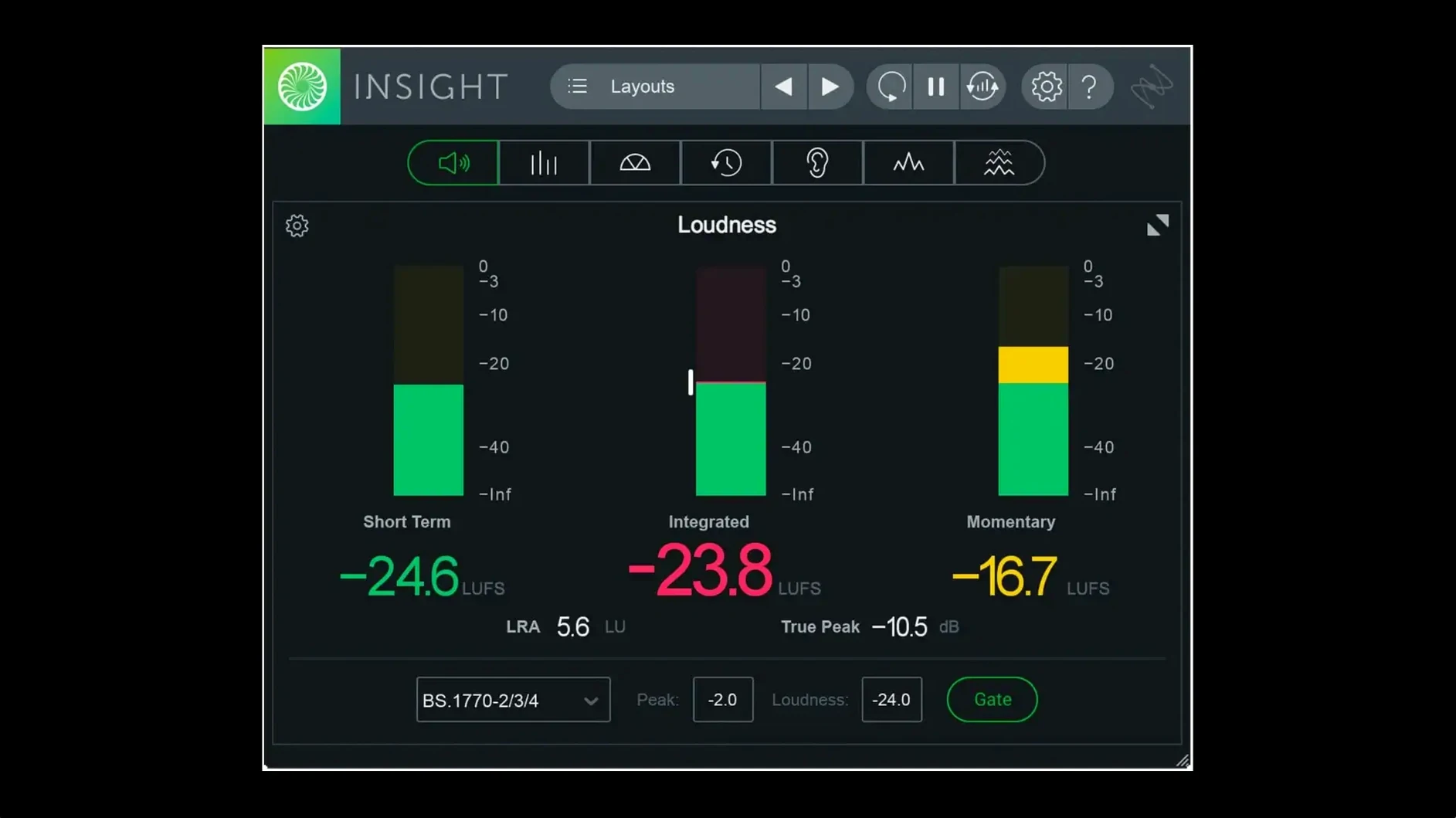
When a mix sounds off but you can't pinpoint why, a good meter is the fastest way to find the trouble. iZotope Insight 2 gives you a detailed look at loudness, spectral balance, and intelligibility, so you can spot problems instead of guessing.
Checking tracks for level and frequency issues
- Checking individual tracks for level or frequency issues before they pile up.
- Measuring bus and master loudness against broadcast standards, including updated specs and multichannel support up to Dolby Atmos 7.1.2.
- Comparing mixes or A/B-ing different routing options—Insight accepts audio from any track or bus.
- Teaching students or junior engineers what a balanced mix looks like.
CPU load and English-only interface
- The interface is in English only.
- Deep analysis with scalable metrics is available, but it can be CPU-hungry on large sessions.
- Multi-user installation is supported, handy for shared studio machines.
- Preset management got factory and custom tabs in version 2.4.0.
Runs natively on Apple silicon
A few things come up often when someone is about to put Insight 2 on their system. First, whether it works natively on Apple silicon. Yes — version 2.4.0 includes native arm64 support for both the plug-in installer and AAX in Pro Tools 2023.3 and later. You don't need Rosetta for this one.
Another common question is whether it works as a standalone app. It does not. Insight 2 is a plug-in that loads inside a DAW or audio editor. You insert it on a track, bus, or master channel and it reads whatever audio passes through it.
People also wonder if they need to install iZotope Relay separately since it used to be bundled with Insight. Starting with version 2.4.0, Relay is no longer part of the installer. If you need Relay for routing audio between tracks and Insight, you download it separately. The activation process has changed too — the package now uses a DRM-free authorization workflow, and full instructions come with the download.
Putting it on the master output only sees that channel
The most common slip is putting Insight on the master output and expecting it to tell you everything about every track at once. It can't — it only sees what runs through the channel it sits on. To check individual instruments or submixes, you need an instance on each bus or track you want to examine. That is where the scalable meters help: resize each instance so you see what matters without cluttering the screen.
Another mistake is ignoring the loudness history graph. Beginners often watch the real-time meters and miss the broader picture. The history graph shows how loudness builds over the whole song or session, which is the only way to tell if your chorus really hits harder than the verse. Relying on momentary numbers alone can lead to uneven masters.
Some users also overlook the color signals that flag potential problems. The meters change color when something is out of range — a common beginner habit is to keep mixing until the mix sounds good without checking why the meter turned red. That color is a shortcut. If the loudness meter shows red at the true peak, you are clipping somewhere. If the stereo vectorscope looks like a vertical line, your mix is mono. Those signals save time if you look at them.
Finding a buried vocal in a dense pop mix
I opened a mix I had been struggling with — a dense pop arrangement with layered synths and a vocal that kept getting buried in the chorus. I inserted Insight 2 on the master bus and pulled up the loudness meter first. The integrated loudness was fine, but the momentary true peak meter showed a spike every few bars, right when the kick and bass hit together. That explained the distortion I had been chasing.
I then added a second instance on the vocal bus and switched its display to the 2D spectrogram. The vocal sat cleanly in the midrange, but there was a bump around 200 Hz that made it sound boxy. I went back to the EQ on that track and cut a few decibels there. The spectrogram updated immediately, so I could see the dip appear.
For the stereo field, I checked the vectorscope on the full mix. The synths were panned wide, which looked good, but the bass was wandering toward the left channel in one section. I fixed that with a utility plug-in. Finally, I used the loudness history graph to run through the whole song from start to finish. The chorus was about 1.5 LU louder than the verse — a natural lift that did not need correction.
By the end of that session, I had three instances of Insight 2 open: one on the master, one on the vocal bus, and one on the drum group. Each was resized to show only the meters I needed — history on the master, spectrogram on the vocals, vectorscope on the drums. The whole process took about ten minutes, and I had a clearer view of the mix than I had after hours of guessing the week before.
- Native arm64 AAX support for Pro Tools 2023.3+ on Apple silicon Macs.
- Native arm64 install support for Apple silicon Macs.
- Factory and custom preset tabs added to the preset manager.
- macOS Big Sur or later
- Intel or Apple silicon
Questions I keep getting
Does Insight 2 support Apple silicon Macs?
Yes, version 2.4.0 added native arm64 install support and native AAX support for Pro Tools 2023.3+ on Apple silicon Macs.
How to install
- Open the package and follow the included install instructions—they cover both Intel and Apple silicon Macs.
- Run the activation steps provided in the package to license the plugin.
Similar apps

Sign in or join the club to leave a comment.
Nobody has commented yet.