

- Version
- 4.1.0
- Studio or maker
- iZotope
- Languages
- English
- Activation
- K'ed by TEAM HCiSO
- Runs on macOS
- macOS 10.15 or later
- Chip type
- Apple Silicon, Intel 64-bit
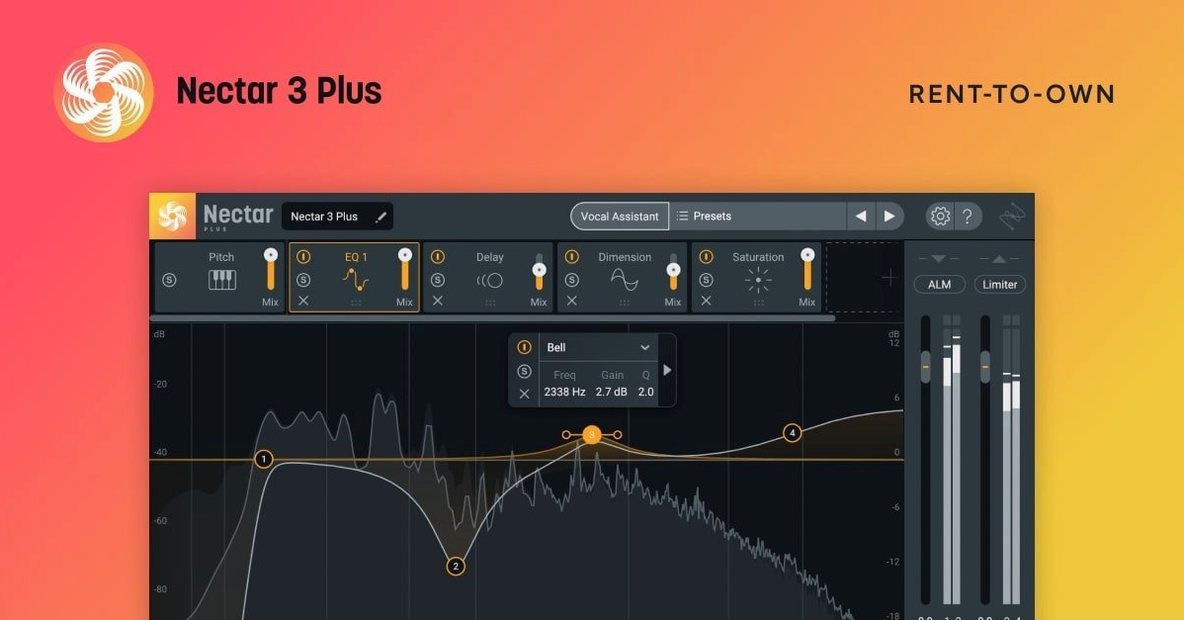
Nectar 4.1.0 brings the vocal suite up to date with new modules and a refreshed minimum system requirement of macOS Ventura 13.7.4. The plugin works as a complete vocal processing chain for mixing, producing, and shaping vocals, giving you detailed control over tone, compression, echo, and width.
Insert Nectar directly on a vocal track or bus
Tracks — insert Nectar directly on a vocal track for quick, focused processing like EQ, compression, and de-essing.
Buses — place it on a vocal bus to glue harmonies or apply consistent ambience across multiple vocal layers.
Typical jobs — use Vocal Assistant for automatic analysis and improvement, then fine-tune individual modules. Auto-Level (Advanced only) keeps levels steady, Voices adds creative doubling, and Backer (Standard and Advanced) shapes background vocals.
Nectar’s all-in-one chain vs. Waves Tune’s pitch focus
In the vocal processing space, Nectar sits alongside a few well-known alternatives. Waves Tune focuses heavily on pitch correction and real-time tuning, but it doesn't offer the same all-in-one chain of modules for compression, EQ, and spatial effects. You would typically pair it with other plugins for a full vocal finish. Antares Auto-Tune is the industry standard for pitch correction and has its own effects rack, but its workflow leans toward precise note-based editing rather than the broader pattern of leveling, de-essing, and ambience that Nectar handles in a single instance. Nectar's advantage is the combination of AI-assisted analysis — the Vocal Assistant — with dedicated modules like Auto-Level and Backer that address specific mixing problems without hunting for separate plugins. For producers who want one plugin to cover the main vocal tasks, Nectar reduces session complexity.
A podcaster fixing uneven volume and boxy room tone
Consider a podcaster who records at home and edits in a DAW like Logic Pro. The raw vocal has uneven volume, occasional breath noises, and a slightly boxy tone from the room. Rather than inserting a compressor, an EQ, a de-esser, and a noise gate separately, they drop Nectar on the track and run the Vocal Assistant. The assistant listens to a few seconds, sets a starting point for compression and EQ, and flags where the breath noise is loudest. The podcaster then adjusts the built-in de-ess and EQ to taste, and uses the Auto-Level module (if they have the Advanced edition) to smooth out the remaining level jumps without writing volume automation by hand. The whole session stays tidy, and the final audio sounds more consistent without requiring advanced mixing knowledge.
HiDPI support and authorization fix in the 2025 update
The update to 4.1.0, released on June 25, 2025, made several practical adjustments. Windows users gained HiDPI support, which keeps the interface sharp on high-resolution displays — a quality-of-life fix for those switching between multiple monitors. The authorization failure that could occur with Nectar Standard and iLok was resolved, so the plugin should activate without unexpected errors. The supported DAW and NLE versions were updated, and the Mac minimum moved from an earlier macOS to Ventura 13.7.4, which means anyone on an older system needs to plan an upgrade before installing. For most users, the most visible change is simply that the plugin works with fewer activation hiccups and a cleaner interface on Windows setups.
Start with Vocal Assistant on a short take to compare
- Start with Vocal Assistant on a short take. Let it analyze a verse or a sentence to get a baseline, then bypass it and compare. You will quickly see which modules it adjusted the most.
- Turn off modules you do not need. If you are only after compression and EQ, disable Auto-Level, Voices, or Backer to save CPU. Each module can be toggled individually.
- Use the presets as starting points, not finished mixes. Nectar includes several genre and situation presets. Load one that matches your source, then tweak the threshold and ratio on the compressor module to fit your singer's dynamics.
- Check the module order. The signal chain inside Nectar can be rearranged in some editions. If your EQ is cutting low-end before compression, try moving compression first to even out the level before shaping tone.
- Audition the breath noise removal carefully. The de-ess and breath control modules can sound natural at moderate settings, but aggressive reduction may make the vocal feel clipped. Solo the module and listen to the difference.
Nectar 4 comes in Elements, Standard, and Advanced, so you can pick the feature set that matches your workflow. The interface is in English.
- Windows HiDPI support was added.
- Fixed an authorization failure for Nectar Standard with iLok.
- Supported DAW/NLE versions were updated.
- Minimum macOS version is now Ventura 13.7.4.
- macOS Ventura 13.7.4 or later
- Intel or Apple Silicon
- Interface language: English
Questions I keep getting
Which modules are new in Nectar 4?
Nectar 4 adds Auto-Level, Voices, and Backer. Auto-Level is only in Advanced, while Backer is in Standard and Advanced.
What is Vocal Assistant?
Vocal Assistant is an AI-based tool that analyzes your recording and suggests processing to improve it automatically.
Does Nectar 4 work on Intel Macs?
Yes, Nectar 4 supports both Intel and Apple Silicon Macs, as long as you run macOS Ventura 13.7.4 or later.
How to install
- Open the package and run the installer.
- Follow the included installation and activation guide to authorize the plugin with iLok.
- Restart your DAW and load Nectar on a vocal track or bus.
Similar apps

Sign in or join the club to leave a comment.
Nobody has commented yet.