
- Version
- 5.2.0
- Studio or maker
- iZotope
- Languages
- English
- Activation
- K'ed by TEAM HCiSO
- Runs on macOS
- macOS 13.4 or later
- Chip type
- Apple Silicon, Intel 64-bit
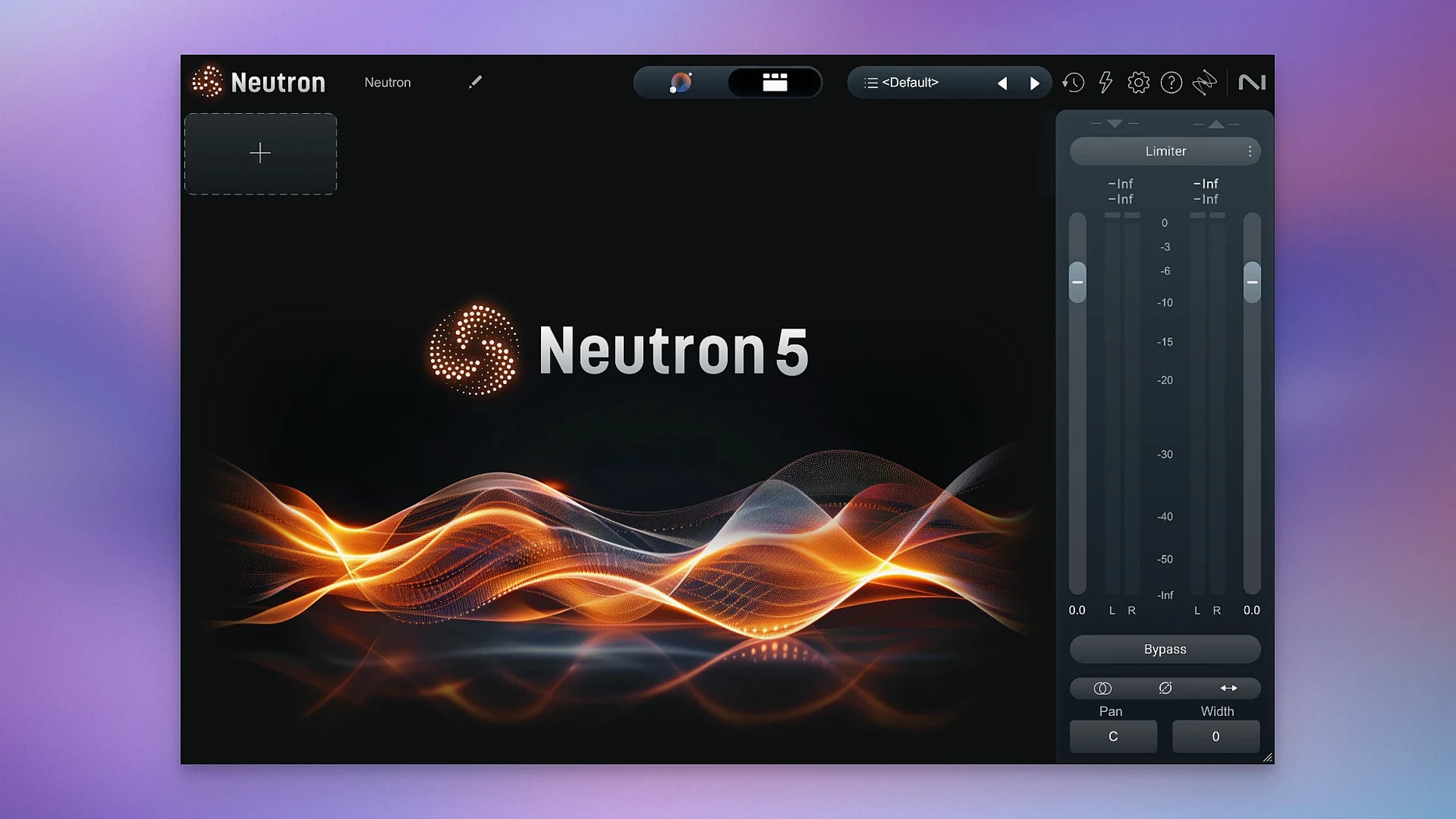
Studio engineers and home producers who mix regularly will find a practical companion in iZotope Neutron. This professional mixing suite uses AI-powered features to speed up the repetitive parts of balancing a session, so you can spend your energy on the creative decisions.
Setting up a mix quickly with the AI-powered Mix Assistant
- Setting up a starting mix quickly with the AI-powered Mix Assistant, which learns from your track levels and suggests a balanced foundation.
- Working with virtual instruments and recorded audio alike, thanks to professional instrument profiles and the option to base the Assistant on your own reference tracks.
- Keeping an eye on levels with clearer metering and visualizations that make gain staging less guesswork.
macOS 13.4 or later required; English-only interface
- Version 5.2.0 changed the supported macOS versions, so check that your system is on macOS 13.4 or later.
- The interface is in English only.
- Neutron 5 Elements is part of the family, a lighter option if you need fewer tools.
- The redesigned Assistant View acts as an intelligent control center, but it still benefits from a quick listen and manual tweaks.
Neutron runs natively on both Apple Silicon and Intel Macs, and the current version fixes an iLok authorization issue in surround instances. If you mix in surround, that alone is worth the update.
Let's walk through a typical session where Neutron helps you build a mix from scratch, then look at who gets the most out of it and where beginners tend to trip up. I'll also cover what the latest maintenance update means for everyday use.
Starting a mix with the Mix Assistant
Open a session that has rough levels set. Each track should play at the volume you'd roughly want in the final mix — nothing precise, just your initial judgment. Insert Neutron on a track. Open the Assistant view and pick an instrument profile that matches what the track carries. Vocals, acoustic guitar, kick drum, each profile tunes Neutron's modules to expect certain frequency ranges.
You can tell the Assistant to listen to a reference track if you have one. This is useful when you're aiming for a specific tonal balance similar to a finished song you admire. The Assistant analyzes the reference's spectral shape and applies that character to your track's processing. Without a reference, Neutron uses its built-in knowledge of typical instrument ranges.
Once you run the Assistant, it sets compression, EQ, and other modules based on what it hears. Play the track and listen. The Assistant's work is a starting point, not a final mix. You'll want to adjust thresholds, tweak EQ curves, and maybe bypass a module entirely. Each module has a Delta button — press it and you hear only the change the module makes, not the original signal. This makes it easy to judge whether a compressor or EQ is actually improving the sound or adding unwanted artifacts.
Repeat this process for each track in your session. After running the Assistant on all tracks, listen to the whole mix. The Masking module, which detects frequency clashes between tracks, becomes useful here. It shows you where two instruments compete for the same space and suggests corrective EQ moves. You can apply those suggestions or adjust manually.
Finally, for individual tracks that need character, explore Trash Mode for distortion and Punch Mode for controlling the impact of drums or transients. These are not subtle tools — they add deliberate color. Use them sparingly at first.
Mix engineers save hours per week with the Mix Assistant
Mix engineers who work on multiple projects per week get the clearest time savings. The Mix Assistant cuts down the initial balancing phase from maybe twenty minutes per track to a few seconds. If you mix five songs a week, that adds up to hours saved across a month.
Home producers who operate without a treated room also gain something valuable. The Assistant's analysis is based on the signal itself, not on how your room colors the sound. You can trust its suggestions more than you'd trust your ears in a room with poor acoustics. That said, always check in headphones or on speakers you know well.
Post-production users working on dialogue or sound effects for video can use Neutron's metering and visualizations to maintain consistent levels across clips. The clear gain reduction meters and frequency analyzers make it easier to match loudness without excessive listening.
Beginners who are still learning what compression and EQ sound like benefit from the Assistant's choices as a teaching tool. See what the Assistant does, then undo it and try to match it by ear. Compare your settings with its recommendations. Over time, you train your ear and learn to make faster decisions without assistance.
Treating the Assistant's output as a finished product
The most common error is treating the Assistant's output as a finished product. The Assistant sets a foundation, not a mix. Relying on it entirely leaves you with a mix that sounds balanced but lifeless. Every module needs a critical listen and manual adjustment.
Another mistake is ignoring the Delta button. When you activate a compressor or EQ, your brain quickly adapts to the processed sound. Pressing Delta shows you what was there before, and the difference can be eye-opening. Beginners often leave modules active when they should bypass them because they forget to judge the change in isolation.
Beginners also tend to overuse the Masking module's automatic suggestions. Masking is a real problem, but not every frequency clash needs fixing. Sometimes two instruments sharing the same space creates a pleasant thickness. Apply suggestions selectively and trust your ears over the visual display.
Finally, some users skip setting up instrument profiles and let the Assistant guess. The Assistant is smart, but a correct profile gives it a much better starting point. If you tell it that a track is an acoustic guitar, it won't try to make it sound like a bass. Taking thirty seconds to set the profile saves ten minutes of corrections later.
iLok authorization fixed for surround mixing
The current version is a maintenance update, not a feature release. Two changes affect daily work. First, iLok authorization now works correctly in surround instances. If you mix in 5.1 or 7.1, that bug was frustrating — Neutron wouldn't authorize in those session types, forcing a workaround or a restart. That is fixed now.
Second, the supported macOS versions changed. Version 5.2.0 requires macOS 13.4 or later, so if you were running an earlier version of macOS 13, you need to update your operating system before installing this update. This is worth checking before you download, particularly if your system stays on an older macOS for compatibility with other plugins.
For stereo mixing on a recent macOS, the update brings no new features and no workflow changes. The interface, Assistant, and all modules work the same as in 5.1. If you didn't encounter the iLok surround bug, there's no pressing reason to update beyond staying on the latest maintenance release for stability.
- Fixed iLok authorization not working in surround instances of Neutron 5.
- Updated the list of supported macOS versions.
- macOS 13.4 or later
- Apple Silicon or Intel (x86 64-bit)
Questions I keep getting
Which macOS versions does Neutron 5.2.0 support?
Neutron 5.2.0 requires macOS 13.4 or later, and it runs on both Apple Silicon and Intel Macs.
Does Neutron include a distortion effect?
Yes, the suite includes Trash Mode for adding distortion when you need it.
What languages is the interface available in?
The interface is in English only.
How to install
- Open the downloaded package and follow the installer steps. The package includes both installation and activation instructions, so you won't need to search for them separately.
Similar apps
Sign in or join the club to leave a comment.
Nobody has commented yet.