
- Version
- 1.768
- Studio or maker
- xferrecords
- Languages
- English
- Activation
- Included
- Runs on macOS
- OS X 10.11 or later
- Chip type
- Apple Silicon, Intel 64-bit
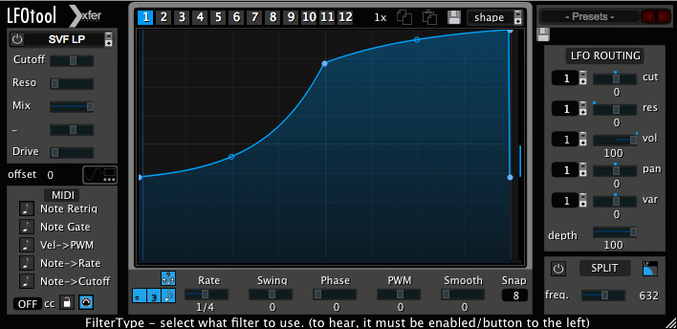
LFO Tool can hold up to 12 graphs in one preset, with 4 of them running at the same time. That means you can assign one graph to filter cutoff, another to resonance, a third to pan, and still have one left for something like volume or send level — all from a single instance of the plug-in.
Where does LFO Tool sit in a session?
Drop it on a track or a bus like any other audio effect. On a synth track, use the MIDI CC output to modulate parameters that the synth itself cannot reach. On a drum bus, apply a rhythmic LFO to the whole group for filter sweeps or width changes that stay locked to the tempo.
How do the graphs work together?
Each of the 12 graphs in a preset acts as its own LFO lane. You can switch between them by MIDI notes or automation, which lets you change the modulation pattern mid-song without loading another plug-in.
Can it control external hardware?
Yes. LFO Tool sends MIDI CC messages out to other software instruments, effects, or external hardware. If your host routes MIDI from a plug-in track to another device, the LFO becomes a modulation source for gear that normally ignores standard automation.
Setting up a sidechain pumping sound from scratch
One of the most common requests in the game club's music corner is the sidechain compression effect you hear in electronic tracks. LFO Tool can do this without a separate compressor. Here is a start-to-finish workflow.
- Insert LFO Tool on the track you want to pump. This could be a pad, a synth bass, or a held chord. The plug-in processes incoming audio, so place it before any reverb or delay in the chain.
- Pick a preset that shapes volume over time. Scroll through the presets until you find a rhythmic curve. The default shapes tend to give a clear pulse without much tweaking.
- Set the LFO rate to match your track tempo. Switch the rate control to BPM mode and type in the tempo of your project. The optional swing slider lets you push the timing slightly off the grid if the track needs a looser feel.
- Route the LFO to amplitude. The plug-in can modulate volume directly by using one of the four active graphs on the track's gain. This creates the ducking effect that mimics a sidechain compressor.
- Adjust the curve shape until the pump sounds natural. Use the point-and-tension editor to soften the attack or stretch the release. A longer release makes the volume come back gradually, which works well for slower tempos.
- Send MIDI CC to other elements if needed. Once the pumping works on the main track, route the MIDI message stream to a bass or a percussion instrument so they pulse together. Each graph can send its own MIDI CC number, so the same LFO pattern can control volume on one track and filter cutoff on another.
This setup takes about two minutes once you know which preset to start from. The CPU load stays low because the plug-in is written in C++, which matters when you have several instances running across a full session.
Activate before the 15-minute demo expires
When you open LFO Tool for the first time, the 15-minute demo limit starts immediately. The installation and activation instructions are included with the download, so follow those steps before you begin experimenting. Once activated, here is what to try early on.
Start with a preset and change one thing
Open a preset and pick one graph. Change only the curve shape using the editor. Move a single point or adjust the tension. Listen to how that one edit changes the modulation. This teaches you what each curve does without overloading your ears with too many simultaneous changes.
Map the graphs to different destinations
A preset can hold 12 graphs, but only 4 run at the same time. Assign one graph to filter cutoff, one to resonance, one to pan, and one to volume. Run all four together and listen to how they interact. If the result is too busy, turn off one graph at a time to see which one made the difference.
Use sample-accurate sync for tight timing
Enable sample-accurate sync when the LFO needs to hit exactly on the beat. This is useful for bass lines or rhythmic filter moves where even a few milliseconds of drift would sound wrong. The sync keeps the LFO locked to the project's sample grid.
Try the MIDI CC output with a soft synth
Load a software synthesizer that responds to MIDI CC messages. Route LFO Tool's MIDI output to that synth and modulate a parameter the synth's own LFO cannot reach. This is a quick way to understand why the plug-in works as both an audio effect and a MIDI modulation source.
Familiar core with up to 12 graphs per preset
The current version 1.768 builds on the same core features that have made LFO Tool a useful tool for music producers and sound designers. Everyday use stays familiar. The plug-in still supports up to 12 graphs per preset, with 4 running simultaneously. The point-and-tension curve editor works the same way. The BPM-based rate control with optional swing and the hertz-based rate control are both still there. Sample-accurate sync remains available for projects that need precision.
The change is mostly about stability and compatibility. The plug-in continues to work on macOS 10.11 and later, and it supports both Intel and Apple Silicon Macs. It is available in VST, AudioUnit, and AAX formats, so it fits into most host applications without extra adapters. The demo version still limits use to 15 minutes per session, which has not changed.
For anyone coming from an earlier version, the workflow does not shift. Presets you built before load the same way. The MIDI CC routing behaves the same. The only difference you might notice is that the plug-in responds more reliably in newer host applications. That is the kind of update that stays out of the way and lets you focus on the modulation.
Switch graphs via MIDI notes or automation
Some features in LFO Tool do not advertise themselves loudly but save time once you know they are there.
- Switch graphs by MIDI notes or automation. You can change which of the 12 graphs is active without opening the plug-in window. Map a MIDI note to a graph and play that note during a performance. The LFO pattern shifts instantly. Automation works the same way in your DAW's arrangement view.
- Send MIDI CC to external hardware. If your studio has a hardware synth or effects unit that responds to MIDI CC, LFO Tool can modulate it. The plug-in sends the message stream out through your host's MIDI routing. This works for gear that has no LFO of its own or that only accepts CC values from an external source.
- Use the curve editor for more than volume. The point-and-tension editor is not limited to amplitude. You can draw curves that affect filter cutoff, resonance, pan, or any parameter your host exposes to automation. The same editor works for every graph.
- Dozens of presets to start from. The included presets cover AutoPan, Tremolo, sidechain pumping, and autofilter effects. Browsing them teaches you what the plug-in can do before you draw your own curves.
- Low CPU load from the start. Because the plug-in is written in C++, it uses less processing power than a typical modulation effect. This matters when you have multiple instances on different tracks. You can run LFO Tool on several channels without watching your system's performance meter climb.
These details make the plug-in easier to reach for in a session. Once you know that a single instance can control four parameters at once and switch between twelve patterns, you start thinking about modulation differently. LFOTool for Mac adds rhythmic modulation to synth patches, and the lfotool torrent matches version 1.768 exactly. The plug-in itself is straightforward and rewards the time spent learning the curve editor.
- macOS 10.11 or later
- Intel or Apple Silicon
- VST or AudioUnit-compatible host
How to install
- Open the included installation guide and read it through before starting.
- Follow the instructions to place the plug-in files in the correct system folders and complete activation.
Similar apps





Sign in or join the club to leave a comment.
Nobody has commented yet.