
- Version
- 4.3.1
- Studio or maker
- Apple
- Languages
- English, German, Spanish, Chinese (Simplified), French, Japanese
- Activation
- K'ed by Antibiotics x TEAM EDiSO
- Runs on macOS
- macOS 15.6 or later
- Chip type
- Apple Silicon
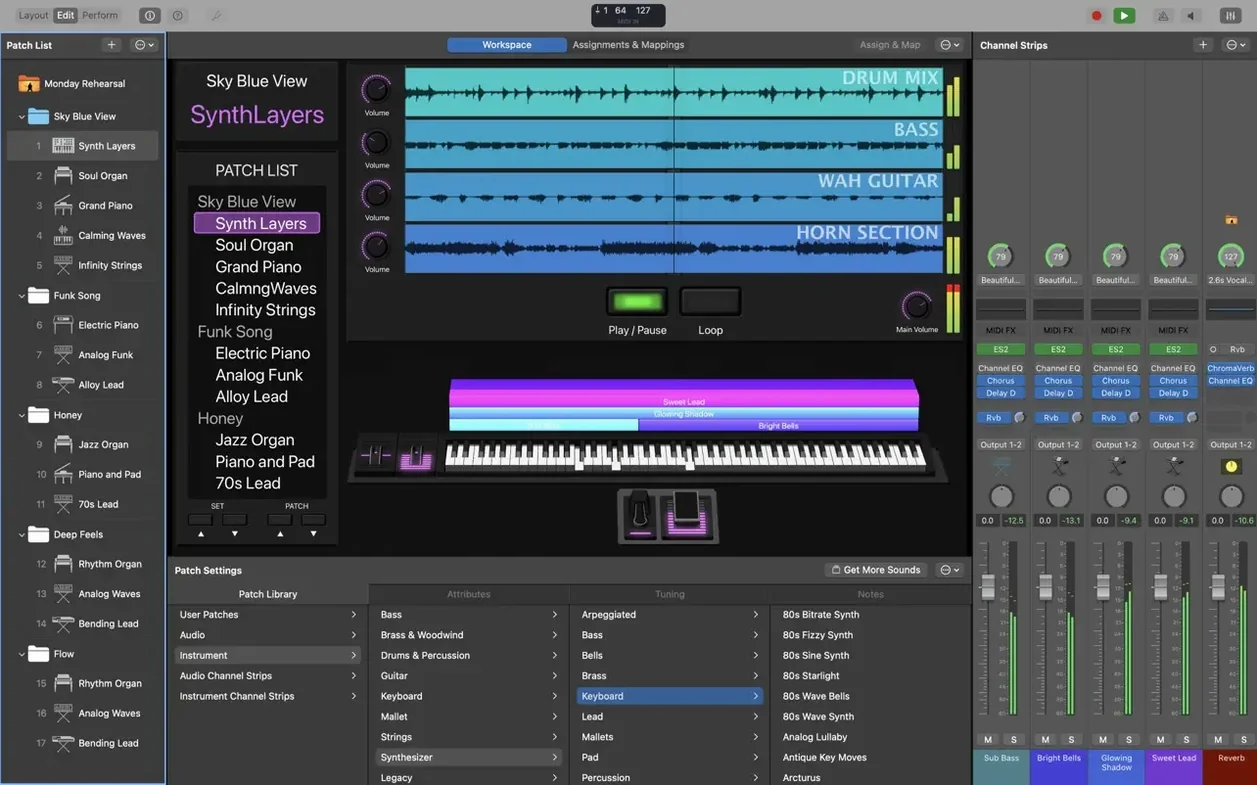
MainStage is for musicians who play live and want their Mac to behave like a dedicated instrument. It gives you a full-screen interface you can control with hardware, while the sound engine handles plug-ins and patches without hiccups.
Pulls sounds from Logic Pro and GarageBand
It shares a lot with Logic Pro and GarageBand. You can pull sounds from both, and the included plug-ins and instruments are compatible with Logic. If you already work in Logic for production, MainStage uses the same sounds, so your live set feels familiar.
Switches patches without cutting off audio
You can switch between patches without cutting off the audio, which is essential during a song. The Playback plug-in handles stereo or multichannel backing tracks, and a hardware controller can trigger everything. There are more than 750 sampled instruments and over 1,800 patches in the Sound Library, so you have plenty to work with.
What changed in this version?
The current update fixes a few things: MIDI SysEx messages get through properly, you can type numbers into the Add Channel Strip window again, and Sampler instruments load the correct sounds. Small fixes, but they keep the live workflow smooth.
How MainStage works with other macOS tools
MainStage is designed to sit alongside your existing music software rather than replace it. Because it shares the same plug-in format as Logic Pro, any Audio Unit plug-ins you already have can be used directly. That means your favorite reverb, delay, or synth from your studio setup can appear in your live patches without extra steps.
With GarageBand, the connection is simpler. You can open GarageBand projects and pull sounds into MainStage, so if you build a rough demo on GarageBand, those same instrument tones can become part of a live patch. You are not starting from scratch.
On the macOS side, the Touch Bar support on MacBook Pro models with a function key row gives you quick access to editing and workspace controls. That is useful when you are setting up patches at a table before a show. The app also respects standard macOS audio routing, so you can send sound to an external interface or use built-in outputs depending on your setup.
Building a layered keyboard patch with a backing track
Say you want to play a song that needs a layered keyboard sound with a backing track. Here is one way to set it up from start to finish.
Step 1: open a new workspace
Start MainStage and create a new workspace. You will see the Patch List on the side, which holds all your patches for a set. Name the first patch after the song.
Step 2: add instruments
In the channel strip area, add an instrument plug-in. For a vintage electric piano feel, choose Vintage Electric Piano. Layer a Retro Synth on a second channel strip for a pad sound underneath. Each instrument gets its own strip, so you can adjust volume and effects individually.
Step 3: include live input
Add an audio input channel strip for your microphone or guitar. MainStage can combine live input and instruments in the same patch, so you can play keys and sing through the same setup. Apply a reverb from the plug-in list to the vocal strip.
Step 4: set up a backing track
Use the Playback plug-in on a new channel strip. You can load a stereo or multichannel audio file. This keeps your backing track separate from the live instruments, so you can mute or solo it during sound check.
Step 5: create Smart Controls
Open the Smart Controls panel and assign the controls you need most. For example, you could put the pad volume, reverb send, and backing track level on one panel. That way, a single look at the screen tells you where everything is.
Step 6: assign hardware
Connect a MIDI controller or keyboard. In the hardware control section, map physical faders or buttons to your Smart Controls. Now you can adjust the mix without touching the Mac screen.
Step 7: test patch switching
Switch to the next empty patch in the Patch List and back again. The sound continues without a gap. That is the behavior you want during a song transition.
System requirements and compatibility checks
Uses the same plug-in format as Logic Pro
Yes. MainStage includes the same plug-in format that Logic Pro uses, so any Audio Unit plug-in you have can be loaded. The included instrument patches are also compatible with Logic, which means you can move sounds between the two apps freely. If you have custom sampled instruments in Logic Pro, they work here too.
How much disk space do I really need?
That depends on how many sounds you want. A minimal installation with the basic instruments and effects takes about 6 GB. If you want the full Sound Library with more than 750 sampled instruments and over 1,800 patches, you need around 57 GB free. The extra space covers the Apple Loops and all the instrument samples. You can start with the smaller installation and add the full library later.
Includes Amp Designer and Pedalboard for guitar
Yes. MainStage includes Amp Designer and Pedalboard for guitar processing. There is also a full-screen tuner. You can run your guitar through an audio interface, apply effects in the app, and send the processed sound to the house system.
Requires macOS 15.6 and Apple Silicon
This version requires macOS 15.6 or later and is built for Apple Silicon. It will not run on older Intel-based Macs. If you have a newer Mac with an M-series processor, you are set.
Sampler instruments now load correct sounds
The current update, version 4.3.1, addresses a handful of issues that affect live workflows. The most noticeable change is that Sampler instruments now load the correct sounds. In previous versions, some instruments could load a wrong sample or fail to recall the saved patch. That fix means your saved patches sound exactly as you programmed them.
MIDI handling also improved. Incoming MIDI SysEx messages are no longer blocked, which matters if you use a hardware controller that sends system exclusive data. Also, MIDI messages are now sent to Scripter on patch change, so any custom scripts you have run at the right moment.
Two small interface fixes make a difference during setup. You can type numbers into the Add Channel Strip window again, which speeds up channel count entry. And entering values with the keyboard no longer accidentally switches patches in the Patch List. These are the kinds of issues that only show up during a live workflow, and they are now resolved.
Most useful for keyboard players replacing hardware synths
MainStage is most useful for keyboard players who want to replace a rack of hardware synthesizers with a single Mac. If you play piano or organ and need different sounds for different songs, the Patch List makes switching fast and reliable.
Guitarists and vocalists who run their own sound can benefit too. The ability to combine live input with virtual instruments and backing tracks in one patch means fewer pieces of gear to carry. A single laptop and a controller can replace a pedalboard, a synth module, and a backing track player.
Music teachers who demonstrate electronic instruments in a classroom might find it useful as a teaching tool. You can show how a synthesizer works, switch between different instrument models, and explain signal flow, all from one screen.
And anyone who already uses Logic Pro for recording will feel at home here. The plug-ins look and behave the same way, so there is no learning curve for the sound engine. MainStage is essentially the live counterpart to the studio tools you already know.
- Fixes an issue where incoming MIDI SysEx messages were blocked.
- Restores the ability to type numbers into the Add Channel Strip window.
- Sampler instruments now load the correct sounds.
- macOS 15.6
- Apple Silicon
- Requires 64-bit Audio Unit plug-ins.
- 6 GB free disk space for a minimal installation.
- 57 GB free disk space for a full Sound Library installation.
Questions I keep getting
Can I use sounds from Logic Pro in MainStage?
Yes, MainStage can add sounds from Logic Pro and GarageBand, so your existing library carries over.
Does MainStage work on Apple Silicon Macs?
Yes, the current version requires macOS 15.6 and runs on Apple Silicon.
How much disk space do I need?
A minimal installation takes about 6 GB, but a full Sound Library needs 57 GB.
How to install
- Open the downloaded disk image.
- Drag the app to the Applications folder alias.
- After copying finishes, open the app from Launchpad.
Similar apps






Sign in or join the club to leave a comment.
Nobody has commented yet.