
- Version
- 3.0.8 FIX
- Studio or maker
- Swinsian
- Languages
- English
- Activation
- Included
- Runs on macOS
- macOS 10.13 or later
- Chip type
- Apple Silicon, Intel 64-bit
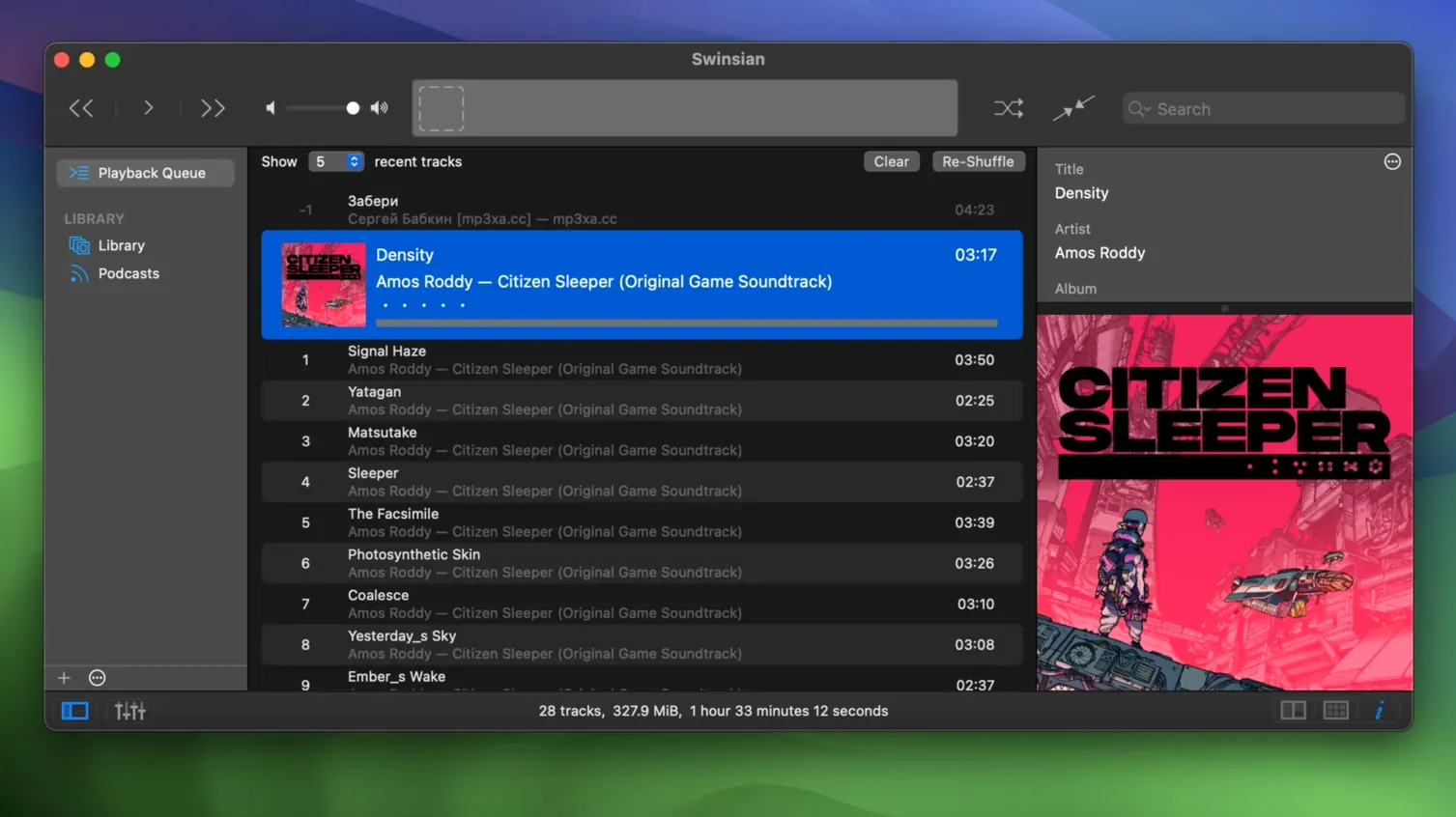
Swinsian supports cue sheets, both as separate files and embedded in metadata, which makes it a natural choice if you keep a collection of live recordings or classical albums with detailed track markers. Version 3.0.8 brings fixes for quadraphonic FLAC playback and for saving transcoding rules correctly, two things that matter when you work with non-standard files or batch-convert for mobile devices.
The player watches folders for changes, so you can drop new music into a directory and have it appear without manual import. Smart playlists, regular-expression search, and iTunes library import give you control over a large library without forcing you into a single ecosystem. Automatic device sample rate switching and AirPlay support handle the hardware side, while Last.fm scrobbling keeps your listening history intact.
For the current release, the interface gained more customization for art grid labels and hidden options to make text larger, small additions that help when you run the player on a secondary display or at a distance. The complete tags window sorts correctly now, and the iPod sync issues for playlist removal are resolved. It runs on macOS 10.13 or later on both Intel and Apple Silicon machines.
First things to adjust after installing
Once you have Swinsian running, a few settings make the daily experience smoother. Open Preferences from the File menu or use the keyboard shortcut and look at these areas first.
- Library tab – Point Swinsian to your music folder and enable folder watching. This saves you from manually adding files every time you download or rip something new. The player scans in the background and updates the library without interrupting playback.
- Playback tab – Turn on gapless playback if you listen to live albums or DJ mixes. The difference is subtle until you hear a crossfade where none should be. Also set the device sample rate to switch automatically if your DAC supports it.
- Equalizer – Swinsian includes a 10-band or 31-band graphic equalizer. If your headphones or speakers color the sound, a gentle adjustment here makes a bigger difference than you expect. Start with a flat setting and tweak one or two bands for your most-listened-to genre.
- Notifications – Enable playback notifications in the General tab. A small pop-up shows the track title and album art when a song changes, which is useful when you work in another application and want to know what is playing.
New files not showing up fix
Even a well-designed player can surprise you on the first few days. Here are the issues I have seen people run into with Swinsian and straightforward ways to solve them.
- New files not showing up. Folder watching is on, but you drop in a dozen tracks and nothing appears. Check that the folder you added to the library is the exact one where you place files. Subfolders under a watched folder are scanned, but symbolic links sometimes cause the watcher to miss changes. If you are in a hurry, use the manual rescan from the File menu or restart the player.
- Tags not saving. You edit a track's artist or genre, switch to another album, and the change is gone. This usually happens when the file is read-only or when Swinsian does not have permission to write to that folder. Right-click the folder in Finder, choose Properties, and make sure your user account has Read & Write access. For files on an external drive, check that the drive is not mounted read-only.
- Cue sheets load but tracks do not split. Some cue sheets reference file paths that no longer match after you reorganize folders. Open the cue sheet in a text editor and verify that the FILE line points to the correct audio file. If the audio file and the cue sheet live in the same directory, a simple filename is enough.
- iTunes import does not bring everything over. Swinsian reads the iTunes library file directly. If you use iTunes on a network share or have playlists stored in an unusual location, the import may not find them. Copy the iTunes Music Library.xml file to a standard location, such as your Music folder, and point Swinsian to it from the Import menu.
- Equalizer settings reset after restart. The equalizer is applied per playlist or per session by design. If you want a global setting, create a smart playlist that includes all tracks and apply the equalizer to that playlist. The setting then sticks as long as the playlist loads.
Smart playlists and regular expressions
Once the basics are stable, Swinsian's smart playlists become the most useful feature for a large library. You can build a playlist that automatically collects tracks from the last two weeks, or every song with a rating above three stars that you have not played in a month. The regular-expression search and find-and-replace tag editing let you batch-fix inconsistent metadata. For example, if half your albums have the genre written as "Electronic" and half as "Electronica", a single find-and-replace pass normalises them without clicking each file.
These tools take a few minutes to learn but save hours over the lifetime of a collection. Version 3.0.8 keeps the same workflow, so any tips you find for earlier versions still apply.
- macOS 10.13 or later
- Intel or Apple Silicon
Questions I keep getting
Does Swinsian support gapless playback?
Yes, Swinsian supports gapless playback so tracks flow without silence between them.
Can I import my existing iTunes library into Swinsian?
Yes, Swinsian can import an iTunes library, including playlists and metadata.
Does Swinsian work with AirPlay speakers?
Yes, Swinsian supports AirPlay playback for streaming to compatible speakers and devices.
How to install
- Mount the downloaded disk image.
- Drag the app to the Applications folder alias.
- Open the app from Launchpad after copying finishes.
Similar apps






Sign in or join the club to leave a comment.
Nobody has commented yet.