

- Version
- 1.3.4
- Studio or maker
- CubeQuad Games
- Languages
- Russian, English, German, Spanish, Italian, Chinese (Simplified), Korean, Portuguese, Ukrainian, French, Japanese
- Activation
- Not required
- Chip type
- Apple Silicon, Intel 64-bit
- Tried out on
- macOS Golden Gate, Mac mini 2024 M4
- First released
- 28.10.2026
- Voice languages
- Music only
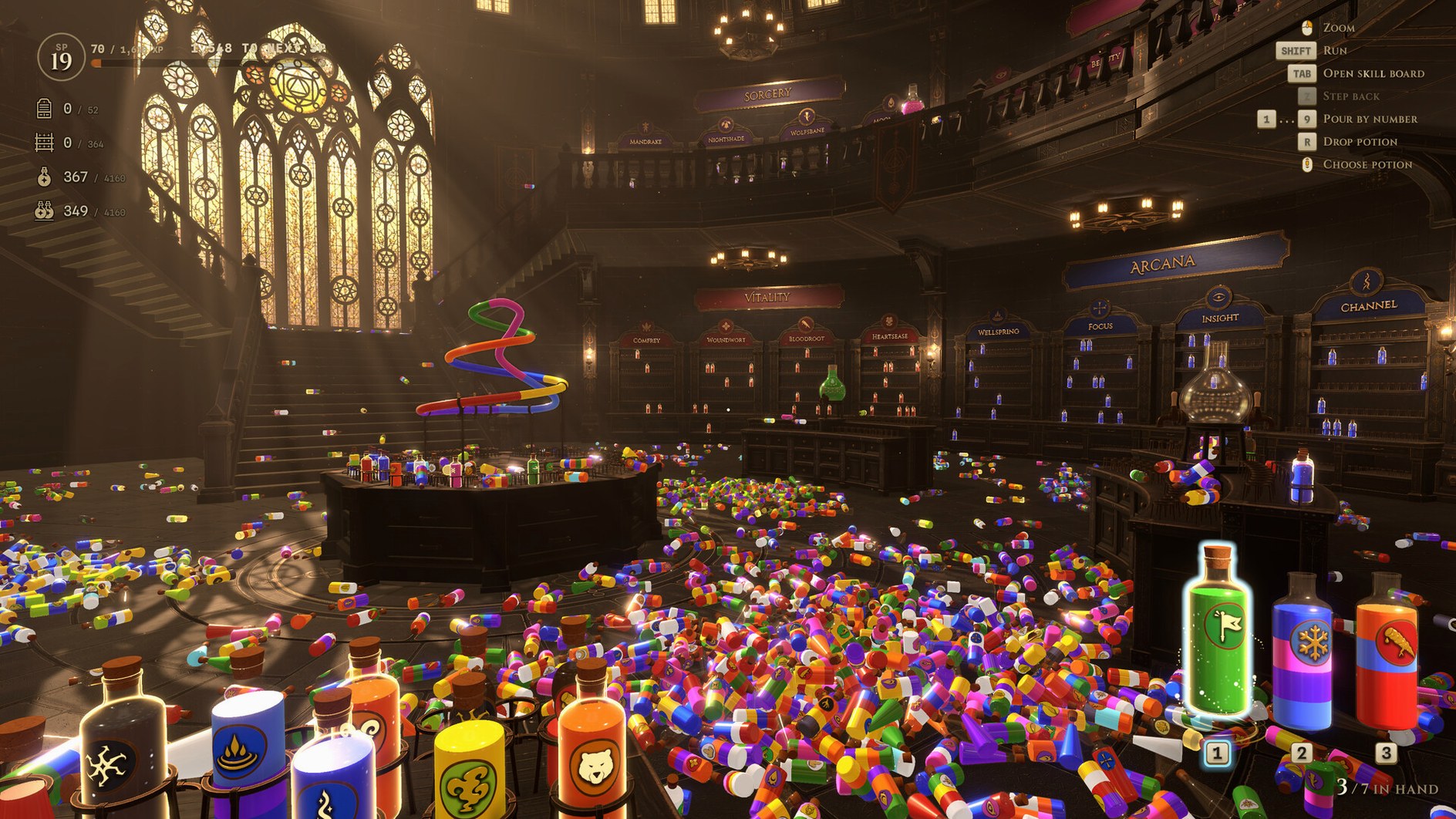
A Place for Every Potion works on both Intel and Apple Silicon Macs, including the M4 Mac mini. The download includes a Windows version as well, so you get both in one disk image.
| Detail | What to know |
|---|---|
| Version | 1.3.4 |
| Architecture | ARM and x86-64 both supported |
| Tested on | macOS Golden Gate, Mac mini 2024 M4 |
| Languages | Russian, English, German, Spanish, Italian, Simplified Chinese, Korean, Portuguese, Ukrainian, French, Japanese |
| Number of potions | 4,160 |
| Timers | None |
| Autosave | After each pour and each shelving action |
This is a potion-sorting puzzle where you clear bottles and shelve them in the right place. There is no rush pressure, so you can think through each move. Skills are gained through sorting experience, and you can remap the controls fully or turn off the interface if you prefer a cleaner screen. The game saves automatically after every pour and every shelving action, so you never lose progress.
Adjust these settings before pouring your first potion
When you start A Place for Every Potion for the first time, the default setup works fine. But a few adjustments make the experience feel more like your own space. I usually change these before I start pouring anything.
The control remapping is worth a visit if you use a keyboard layout that does not match the defaults. The game lets you reassign every action, so you can set it to whatever feels natural. If you are left-handed or use an ergonomic keyboard, this is especially helpful.
You can also turn off the interface entirely. That option removes the on-screen buttons and indicators, leaving only the bottles and shelves. It makes the lab look cleaner and more like a real workspace. If you are the sort of person who enjoys a minimalist view while you sort, try it for a few rounds. You can always turn it back on if you miss the prompts.
The language setting is easy to change from the menu. The game supports eleven languages, so you can switch to your preferred one without restarting. I keep it in English, but I have switched to German when I wanted to practice vocabulary while puzzling.
A workflow for sorting your first shelf section
Here is a step-by-step way to approach the first shelf section, from the moment you start a new game to the moment you finish a group of potions. This is not the only method, but it is the one I show new players at the game club.
- Start a new game. The lab appears with two levels and a row of empty bottles waiting to be filled. Take a moment to look at the shelf sections. There are 52 of them, and each one will eventually hold a finished potion of one pure color.
- Look at the first bottle. It contains a mix of liquids. Your goal is to pour from one bottle into another until every bottle holds only one color. There is no timer, so you can study the colors and decide which pour makes sense next.
- Pour a mixed bottle into an empty one. Find a bottle that is mostly one color and pour it into an empty bottle. This separates the colors and gives you space to work. The game autosaves after each pour, so if you want to experiment, you can try a different order without losing earlier progress.
- Repeat until a bottle is pure. Keep pouring between bottles. When a bottle contains only one color, it is finished. That is your first potion ready for shelving.
- Shelve the finished potion. Drag it to the correct shelf section. The game autosaves again after you place it. You can see your progress on the skill board, which has 24 nodes that unlock as you sort more potions.
- Continue with the next potion. Work through the remaining bottles in the same way. Each pour and each shelving action is saved automatically, so you never lose a finished shelf.
This workflow works for all 4,160 potions. The skills you gain through sorting experience make later sections go a little differently, but the basic pour-and-shelve rhythm stays the same the whole time.
Works on Intel and Apple Silicon Macs through M4
A Place for Every Potion runs on both ARM and x86-64 Macs. That means it works on Intel models and on Apple Silicon models from M1 through M4. The developers tested it on macOS Golden Gate and a Mac mini 2024 M4, so it is ready for current systems.
The game is distributed as a disk image that contains both the Mac and Windows versions. You open the disk image, drag the app into the Applications folder shortcut, and after the copying finishes, you open it from Launchpad. That is the full install process. There is no activation step and no serial number to enter.
Because the game has no timers and no fail state, it does not demand fast processing or constant attention. The autosave happens after every pour and every shelving action, so the disk sees small writes throughout the session rather than one big save at the end. This is usually fine on any modern Mac with an SSD.
The interface can be turned off entirely, which reduces on-screen activity to just the bottles and shelves. If you prefer a clean screen, you can play without any overlays. The control remapping works no matter how you set the interface, so you can switch between the two modes freely.
Can you play with just a trackpad?
Can I play with a trackpad or do I need a mouse?
The game works with whatever pointing device your Mac has. I have seen students use trackpads, mice, and even a graphics tablet for the drag actions. The controls are simple enough that any input method works. If you want to use keyboard shortcuts instead, the full control remapping lets you assign every action to a key.
Does the game support multiple saves or profiles?
The autosave system writes your progress after every pour and every shelving action. There is a single save slot for each playthrough. If more than one person wants to play on the same Mac, you would need to start a new game when the previous session is finished. The game does not have separate user profiles.
What happens if I close the game in the middle of a pour?
Because the game saves after every pour and every shelving action, the last complete action is preserved. If you close it mid-pour, you restart at the state before that pour began. You do not lose any finished potions or shelves.
Can I change the language after I start playing?
Yes. The language selection is available from the menu at any time. The game supports eleven languages, and switching does not require a restart. Your progress stays the same.
Is this game suitable for young children?
The game has no timers, no fail state, and no rush pressure. The only skill required is recognizing colors and deciding which bottle to pour into which. I have seen children at the game club pick it up quickly. The 4,160 potions give them a lot to work through at their own pace.
- macOS version not specified
- Intel or Apple Silicon (ARM and x86-64 supported)
- Tested on macOS Golden Gate and Mac mini 2024 M4
How to install
- Open the downloaded disk image.
- Drag the app into the Applications folder shortcut.
- After copying finishes, open the app from Launchpad.
Similar games






Sign in or join the club to leave a comment.
Nobody has commented yet.