- Version
- 1.9.1 [Wineskin]
- Studio or maker
- Miro Haverinen
- Languages
- Russian, English
- Activation
- Not required
- Chip type
- Apple Silicon
- Tried out on
- macOS Tahoe, Mac mini 2024 M4
- First released
- 9.12.2022
- Voice languages
- Music only
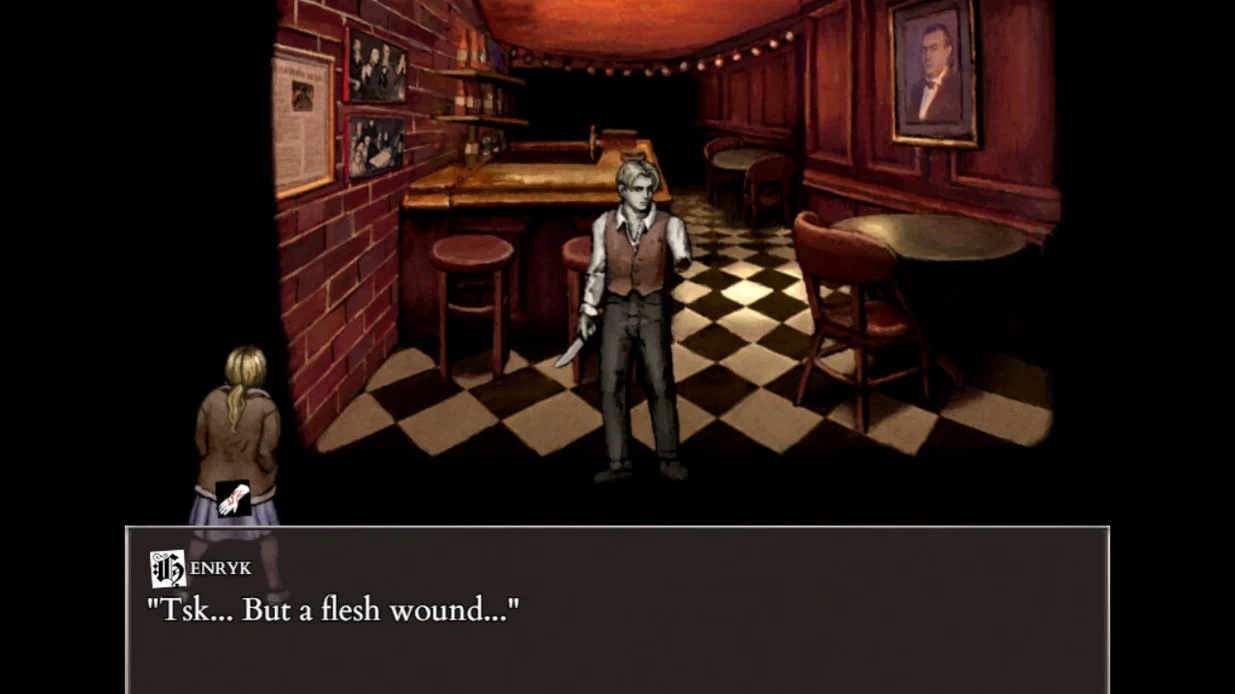
One build, one disk image, one app — Fear & Hunger 2: Termina arrives for macOS as a Wineskin wrapper targeting Apple Silicon machines. The file you download holds everything needed to play, but a few details are worth knowing before you start.
Contents of the disk image
- The game app — a single application you drag into Applications. Inside it, Wineskin manages the Windows code so it runs on macOS.
- User Data folder — saves live inside the app bundle itself, under a prefix path. If you ever move the app, saves move with it.
- Fix file — a small script included for troubleshooting. If the game fails to launch, run this file from the disk image once.
- Musical accompaniment — the game includes a full soundtrack; the experience is audio-driven as much as it is visual.
What this means for you
The build is 1.9.1, released December 2022, and it is single-player. Combat is turn-based, resource management matters, and the dark secrets of Prehevil unfold through careful exploration. The game is in English and Russian. To ensure saves register correctly, start a new game and do not skip the character story sequence — that initial moment seems to set the save location.
Bump text speed if you read quickly
Before you step into Prehevil, a couple of adjustments make the first hours more comfortable. Open the in-game settings from the main menu — they are straightforward, no hidden menus.
- Text speed — if you read quickly, bump the text display speed up a notch. The default is a little deliberate for my taste, and you will be reading a lot of descriptions, dialogue and item notes.
- Volume balance — the musical accompaniment sets the tone, but sound effects like footsteps and combat strikes can be sharp. That keeps the atmosphere without drowning out the cues that tell you someone is nearby.
- Controller or keyboard — if you have a gamepad connected, the game detects it. Try both for the first five minutes. Movement and menu navigation work on either, but I find keyboard quicker for inventory management.
That is really all the game offers in the way of options. No graphics sliders, no resolution toggles — the Wineskin wrapper locks those to what the developer chose. The trade-off is that you do not spend time tweaking; you just play.
Mount the disk image and drag into Applications
I start by mounting the disk image and dragging the app into Applications, like the instructions say. The copy takes a minute — the game is not small. Once it lands, I open Launchpad and click the icon.
The first screen asks for a new game or continue. I choose new game. The character story sequence plays — a short, unsettling introduction that sets up who you are and why you are in Prehevil. I do not skip it. That scene seems to anchor the save data, and the Russian download page warns that skipping it can cause issues. So I sit through it, and after a fade to black, the town opens up.
Immediately I am in a small square with a few paths leading out. I pause, open the menu, and check my inventory. A knife, a lighter, some bandages. The resource management part starts here: do I explore the closest building first, or head toward the sound of a voice? I choose the building.
Inside, the turn-based combat shows itself. An enemy blocks the hallway. The battle screen is clear: attack, guard, items, escape. I attack. The enemy attacks back. I lose a chunk of health. I learn quickly that guarding is not optional — it is survival. After the fight, I search the room for supplies. I find a healing item and a note that hints at one of Prehevil's dark secrets.
I save at the first save point I see — a small glowing spot in a corner. The game does not autosave, so I make it a habit to save after every major event. Then I step back outside, and the day-night cycle is already shifting. The first day is ending.
The session goes like that: explore, fight, read, save, repeat. The nonlinear layout means I can go anywhere, but I cannot go everywhere at once. Some paths need a key, a tool, or a skill I have not found yet. That is the hook — every locked door is a promise.
No internet connection needed for single-player
Does this build need an internet connection? No. Fear & Hunger 2: Termina is a single-player game with no online component. Once the disk image is copied and saved, you can play fully offline.
Will Wineskin slow the game down? Wineskin translates Windows calls to macOS ones. That layer adds a small overhead, but for a turn-based RPG that does not rely on fast reaction times, it is not something you notice during normal play. The combat waits for your input. The exploration is deliberate. The Wineskin wrapper is not a problem here.
Where are the saves stored? Inside the app bundle. That means if you move the app to another folder or another Mac, the saves go with it. But it also means that deleting the app removes your saves. Back up the app if you plan to start over or keep a completed run.
Can I switch languages after starting? The game includes English and Russian. I believe you choose at launch or through a menu option — I have not tested switching mid-game. If you want English, select it early.
Is this the full game or a demo? The 1.9.1 build is the full release. No activation, no demo limits. You get the complete three-day story of Prehevil, all endings, and all characters.
- Version 1.9.1 [Wineskin], released December 9, 2022.
- Apple Silicon native wrapper.
- Single-player turn-based survival horror.
- macOS version not specified by the source
- Architecture: Apple Silicon (M1, M2, M3 or later)
Questions I keep getting
Where are my saves stored?
Saves are inside the app bundle under the User Data folder in the Wineskin prefix path. If you move the app, saves move with it.
Does this build work on Intel Macs?
No, this build is specifically for Apple Silicon (M1, M2, M3) machines.
What languages are supported?
The game supports Russian and English interface languages.
How to install
- Mount the downloaded disk image (double-click usually does it).
- Drag the app into the Applications folder alias — this keeps it accessible from Launchpad later.
- After copying finishes, open the app from Launchpad.
- If the game shows an error at launch, run the file named Fix inside the disk image once.
- To ensure saves work correctly, start a new game and do not skip the character story.
Similar games






Sign in or join the club to leave a comment.
Nobody has commented yet.