- Version
- 8.13
- Studio or maker
- Digiarty Software
- Languages
- English, German, Spanish, Italian, Chinese (Traditional), Chinese (Simplified), Korean, French, Japanese
- Activation
- K'ed by TNT team
- Runs on macOS
- macOS 10.15 or later
- Chip type
- Apple Silicon, Intel 64-bit
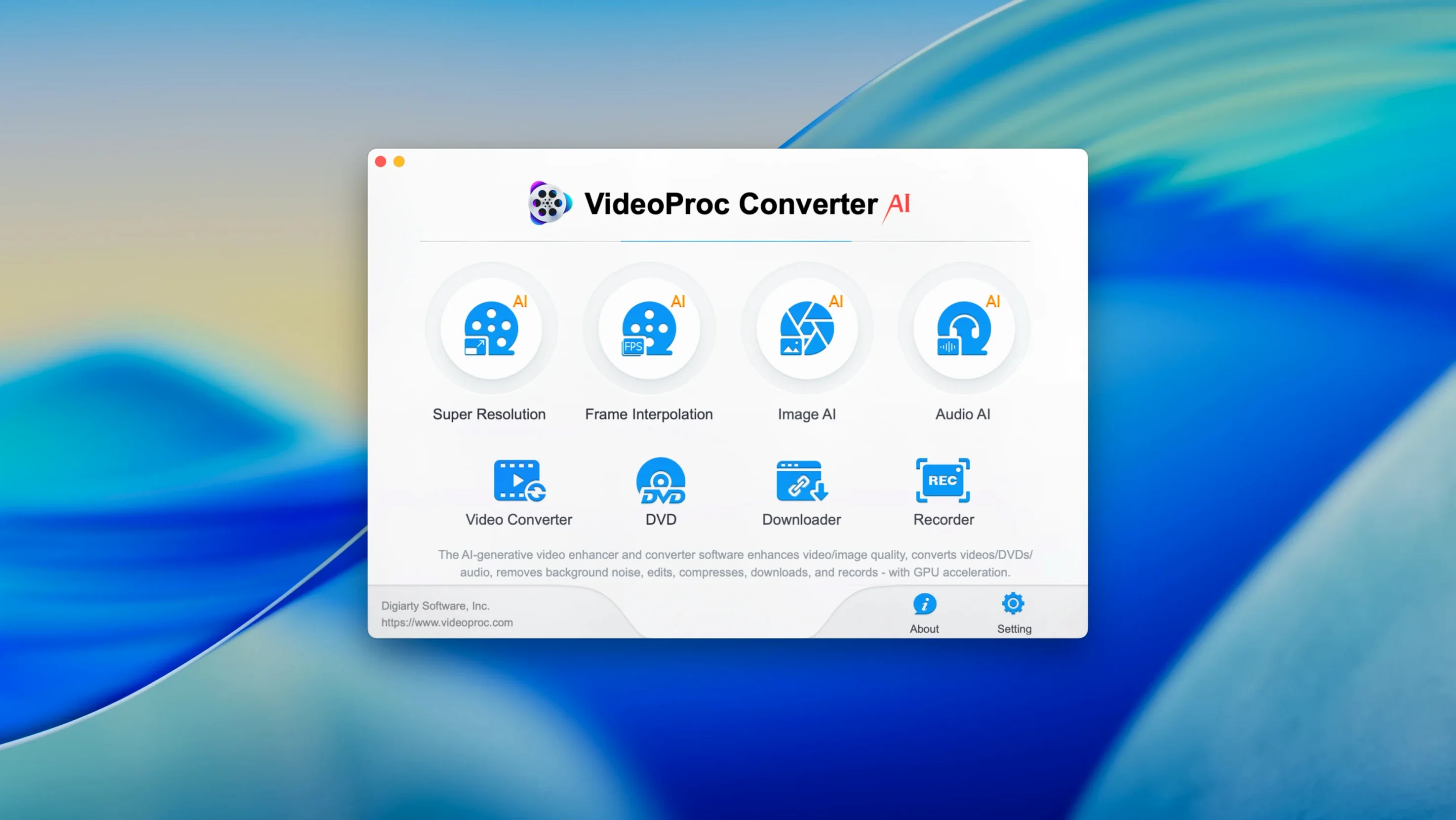
Teachers, archivists, and anyone sorting through years of family video often need one tool that can convert, clean up, and compress without a steep learning curve. Here is how VideoProc Converter AI handles three everyday jobs.
Digitizing old VHS or DV recordings
Plug in a capture device, load the footage, and let the app apply hardware acceleration via Metal or the M1/M2 chip. The stabilization and AI upscaling options turn shaky, low-resolution material into something you can actually watch on a modern screen.
Compressing a school video for YouTube
After editing a class project in iMovie, use the YouTube preset under the Downloader & Optimizer section. The app adjusts resolution, codec, and bitrate in one pass, keeping the file small while preserving enough detail for a 4K upload.
Extracting audio for a podcast segment
Open an interview video, choose the audio tab, and export to MP3 or FLAC. The conversion runs quickly thanks to the same hardware acceleration, and you can trim the segment before exporting without opening a separate editor.
A real afternoon converting GoPro clips, lectures, and trims
Let me walk you through a real afternoon with the app. I had three things to do: convert a batch of GoPro clips for an Apple TV edit, pull a clean MP3 from a recorded lecture, and trim a long screen recording for the game club. I launched the app, and the main window showed a tile interface — Convert, Downloader, Record, and AI Enhance. No clutter.
I started with the GoPro footage. I dragged a folder of MOV files into the Convert module. The format list is long; I typed "Apple TV" in the search bar, and it offered the right preset. I selected all clips, hit the gear icon, and set them to merge into one file. While the conversion ran in the background, I moved to the audio extraction. I opened the same module, chose the lecture video, picked the audio tab, and selected MP3. The trim sliders let me cut out the first minute of shuffling without leaving the window. Both jobs finished before I had finished setting up the screen recording task.
For the screen recording, I switched to the Record module. I chose the full-screen capture, enabled microphone commentary, and recorded a walkthrough of a geometry puzzle. The output saved as an MP4 ready for upload. No separate compressor needed — the file was small enough already.
HandBrake lacks the AI upscaling and denoising VideoProc adds
HandBrake is the free alternative many people use. It handles video conversion and compression well, and it supports Apple Silicon through its own builds. But HandBrake lacks the AI enhancements — upscaling and denoising are not part of its feature set. It also does not handle downloading, screen recording, or audio extraction in the same integrated way. For someone who wants a single app for multiple tasks, VideoProc Converter AI saves you from switching between HandBrake, Audacity, and OBS.
Shutter Encoder is another strong contender. It supports a wide range of formats and includes basic editing and compression. It runs on Mac through Java, which can feel heavier than a native app. VideoProc Converter AI feels more polished: the presets for devices like Apple TV and GoPro are ready out of the box, and the AI upscaling and stabilization are not available in Shutter Encoder at all. If you primarily work with standard formats and do not need AI tools, Shutter Encoder is a good choice. But for old footage repair, social media presets, and downloading, VideoProc covers more ground.
MacX Video Converter Pro is from the same developer, Digiarty, and shares many features. The main difference is that MacX Video Converter Pro does not include the AI enhancement module — no upscaling, no denoising. VideoProc Converter AI is the newer, more complete version for users who want to improve video quality, not just change formats.
Works alongside iMovie and uses Apple Silicon hardware acceleration
The app works naturally alongside Apple's own tools. You can export a rough cut from iMovie, then drop it into VideoProc for final compression and format matching. The hardware acceleration uses Metal and Apple Silicon directly, so it plays well with the system's resource management. I often use it after a QuickTime screen recording — QuickTime saves in MOV format, and VideoProc converts to MP4 with a preset that keeps the file size reasonable for sharing.
The Downloader module integrates with the browser workflow. When I find a tutorial on YouTube for a new game club activity, I copy the link, paste it into the Downloader, and save the video locally. The app handles the format choice, and the improved performance in version 8.12 means it finishes quickly.
Cataloging your library is simpler too. The app's output presets align with macOS media handling. A video optimized for the iPhone preset plays correctly in Apple Photos and iMessage without re-encoding. This is useful when sending clips to students or parents.
Best for teachers who convert, compress, and repair video files
Teachers and educators are an obvious fit. You record lessons, convert student projects, compress large files for email or Google Drive, and sometimes need to repair old DV footage from a school archive. Having conversion, editing, AI enhancement, and downloading in one app saves you from teaching yourself four separate programs.
Content creators who upload to YouTube, Instagram, or TikTok will appreciate the optimizer presets. They set the right resolution and bitrate for each platform, and the AI upscaling can improve footage recorded on older phones or webcams. The screen recording with voice commentary is useful for tutorial videos.
Archivists and family historians working with VHS transfers or DV tapes get the most from the stabilization and denoising tools. The ability to upscale to 4K or 8K gives new life to old material without needing a dedicated video restoration suite.
Anyone who downloads online media regularly — journalists, researchers, podcasters — can use the Downloader module instead of a browser extension or a separate tool. The improved performance in version 8.12 makes it a reliable option for batch downloads.
In short, if you do one type of media task often, a specialized free tool might be enough. But if you find yourself converting, downloading, recording, and cleaning up video on a regular basis, VideoProc Converter AI saves time by keeping everything in one window.
- macOS 10.15 or later
- 64-bit processor (Intel or Apple Silicon)
- Interface languages: English, German, Spanish, Italian, Traditional Chinese, Simplified Chinese, Korean, French, Japanese
Questions I keep getting
Does VideoProc Converter AI support Apple Silicon natively?
Yes, the app runs natively on both ARM (Apple M1/M2) and Intel 64-bit Macs, using Metal and hardware acceleration for fast processing.
Can it convert media for iPhone and Apple TV?
Yes, version 8.12 includes iPhone 18 support, and the app has presets for iPad, Apple TV, GoPro, and other devices.
How to install
1. Mount the disk image and run Open Gatekeeper friendly. 2. Press Enter in Terminal to bypass Gatekeeper. 3. Drag the app to the Applications folder. 4. Launch the app when installation is complete.Similar apps
Sign in or join the club to leave a comment.
Nobody has commented yet.