
- Version
- 2.38
- Studio or maker
- Kaylee Calderolla
- Languages
- English
- Activation
- Included
- Runs on macOS
- macOS 10.13 or later
- Chip type
- Apple Silicon, Intel 64-bit
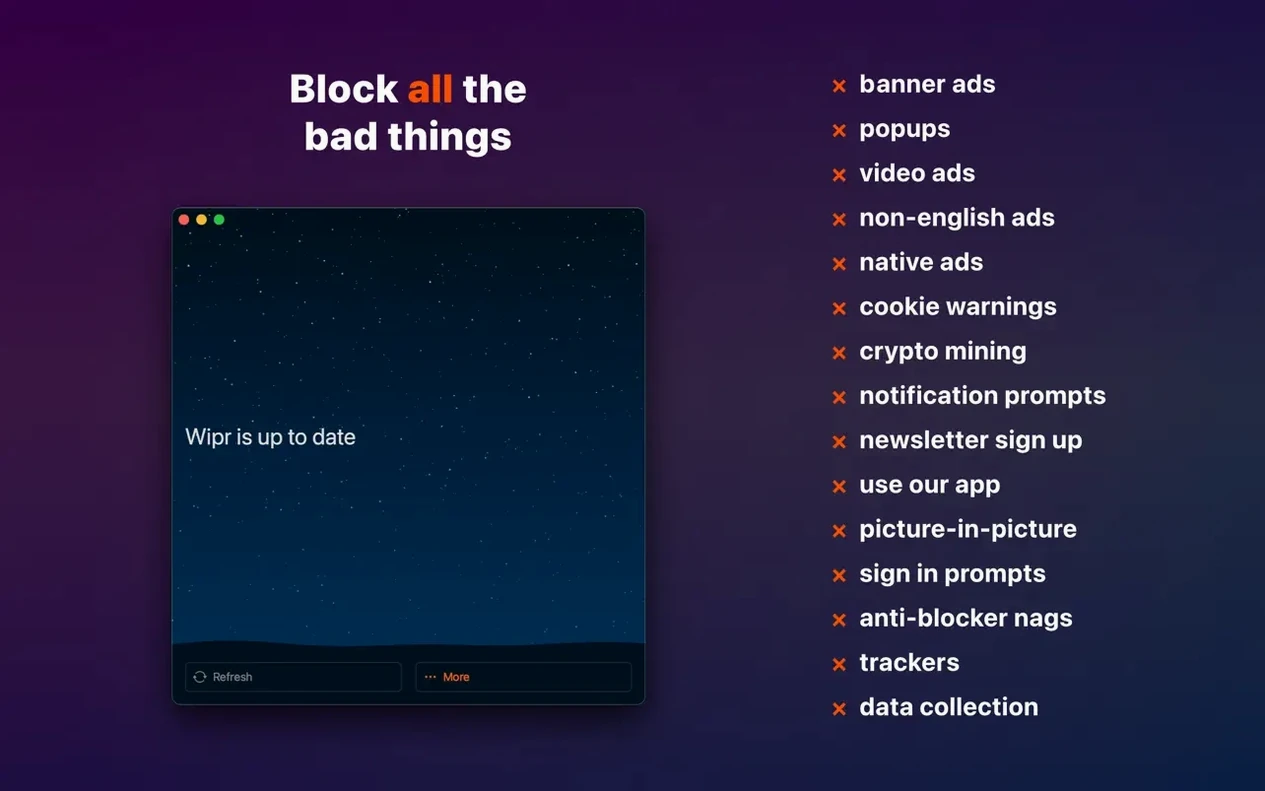
Wipr Extra is the piece that handles the trickier cookie consent pop-ups and persistent tracking scripts on many sites. Wipr 2 for macOS works quietly in Safari, removing ads, trackers, and cookie notices so pages load with less clutter and less data transferred.
Block ads and trackers
Wipr prevents third-party trackers from following your browsing and removes most advertising banners and video prerolls. The content blocker runs entirely in Safari, so it does not slow the browser down.
Handle cookie notices
Cookie consent banners often interrupt the reading flow. Wipr Extra dismisses or blocks these notices on many websites, leaving you with a cleaner page from the start.
Accessibility improvements for screen readers and keyboard navigation
Version 2.38 includes accessibility improvements, which means the blocking interface works better with screen readers and keyboard navigation. If you use Safari with a screen reader or prefer tabbing through controls, the update makes it easier to manage exceptions and see what is blocked. The change is in the background, not a visible new button, but it makes a difference for anyone relying on assistive tech.
Wipr updates its blocking list twice a week on its own. There is no need to check for new rules manually. As long as Wipr is running when you open Safari, it pulls the latest definitions in the background. This is useful because ad blockers are only as good as their list, and the automatic refresh keeps you protected without any extra steps.
Because Wipr is a universal app across Apple devices, the same license works on iPhone, iPad, and Vision Pro. If you already have it on your Mac, you can set it up on your other Apple devices without buying again. The interface looks similar on each platform, so you know where to find settings and toggles.
Restart Safari after first launch for a clean connection
When you first launch Wipr, give Safari a restart. The blocker hooks into the browser at startup, and a fresh Safari session ensures the connection is clean. Open Safari, close it completely, then open it again. This avoids a situation where some tabs still show ads because they loaded before Wipr was active.
After installing, browse a few of your regular sites and watch the address bar. Wipr often shows a small indication of what it is blocking. If you do not see any change, check that the Wipr app is running and that its icon appears in the menu bar. The blocker only works while the app is active.
If a site looks broken or a video player does not load, try adding the site to Wipr's exceptions. The option is in the app's preferences or through the Safari toolbar icon. This lets the site load all its content, including ads, for that specific page. You can remove the exception later once the site's layout updates.
Skipping SIP disable leaves Wipr unable to block anything
The most frequent issue after installation is that Wipr does not block anything. This usually happens because the user skipped the step to disable SIP (Security Integrity Protection). Wipr requires SIP to be turned off to inject its blocking rules into Safari. Go to the recovery menu on Apple Silicon Macs or boot into recovery mode on Intel Macs, disable Secure Boot or SIP as the installer instructions describe, then restart. After that, Wipr will work as expected.
Another common snag is that a specific site still shows cookie pop-ups even though Wipr Extra is on. Wipr Extra covers many sites, but not every single one. If you encounter a stubborn cookie notice, you can report it through the Wipr app. The developer uses these reports to improve the Extra list, and the blocking gets better with each list update twice a week.
Some people notice that Wipr stops working after a macOS update. A system update can reset permissions or change how Safari loads extensions. The fix is simple: quit Wipr, relaunch it, and restart Safari. If that does not help, disable and re-enable SIP again, as the update may have turned it back on.
If pages load but appear empty or with large blank spaces, it is often a single blocked element that the site expects. Add the site to Wipr's whitelist temporarily. Once you are done with that site, remove the exception. This keeps the rest of your browsing clean while solving the layout problem on that one page.
For anyone running macOS 10.13 or later on an Intel Mac, the installation steps are the same as on Apple Silicon: mount the disk image, drag Wipr to the Applications folder, launch it, and disable SIP if prompted. The app supports both architectures in one download, so there is no need to pick a specific version.
Wipr 2 free downloads are available directly from the developer's site. The current release, version 2.38, is the build you want for the newest improvements.
By reducing the amount of downloaded content, pages often appear faster. This is especially noticeable on news sites and blogs with heavy ad networks.
- macOS 10.13 or later
- Intel or Apple Silicon
- Interface language: English
How to install
1. Mount the downloaded disk image. 2. Drag the app to the Applications folder alias. 3. Launch the app from Launchpad after copying finishes. 4. Disable SIP as required.Similar apps






Sign in or join the club to leave a comment.
Nobody has commented yet.