- Version
- 16.5.5
- Studio or maker
- Telestream
- Languages
- English, German, Spanish, Italian, Chinese (Simplified), Korean, Dutch, Portuguese, French, Czech, Swedish, Japanese
- Activation
- K'ed by TNT team
- Runs on macOS
- macOS 11 or later
- Chip type
- Apple Silicon, Intel 64-bit
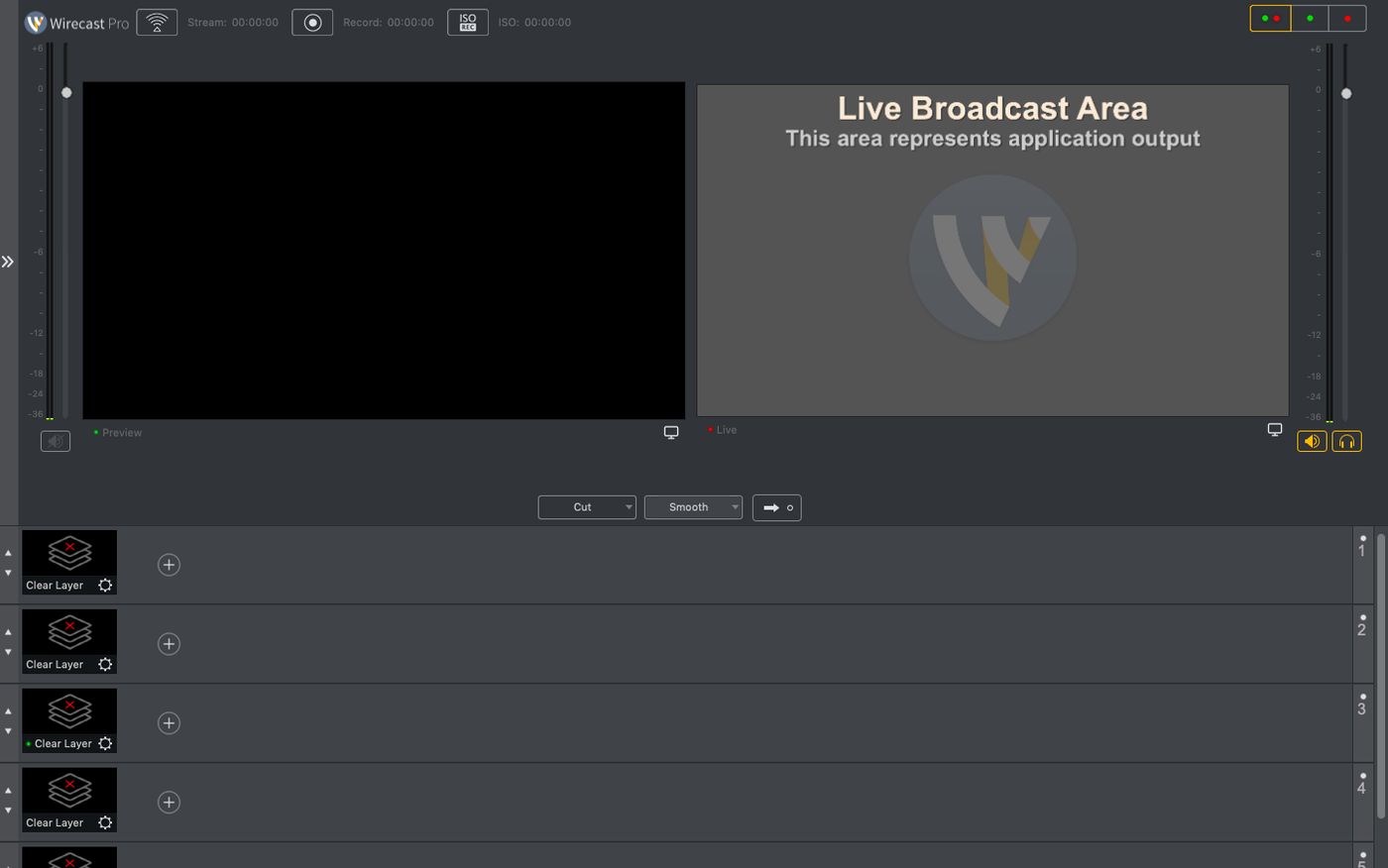
Wirecast 16.5.4, the current public release from Telestream as of September 2026, refines a few things that matter if you rely on NDI gear or strict corporate setups. The main fix: certain PTZ NDI cameras that stopped being detected on macOS now show up again. Another change addresses the virtual camera failing when IT policy blocks the virtual microphone driver — a small but practical correction for school or office environments. On the source side, a discontinuous-frame flag has been added for NDI sources, which helps maintain sync in longer productions.
Everything else stays familiar. You still get 30 built-in title and caption styles, sports score templates, overlays, and the option to place a logo on the outgoing signal. Quick text changes during a live broadcast work the same way. The app remains a solid choice for recording interviews, music videos, television programs, or shows, and it runs on both Intel and Apple Silicon Macs with macOS 11 or later.
Does Wirecast need an internet connection to work?
Because Wirecast Pro is a professional tool, a few questions come up regularly from teachers and small production teams. One of the most common is whether the software needs an internet connection to work. The answer is that Wirecast runs entirely offline once it is installed. You can record local events, switch between camera sources, and add overlays without being connected. The internet is only needed if you stream to a platform like YouTube or Facebook, or if you download additional templates.
Another frequent question is about screen recording. Wirecast Pro can capture your screen as a source, which is useful for software demonstrations or online lessons. You add it just like any other video source, and the resolution matches your display. No extra plugins are needed.
People also ask whether Wirecast handles multiple cameras without additional hardware. With the right setup, it does. You can connect several USB cameras, or use network-based NDI cameras, and switch between them live. The 16.5.4 update fixed NDI camera detection on macOS, which makes this smoother than before. The app supports up to 7 layers of sources in a single shot, so you have room for a main camera, a secondary angle, slides, and a logo all at once.
The most common mistake: forgetting to check audio routing
The most common mistake I see is forgetting to check audio routing before going live. Wirecast treats audio and video sources independently, so it is easy to end up with a camera that has no sound, or a microphone that is assigned to the wrong mix. The solution is to test each source before the event, especially if you have multiple microphones or external audio interfaces.
Another beginner error is not configuring the output resolution before starting. Wirecast defaults to a certain resolution based on the first source you add, but the final output may look stretched or cropped if the sources do not match. I recommend setting the output resolution in the preferences at the start of any project, so everything fits from the beginning.
Beginners also tend to clutter the workspace. Wirecast has a lot of built-in shots and overlays, and it is easy to add too many layers. This makes switching confusing when you are live. A cleaner approach is to prepare only the shots you need ahead of time, name them clearly, and hide the ones you are not using. The built-in shot manager helps with this once you learn to use it.
A smaller but common slip is forgetting to enable the virtual camera if you plan to use Wirecast as a source in another app, like Zoom or Teams. The virtual camera must be turned on in the output menu, and it may need a restart after you enable it. The 16.5.4 fix for corporate IT policies means this should work even on restricted machines now.
Wirecast Pro vs. OBS Studio for live production
Wirecast Pro sits in a crowded space with a few other live production tools. OBS Studio is the most direct comparison. OBS is free and open source, and it handles basic streaming and recording well. It also has a large community of plugin developers. The difference is in polish and professional features. Wirecast includes 30 built-in title styles, sports score templates, and a dedicated shot system that OBS lacks without third-party additions. For a school club or a small TV studio, the built-in graphics save a lot of setup time.
Another option is vMix, which is more common on Windows but also runs on Mac via a workaround or a dedicated version. vMix has similar multi-camera switching and overlay support. Wirecast feels more at home on macOS, with a native interface that follows Apple's design guidelines. vMix can be a bit harder to learn if you are used to Mac-only software. For a teacher who wants to hand the software to students, Wirecast's layout is more intuitive.
Ecamm Live is a third alternative, aimed at solo streamers rather than production teams. It is simpler and integrates well with services like Stream Deck, but it does not have the same multi-shot, multi-camera switching that Wirecast offers. For a group project where several people manage different cameras and graphics, Wirecast gives more control.
How a school film club streams with three USB cameras
Here is a situation I know well. The film club at my school organizes a monthly talk show where students interview local artists. They have three USB cameras, a laptop for slides, and a microphone for the host. Before Wirecast, they recorded each camera separately and edited everything later, which took days. With Wirecast Pro, they set up three shots: a wide angle of the stage, a close-up of the guest, and a slide overlay. The teacher shows the shot list to the students, and they take turns switching during the live recording. The built-in titles let them add the guest's name in seconds. After the show, they export the recording directly and upload it to the school channel. The whole process takes two hours instead of two days.
For the film club, the NDI fix in 16.5.4 matters because they sometimes borrow a PTZ camera from the media room. Before the update, it would not show up on the Mac. Now it connects right away, and one student can control the pan and tilt while another switches shots. It is a small thing, but it makes the club feel like a real production team.
- Fixed detection of certain PTZ NDI cameras on macOS
- Fixed virtual camera use when the virtual microphone driver is blocked by corporate IT policy
- Added a discontinuous-frame flag for NDI sources
- macOS 11 or later
- 64-bit processor
- Intel or Apple Silicon
Questions I keep getting
What languages does Wirecast Pro support?
Wirecast Pro supports English, German, Spanish, Italian, Chinese (Simplified), Korean, Dutch, Portuguese, French, Czech, Swedish, and Japanese.
What are the system requirements for Wirecast 16.5.4?
It requires macOS 11 or later, a 64-bit processor, and runs on both Intel and Apple Silicon Macs.
How to install
- Mount the disk image and run Open Gatekeeper friendly — this prepares the app without macOS blocking it.
- Press Enter in Terminal to bypass Gatekeeper. This step keeps the installation simple for a single user.
- Drag the app to the Applications folder so it's available system-wide.
- Launch the app when installation is complete to confirm it works.
Similar apps

Sign in or join the club to leave a comment.
Nobody has commented yet.