- Version
- 2.17.0
- Studio or maker
- ViWizard Studio
- Languages
- English, German, French, Japanese
- Activation
- K'ed by TNT team
- Runs on macOS
- OS X 10.10 or later
- Chip type
- Intel 64-bit
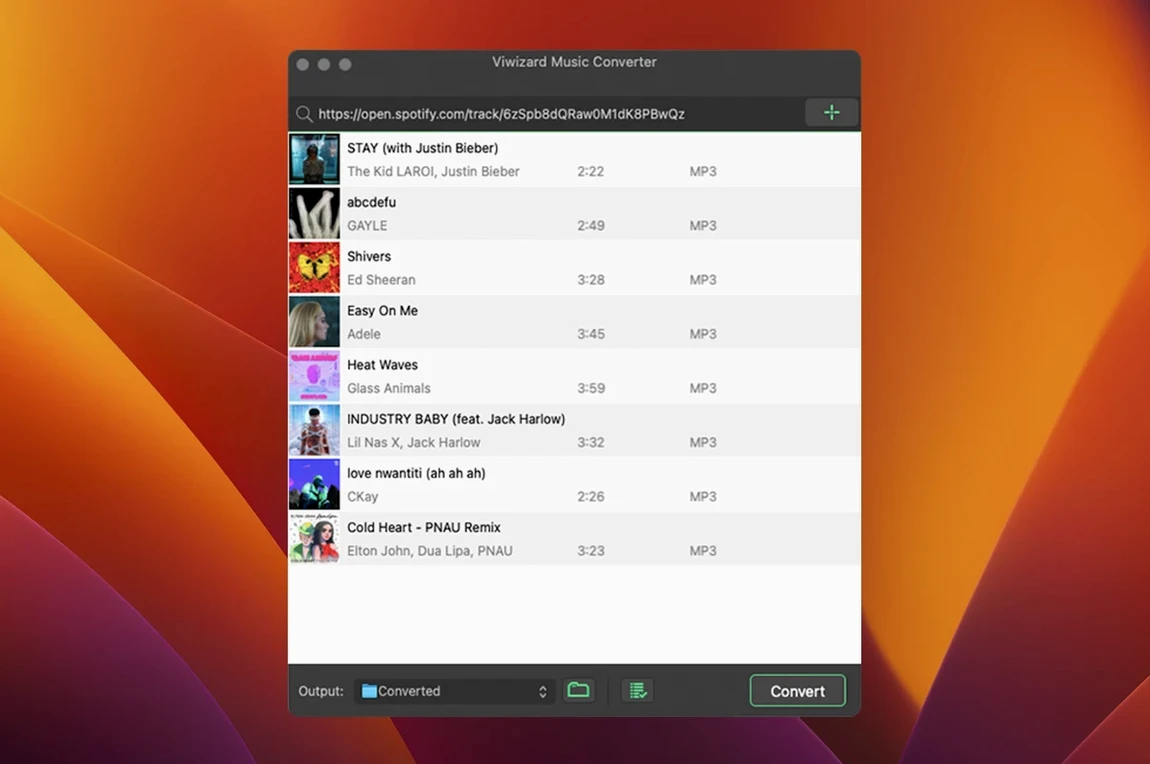
The built-in Spotify Web Player inside ViWizard Spotify Music Converter is the part that caught my attention first. The result is a set of local files you can keep, organize, and use offline.
- Converts Spotify tracks and playlists to MP3, AAC, WAV, FLAC, M4A, and M4B formats.
- Batch conversion handles entire playlists at once, no need to queue songs one by one.
- Automatically saves output tracks sorted by artist or album, with original metadata preserved.
- Works on Intel-based Macs running macOS 10.10 or newer, with a Windows version also available.
- Interface in English, German, French, and Japanese — useful if you share the setup with multilingual students or colleagues.
This is a utility for anyone who wants a personal archive of Spotify music without an active internet connection. The conversion is straightforward, and the metadata retention means your library stays organized from the start.
Adjust channel, bitrate, and sample in the output settings
There are a few details in ViWizard Spotify Music Converter that don't get highlighted in the feature list but make a real difference once you start using it regularly. The output settings panel lets you adjust channel, bitrate, and sample rate before you begin a batch conversion. If you are archiving podcasts for long car rides, a lower bitrate saves disk space without making speech sound thin. For music you care about, a higher sample rate and stereo channel give you a file closer to the original stream.
The auto-sort option is another one I like. When you convert a playlist with tracks from several artists, the app can create a folder structure that separates them by artist or by album. This keeps your music folder tidy without extra renaming later. The metadata preservation also deserves a second mention: album art, track numbers, and artist names transfer into the exported files, so your music player recognizes them correctly.
Batch conversion is not just for speed. It means you can set a playlist to convert before you leave for class and come back to a finished folder. The app handles the queue without further input, which is helpful when you have limited time between lessons.
Frequent questions answered before you install
No Premium account needed to convert songs
No. The app uses the built-in Spotify Web Player to access music content, so a standard free Spotify account is enough. You log in through the app's own browser window, and conversion works from that session. Premium does not give you a better conversion result, but it does remove ads from the web player while you are working.
Will the converted files sound worse than streaming?
That depends on the output settings you choose. The app captures the audio stream as it plays, then encodes it into whatever format and bitrate you set. If you export to MP3 at 320 kbps, the result is close to what you hear through a normal streaming session. Lower bitrates save space but lose some detail. FLAC and WAV preserve more of the original data, though the files are larger.
Can I convert audiobooks and podcasts the same way?
Yes. The app lists podcasts and audiobooks among the content types it handles. The process is the same as with music: find the item in the built-in web player, add it to a playlist or queue, and let the batch conversion run. Metadata for spoken-word content also transfers, so chapter markers and titles stay intact where the source provides them.
How to bypass Gatekeeper when the app won't start
The most frequent issue I hear about is the app not starting after installation. On macOS, Gatekeeper can block apps that are not signed. The install steps include mounting the disk image, pressing Enter in Terminal to bypass Gatekeeper, then dragging the app to the Applications folder. If you skip the Terminal step, the system may refuse to launch it. Running the command first clears that block.
Another snag is the built-in web player not loading Spotify. This usually happens if your internet connection is restricted or if a firewall blocks the player's domain. Check that Spotify.com is accessible in your regular browser first. If it is, but the app still shows a blank player, restarting the app often reloads the web view correctly.
Some users find that converted files have no artist or album name. This is almost always because playback started before the metadata loaded. Let the track play for a couple of seconds before beginning the conversion. The app fetches metadata during those first moments, so a short wait ensures the tags are complete.
If you run the conversion on a playlist with many tracks and the app seems stuck, check the output folder. Occasionally a filename conflict or a special character in a song title can pause the queue. Pausing and resuming the batch from the interface usually clears it.
Oldest macOS version still supported by the update
Version 2.17.0 is the current Mac build. The most noticeable change for day-to-day work is that the app continues to support macOS versions as old as OS X 10.10, which matters if you are running a school lab with older iMacs that cannot upgrade further. The Intel-only architecture also means the app sticks to what works on that hardware without complications.
Interface language support is now at four options: English, German, French, and Japanese. That is useful if you share the computer with colleagues or students who prefer one of those languages. Switching the language does not affect the conversion settings or saved files, so you can set it once and forget it.
The app remains part of ViWizard Studio's Spotify converter line, so the core workflow has stayed stable. No new format was added in this version, but the existing ones — MP3, AAC, WAV, FLAC, M4A, M4B — cover the formats people typically need for offline listening or archive purposes. ViWizard Spotify Music Converter for Mac lets you save Spotify songs as local audio files on Intel Macs.
- macOS 10.10 or later
- Intel processor (64-bit)
Questions I keep getting
Does ViWizard Spotify Music Converter require Spotify Premium?
No, the app uses the built-in Spotify Web Player and does not need a Premium subscription to work.
How to install
- Mount the disk image and open it. Gatekeeper may block the app, which is normal for unsigned software.
- Open Terminal and press Enter to bypass Gatekeeper for this app. This step allows the app to launch.
- Drag the application to your Applications folder to install.
- Launch the app from Applications when installation finishes.
Similar apps

Sign in or join the club to leave a comment.
Nobody has commented yet.