- Version
- 12.0.7282
- Studio or maker
- Corel Corporation
- Languages
- English
- Activation
- Included
- Runs on macOS
- macOS 10.15 or later
- Chip type
- Apple Silicon, Intel 64-bit
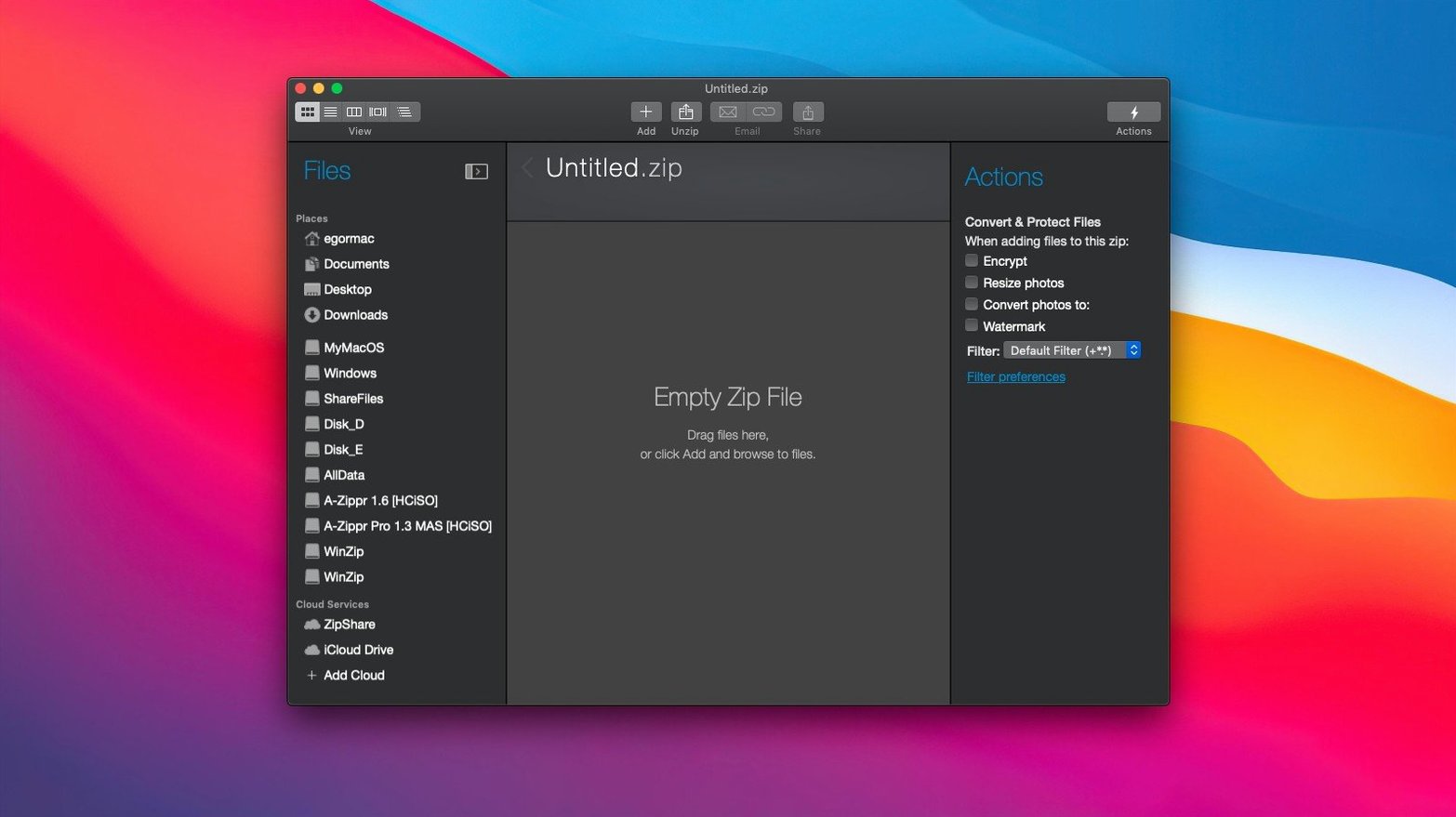
WinZip Mac Pro 12 works on any Mac running macOS 10.15 or later, supporting both Intel and Apple Silicon processors. It is a straightforward tool for compressing, encrypting, and sharing files, especially useful for optimizing email attachments.
Compress and encrypt files with drag-and-drop
- Compressing large files into smaller Zip or Zipx archives using drag-and-drop.
- Encrypting sensitive files before sharing or storing them.
- Detecting and removing duplicate files inside archives.
- Copying and pasting files directly into a Zip or Zipx file using Mac clipboard support.
English-only with a redesigned Mac interface
- It is the Mac edition of WinZip, with a redesigned interface that differs slightly from the Windows version.
- The app is in English only.
- Installation and activation steps are included inside the downloaded package.
Native macOS app for both M-series and Intel Macs
WinZip Mac Pro 12.0.7282 installs as a native macOS application. Because it supports both ARM and x86 64-bit architectures, it runs on M-series Macs and older Intel models alike, as long as your system is on macOS 10.15 or later. The interface is clean and uncluttered, with the main tools visible from the start: create a new archive, open an existing one, or convert a file from another format. The app opens quickly and stays out of your way while you work.
The archive conversion feature is one you might rely on more than you expect. WinZip can turn LZH, LHA, RAR, 7Z, TAR, Z, GZ, TAZ, TGZ, BZ, XZ, and Z files into Zip or ZipX archives on the spot. That means you don’t need a separate utility for each format you encounter. If a colleague sends you a RAR file or you download a TAR archive from an open-source project, WinZip handles the conversion without fuss.
You also get direct connections to iCloud Drive, Dropbox, and Google Drive. These appear as destinations when you save an archive, so you can compress and upload in one step. No need to drag a finished archive into a cloud folder afterward.
A workflow: compressing and encrypting files for email
Here is one way to use WinZip Mac Pro from start to finish. This scenario is common for teachers sending grade reports or for anyone sharing sensitive attachments.
- Open WinZip and click to create a new Zip or Zipx archive. A blank archive window appears.
- Drag the files you want from Finder into the archive window. They can be documents, images, or a mix of formats. The app shows you the original size and the estimated compressed size as you go.
- If you have duplicates — for example, two versions of the same spreadsheet saved in different folders — use the duplicate file detection tool. It scans the archive contents and flags files that match. You can remove the extras before saving, which keeps the archive lean.
- Before you save, set encryption. Choose a strong password for the archive. This step is optional but recommended for anything with student data or personal information.
- Save the archive. At this point you can also direct it to iCloud Drive, Dropbox, or Google Drive by picking the cloud service from the save location menu. The archive is compressed, encrypted, and uploaded in one action.
- Attach the saved archive to your email as you normally would. The smaller size means it goes through most attachment size limits without trouble.
If you prefer working from the clipboard, you can copy files in Finder, then use the Mac clipboard support inside WinZip to paste them directly into a new or existing archive. It is a small shortcut that saves a drag when you are already in file-browsing mode.
Convert test archives from different formats right away
After installing, spend a few minutes converting a couple of test archives from different formats. It gives you a feel for how quickly WinZip handles each one and confirms that the conversion works the way you expect.
Set up your cloud connections early. Link WinZip to iCloud Drive, Dropbox, or Google Drive the first time you save an archive. That way, the service is ready when you need it later, and you avoid the extra step of logging in during a busy moment.
Use the duplicate file detection as a routine step when you archive project folders. It is common to accumulate multiple drafts of the same file. Running the scan once can cut the archive size noticeably without losing anything important.
Keep the activation instructions handy. They are included inside the package, and the process is straightforward, but having them open in a separate window saves a little back-and-forth during setup.
Best for opening and converting RAR and 7Z files from collaborators
WinZip Mac Pro suits Mac users who regularly handle archives in formats other than Zip. If you receive RAR or 7Z files from collaborators and need to open them or repackage them, the built-in conversion saves you from hunting down separate tools.
Teachers and administrators who email attachments with sensitive content — graded work, student records, or internal documents — benefit from the encryption step. It takes one extra moment and makes a meaningful difference in how safely you share files.
People who manage cloud storage across multiple services find the direct connections helpful. Instead of compressing locally and then uploading, you do both in one save operation. That reduces the number of windows open at the end of a session.
And anyone who wants to cut down on disk clutter from stray archive formats will appreciate that WinZip handles LZH, TAZ, BZ, XZ, and others without complaining. It is a single point of entry for most compressed file types you are likely to encounter on a Mac.
- macOS 10.15 or later
- Intel or Apple Silicon processor
Questions I keep getting
Can I use WinZip Mac Pro to compress files on both older and newer Macs?
Yes, it runs on macOS 10.15 and later, and supports both Intel and Apple Silicon Macs.
Similar apps






Sign in or join the club to leave a comment.
Nobody has commented yet.