

- Version
- 6.6 (2025030101)
- Studio or maker
- Digiarty Software
- Languages
- English, German, Spanish, Italian, Chinese (Traditional), Chinese (Simplified), Korean, French, Japanese
- Activation
- K'ed by TNT team
- Runs on macOS
- OS X 10.10 or later
- Chip type
- Intel 64-bit
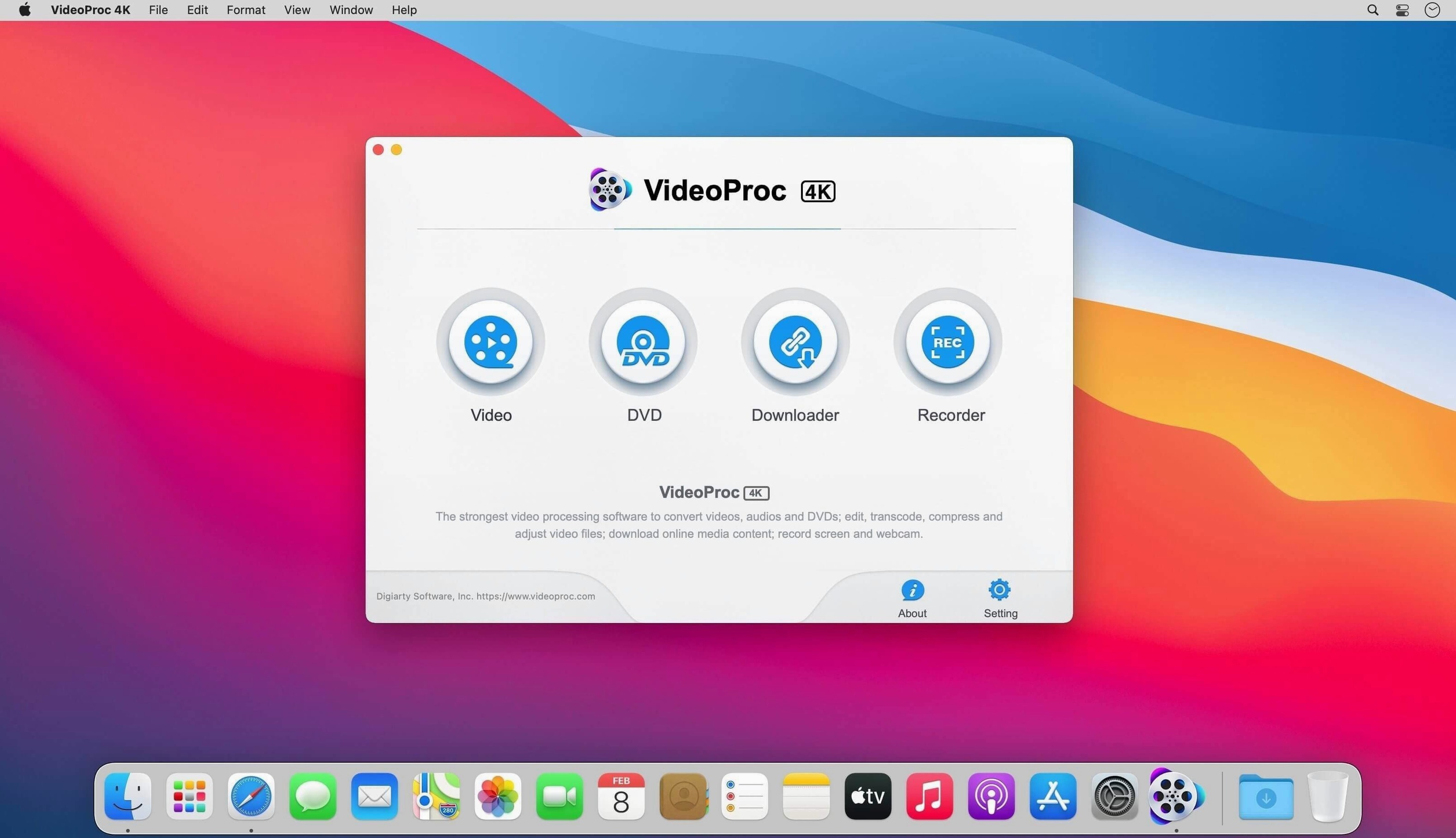
Older Intel Macs from 2014 or 2015 still run the current build
No extra codec packs needed due to built-in library
Yes. The current build supports macOS 10.10 and later, so even a Mac from around 2014 or 2015 can run it. The catch is that some newer features — the AI tools for video super resolution and frame interpolation, plus the image AI module — require macOS 10.15 or later. If you are on an earlier system, the classic conversion and editing functions still work.
Drag files directly onto the app window if they don't show up
No. VideoProc Converter includes its own codec library. That is one of the reasons it handles so many formats without asking you to find and install additional components. The app works out of the box with the files you give it.
Can it handle 4K video from a phone or a drone?
Yes. The tool supports UHD video input and can downscale it if you need smaller files. The hardware acceleration helps keep processing times manageable, especially when working with high-resolution clips.
Use it for format conversion and compression that iMovie cannot handle
A few things tend to trip people up when they first use the app. Knowing about them saves a little head-scratching.
- File not showing up in the import window. Drag the file directly onto the VideoProc Converter window instead of using the file browser. The app sometimes filters the browser by its own list of supported formats, and a rare container might not appear there.
- Export takes longer than expected. Check that hardware acceleration is enabled under the settings. If it is already on, the format you chose may not support GPU-accelerated encoding. Switching to a more common format such as H.264 or HEVC usually helps.
- Right-click the app in Applications and select Open from the menu, then confirm that you want to run it. This only needs to be done once.
- Subtitles or audio tracks are missing in the output. When you add a file, click the settings button next to it before converting. There you can select which audio track and subtitle stream to include. By default the app takes the first track only.
Set a single output folder in preferences before starting
VideoProc Converter sits alongside tools like iMovie and Final Cut Pro rather than replacing them. You use it for the tasks those apps do not handle well: format conversion, compression, and bulk downloading. Once you have converted a video to a standard format, you can open it in your usual editing software without any extra steps.
On macOS, the app integrates with the system in a practical way. If you have downloaded a video playlist using the batch download feature, you can find the files in the output folder you set inside the app. From there, dragging them straight into a project in your NLE works fine. The same applies to sending compressed clips to colleagues or students via AirDrop — no proprietary container formats to worry about.
For users who work with screen recordings or webcam footage, the app can also handle those as input sources. The hardware acceleration is particularly useful here because it reduces the time spent waiting for a recording to convert to a more editable format.
Newer AI features for super resolution require compatible hardware
Before you process your first batch of files, open the preferences and adjust a few defaults. They save time later.
- Output folder. Set a single folder where all converted files land. By default the app saves them in a VideoProc folder inside your Movies directory, but you can point it anywhere you like — a project folder, a shared drive, or a desktop folder for quick access.
- Hardware acceleration. Make sure the toggle is on. This is the setting that makes the app faster on both Intel and Apple Silicon Macs. If you ever run into a file that does not process correctly, you can turn it off for that one conversion.
- Default output format. If you usually edit in iMovie or Final Cut Pro, set the default to H.264 in a .mov container. For sharing online or with students who use various devices, MP4 with H.264 is the safer choice.
- Language. The interface supports nine languages including English, German, French, and Japanese. Change it in preferences if you prefer working in another language.
These adjustments take about two minutes and remove the need to reconfigure every time you open the app.
- macOS 10.10 or later
- Intel or Apple Silicon (native on M1–M4)
Questions I keep getting
Does VideoProc Converter work on Apple Silicon Macs?
Yes, the official version is optimized for Apple Silicon and runs natively on M1, M2, M3, and M4 chips.
What macOS version do I need?
macOS 10.13 or later is required for classic features; the minimum is macOS 10.10.
How many video formats does it support?
It supports up to 370 codecs for conversion and processing.
How to install
- Mount the disk image and run the Open Gatekeeper-friendly command.
- Press Enter in Terminal to bypass Gatekeeper.
- Drag the app to your Applications folder.
- Open the app from Applications.
Similar apps

Sign in or join the club to leave a comment.
Nobody has commented yet.