- Version
- 26.5.2
- Studio or maker
- Adobe
- Languages
- Russian, English, German, Spanish, Italian, Chinese (Simplified), Korean, Portuguese, French, Japanese
- Activation
- K'ed by boringman
- Runs on macOS
- macOS 14 or later
- Chip type
- Apple Silicon, Intel 64-bit
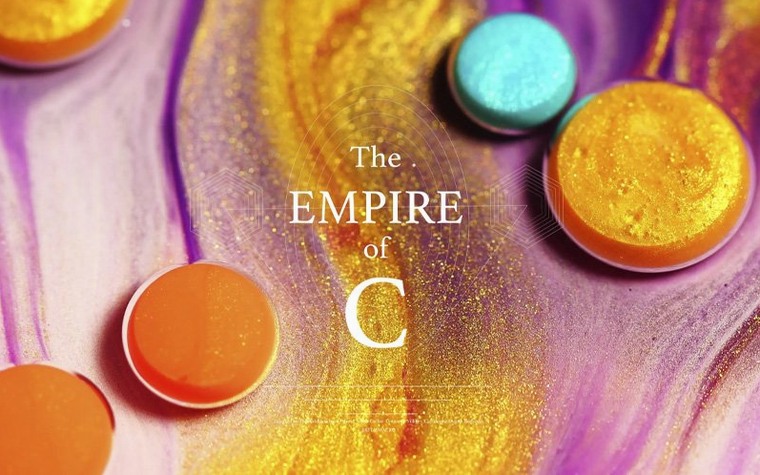
A documentary editor sits at her Mac, transcript in hand, and drags a paragraph onto the timeline. Premiere Pro builds a rough cut from her words, pulling matching clips from the source footage. That is Paper Edit, a new tool in version 26.5 that turns scripts into starting points for assembly.
Premiere Pro is Adobe's desktop video editor, used for films, television, and web content. Beyond cutting, it handles color correction, graphics, and sound in one application. The current release also supports Sony FX5 cameras and ARRICORE for ALEXA 35 Xtreme footage, which matters if you work with those systems.
Who is this for? Editors who need a professional timeline, teachers showing students a standard tool, or hobbyists moving up from simpler apps. The interface comes in ten languages, including English, German, and Spanish, so it fits multilingual classrooms or teams.
It runs on macOS 14 or later, on both Intel and Apple Silicon Macs, with at least 8 GB of RAM. If you are new to Premiere, the learning curve is real, but the payoff is a tool that grows with you.
How a freelance video producer uses it day to day
A friend of mine, a freelance video producer in Hamburg, edits everything from corporate testimonials to short social ads. She used to jump between Final Cut Pro for quick projects and DaVinci Resolve for color work. Now she stays in Premiere Pro for the whole chain. Her typical week: she receives interview footage shot on a Sony FX5, imports it directly, and uses the new Paper Edit tool to build a first draft from the automatically generated transcript. She adjusts the timing, then drops in b-roll from a second camera angle. For audio, she ducks music under speech with the automatic ducking feature, and for graphics she applies a simple motion graphics template from the Essential Graphics panel. The whole project stays in one app, which saves her the export-and-import cycle between different editors.
She also appreciates that when a client sends a reference video with a specific color grade, she can match colors across clips without leaving the timeline. No round-tripping to another application. For her, Premiere Pro is less about flashy effects and more about not losing momentum during a tight deadline.
Premiere Pro vs. Final Cut Pro and DaVinci Resolve on workflow
If you are choosing a video editor for macOS, three names come up: Premiere Pro, Final Cut Pro, and DaVinci Resolve. They all handle basic cutting and trimming, but they differ in workflow and ecosystem.
Final Cut Pro is Apple’s own editor. It runs only on macOS and uses a magnetic timeline that pushes clips out of your way automatically. Many solo editors and YouTubers prefer it for its speed and clean interface. However, its library and project files do not open on Windows, and it does not include built-in tools for motion graphics templates or automatic audio ducking the way Premiere does. If your work involves collaborating with a team using Adobe products, Final Cut can feel isolated.
DaVinci Resolve is strong on color grading and audio post-production. But its editing workflow has a different logic than Premiere’s, and some editors find the transition between its pages (cut, edit, color, Fairlight) less fluid than Premiere’s all-in-one timeline. Resolve also lacks the Generative Media Tool for creating video or sound effects directly in the timeline, which Premiere 26.5 now includes.
Premiere Pro sits in the middle: it runs on both macOS and Windows, integrates with After Effects and Audition, and keeps all its tools in one workspace.
Jumping into effects before learning the timeline basics
The most common mistake I see in my game club and among new editors is jumping straight into effects before learning the timeline basics. Premiere Pro has a lot of buttons and panels, and it is tempting to apply transitions and color LUTs right away. But if your clips are not trimmed cleanly, your audio levels are uneven, and your sequence settings do not match your footage, effects will not fix those problems. Start with the fundamental editing workflow: importing, organizing bins, trimming, and setting in and out points.
Another mistake is ignoring proxy workflows. If you shoot in 4K or higher, your Mac may struggle with playback on a busy timeline. Premiere Pro can create lower-resolution proxy files that you edit with, then switch back to the original media for export. Beginners often skip this step, then wonder why playback stutters.
A third error is mixing releases from different groups if you install multiple Adobe apps. If you are putting together a set of Adobe tools, keep all releases from the same group together. Mixing them can cause activation or compatibility issues. The instructions inside each package explain this, so read them before installing.
Finally, new users sometimes rely entirely on the automatic audio ducking feature without checking the result. The ducking is a starting point, not a final mix. Listen to the entire timeline, adjust keyframes manually, and remember that the automatic tool works best when your dialogue tracks are clean and your music levels are consistent.
Many editors send a clip from Premiere to After Effects with a single menu command, then the updated composite appears back in the timeline automatically. Similarly, audio clips can be sent to Audition for noise reduction, and the changes sync back.
On macOS, Premiere Pro can use the full screen for a clean preview, and it supports multiple display setups for a dedicated timeline monitor and a program monitor. It also respects macOS color management, so your footage looks consistent between the editing window and an external reference monitor if you calibrate correctly. The application runs natively on Apple Silicon, taking advantage of the unified memory architecture for video decoding and effects processing.
The Generative Media Tool in version 26.5 lets you generate video and sound effects directly in the timeline without leaving Premiere. This is useful when you need a quick placeholder or background element and do not have stock footage available. It does not replace a full effects library, but it saves time during early assembly.
Building a rough cut from a transcript with the Paper Edit tool
The largest change for everyday editors is the Paper Edit tool. Instead of manually scrubbing through hours of footage to find the right clips, you start with a transcript. You select paragraphs, and Premiere builds a rough cut from your spoken content. This is especially helpful if you work with long interviews or documentary footage. The rough cut is not polished, but it gives you a structured timeline to refine, which can cut the assembly phase by a noticeable margin.
The Generative Media Tool is another addition. You can ask it to create video clips or sound effects within the timeline. For example, if you need a short animated background or a subtle ambient sound, you generate it on the spot. The tool supports resolutions up to 4K UHD, any aspect ratio, and interlaced or non-square-pixel footage, so it adapts to your project settings.
Version 26.5 also expands camera support. Sony FX5 cameras with XAVC and XOCN media import natively. ARRICORE is now compatible with ALEXA 35 Xtreme cameras. And ProRes RAW support has been enhanced, which benefits editors using Atomos or AJA recorders. For GPU users, the update adds hardware-accelerated 4:2:2 10-bit decoding for AVC and HEVC in MXF on NVIDIA Blackwell GPUs. This is a niche improvement, but it matters if you edit high-bitrate broadcast footage on a supported Windows machine with those GPUs.
For most Mac editors, the key takeaway from 26.5 is that the timeline can now be a starting point for creative generation, not just a place to arrange existing media. The Paper Edit tool shifts the beginning of the editing process from searching to assembling, which is a meaningful change for anyone who works with transcripts.
- Generative Media Tool creates video and sound effects directly in the timeline.
- Paper Edit assembles rough cuts from transcripts.
- Generative Extend now supports more source media, up to 4K UHD resolution.
- macOS 14 Sonoma or later
- Intel or Apple Silicon Mac
- 8 GB RAM minimum
- 1920x1080 display
- Apple Silicon: 8 GB unified memory for GPU
- Intel: integrated graphics or AMD discrete graphics with 4 GB GPU memory
Questions I keep getting
What is Paper Edit in Premiere Pro 26.5?
Paper Edit lets you assemble a rough cut from a transcript, then connects those words to the matching footage in your project.
Does Premiere Pro 26.5 work on Intel Macs?
Yes, it supports both Intel and Apple Silicon Macs, as long as you have macOS 14 Sonoma or later.
How to install
- Open the package and read the included installation and activation instructions. They explain the process step by step.
- For Monter Group releases, installation is simpler, so follow those notes if you have them.
- If the release includes the Adobe Activation Tool, it can access Adobe servers for activation.
- When running multiple Adobe apps, keep releases from the same group together and avoid mixing different groups. This prevents conflicts.
Similar apps





Sign in or join the club to leave a comment.
Nobody has commented yet.