- Version
- 21.1.1
- Studio or maker
- Blackmagic Design Inc.
- Languages
- Russian, English, Spanish, Chinese (Simplified), Portuguese, French, Japanese
- Activation
- Included
- Runs on macOS
- macOS 15 or later
- Chip type
- Apple Silicon, Intel 64-bit
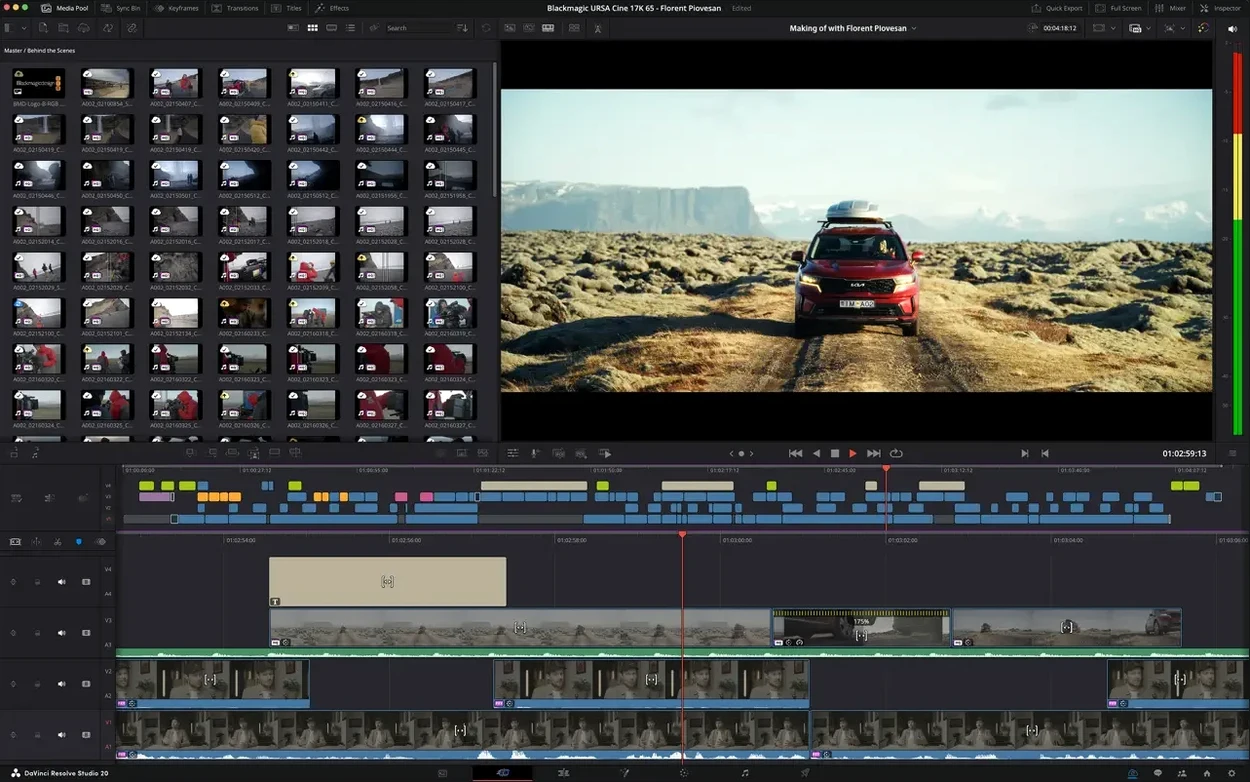
You have a finished edit, but the color needs work, the audio hums, and one shot asks for a quick composite. In most setups, that means opening three or four different applications and moving files between them. DaVinci Resolve Studio for Mac keeps that whole chain in one place, so you stay in a single timeline from first cut to final render.
A natural fit for your Mac workflow
Because it runs on both Intel and Apple Silicon Macs, it sits comfortably next to the tools you already use. The workflow tends to follow this order:
- Cut your footage on the Edit page, where the timeline handles everything from rough assemblies to fine trims.
- Move to the Color page for grading, using the same tools found in Hollywood productions.
- Switch to the Fusion page for visual effects and motion graphics without leaving the project.
- Finish on the Fairlight page, where audio post-production lives alongside the picture.
Version 21.1 adds an AI assistant for tasks like organizing media and batch rendering, plus hardware-accelerated HEIC decoding on Apple Silicon. The result is a post-production app that matches the pace of a Mac you already know.
Which Mac users benefit most from DaVinci Resolve Studio
Working at a school, I see different types of Mac users every day. Some edit a short film for a weekend project. Others assemble training videos for their team. A few do color work for clients on the side. DaVinci Resolve Studio suits all of them, but three groups in particular find it hard to go back to anything else.
Video editors who also grade. If you cut a project and then hand it off to someone else for color, you lose control of the look. Here, the grading tools are the same ones used on feature films, yet they sit right below the timeline. You can adjust a shot, see how it plays with the cut, and keep moving without exporting a single file.
VFX artists working inside a timeline. The Fusion page changes the usual compositing workflow. Instead of building a visual effect in a separate app and re-importing it, you create it directly on the clip. Nodes appear in a graph, and the effect updates in real time as you tweak settings. For motion graphics that need to match camera moves or lighting changes, staying in one timeline saves a lot of back-and-forth.
Anyone who handles audio alongside video. The Fairlight page is a full digital audio workstation. Dialogue cleanup, background noise reduction, music mixing, and final mastering all happen there. If your project has voiceovers, ambient sound, or multiple music tracks, you can balance everything while watching the picture. No round-tripping to a separate audio app.
Newer users also benefit from the unified layout. Instead of learning four different interfaces, you learn one application with pages for each task. The Edit page feels familiar if you have used any timeline-based software, and the other pages reveal their tools gradually as you need them.
One specific task: color grading a scene from start to finish
Let me walk through a common scenario. You have a scene with three shots: a wide exterior, a medium close-up, and a reverse angle. The lighting varies between them, and you want them to match. Here is how you would handle it in DaVinci Resolve Studio without leaving the timeline.
- Set the first shot as a reference. On the Color page, grade the wide exterior until it looks right. Adjust exposure, white balance, and contrast. This shot becomes your target look.
- Use stills to compare. Right-click the graded shot and save a still. Now, when you move to the close-up, you can click that still to see a split screen or a side-by-side comparison. The difference becomes obvious, so you know exactly what to change.
- Match by eye or with tools. For the close-up, you can adjust manually until it matches the reference. If the shots are similar enough, the color matching tool can sample the reference and apply a correction automatically. Either way, you stay on one page.
- Check the reverse angle. The same process applies. Grade it, compare it to the still, and tweak until the whole scene feels consistent.
- Review on the timeline. Play the scene from beginning to end. The Color page updates in real time, so you see each shot in sequence. If one still feels off, you can adjust it without leaving playback.
That entire workflow happens inside a single application. The project file never changes, the timeline never moves, and you never export a temporary file.
A morning session in three phases on the Media page
I think of a session in DaVinci Resolve Studio as three clear phases. Here is how a morning might look.
First, preparation. I open the project and go to the Media page to import footage. Version 21.1 includes an AI assistant that can help organize clips by content, which saves time when you have dozens of takes. I sort the bins, label the best shots, and set up a rough structure. This part takes about fifteen minutes, but it makes the rest of the session faster.
Next, editing and refining. On the Edit page, I assemble the timeline. I trim clips, adjust transitions, and add titles where needed. If a shot needs a quick composite, I switch to the Fusion page. Over twenty new Krokodove graphics tools arrived in version 21.1, so there are more options for procedural effects and glows without building them from scratch. I apply one, adjust a few parameters, and go back to the timeline. The edit continues.
Finally, finishing. The Color page gets the most attention. I grade each scene, match shots, and add a global look. Then I move to the Fairlight page to mix the audio. The background noise from an outdoor shot gets reduced. Music levels are balanced against dialogue. I listen through the whole timeline once, make small adjustments, and set the render range. The render runs while I prepare the next project.
The session flows without switching applications. Each page is designed for a different task, but they all share the same source footage and timeline. That continuity is what makes it feel like one piece of work rather than several.
How the AI assistant organizes media and runs batch renders
The 21.1 update adds features that affect how you work from the moment you open the application. The AI assistant handles two tasks that usually interrupt your flow: organizing media and running batch renders. Instead of sorting clips manually, you can let the assistant group them by content or type. Instead of queuing renders one by one, you set up a batch and let it process while you work on something else.
On the Photo page, support for additional camera formats means you can work with raw files from more cameras directly, without converting them first. For editors who also shoot stills, this simplifies the import process.
The Fusion page gains over twenty-five new Krokodove graphics tools. These are preset tools for effects like blur, noise, and texture generation. They save time when you need a quick visual element without building a node tree from scratch.
For developers and power users, the update includes twenty new scripting APIs with a built-in console. This allows custom automation and integration with other tools. It is not something every user needs, but for those who do, it opens up deeper control.
On Apple Silicon Macs, HEIC decoding uses hardware acceleration, which means importing and browsing photo files is faster. The GPU-accelerated HTJ2K decoding with Kakadu also improves performance for certain compressed formats, though the exact speed depends on your workflow and media types.
Overall, version 21.1 adds convenience features on top of an already complete toolset. The core editing, grading, and audio workflows remain the same, but the new assistant and format support remove small frictions that add up over a long project.
macOS 15 requirements and Apple Silicon support
DaVinci Resolve Studio 21.1 requires macOS 15 or later and runs on both Intel and Apple Silicon Macs. That covers most modern machines. The application is large and handles high-resolution media, so it benefits from having enough storage and RAM, but the system requirements are straightforward.
If you use an Apple Silicon Mac, hardware-accelerated decoding for HEIC images is included, so importing photos is faster. The Kakadu-based HTJ2K decoding also uses the GPU, which helps if you work with JPEG 2000 files. On Intel Macs, the same features work through software decoding, so performance will vary depending on your processor and graphics card.
The interface scales well on different screen sizes, from a MacBook Air to a studio display. The Color page benefits from a larger screen because you see more of the waveform monitors, scopes, and node graph at once, but the layout is adjustable.
No matter which Mac you use, the workflow stays the same. The tools are identical, the project files are compatible, and the interface is consistent. You can start a project on a laptop and finish it on a desktop without changing your approach.
- AI assistant integration for media organization and batch rendering.
- Expanded camera format support on the Photo page.
- Over 25 new Krokodove graphics tools.
- GPU-accelerated HTJ2K decoding using Kakadu.
- macOS 15
- Intel or Apple Silicon
Questions I keep getting
What does the AI assistant in DaVinci Resolve Studio 21.1 do?
It helps with media organization and batch rendering, so repetitive tasks take less manual setup.
Does DaVinci Resolve Studio support both Intel and Apple Silicon Macs?
Yes, the application runs on both architectures, and 21.1 adds hardware-accelerated HEIC decoding on Apple Silicon.
What interface languages are available?
Russian, English, Spanish, Simplified Chinese, Portuguese, French, and Japanese.
How to install
- Open the package and follow the included installation guide. The guide explains each step, so the setup stays clear even if you are new to post-production apps.
- Complete the activation step described in the same guide. It links your copy to your system so the app runs without interruption.
Similar apps






Sign in or join the club to leave a comment.
Nobody has commented yet.