
- Version
- 8.5.5 CRACKFIX
- Studio or maker
- Firecore LLC
- Languages
- Russian, English, German, Arabic, Basque, Burmese, Bulgarian, Hungarian, Vietnamese, Greek, Gujarati, Danish, Hebrew, Spanish, Italian, Catalan, Chinese (Traditional), Chinese (Simplified), Korean, Latvian, Dutch, Norwegian, Polish, Portuguese, Romanian, Slovak, Turkish, Ukrainian, Finnish, French, Croatian, Czech, Swedish, Estonian, Japanese
- Activation
- Included
- Runs on macOS
- macOS 12 or later
- Chip type
- Apple Silicon, Intel 64-bit
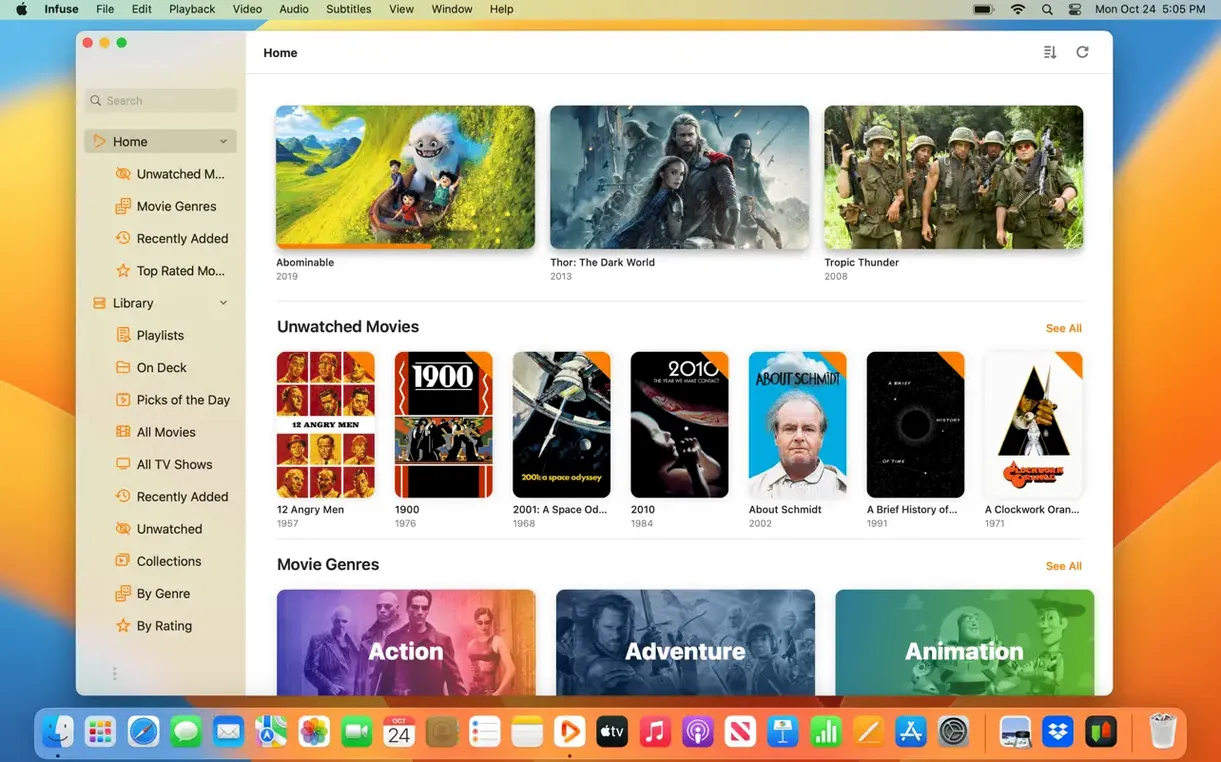
Teachers, archivists, and anyone with a mixed media collection will find Infuse Pro a patient companion. It plays a wide range of formats—MP4, MKV, AVI, ISO, WebM, and others—so you rarely need to convert files just to watch them. The app connects to network drives over SMB, NFS, FTP, or WebDAV, which makes it a natural fit if you already keep movies on a NAS or an old PC.
| Detail | Info |
|---|---|
| Developer | Firecore LLC |
| Version | 8.5.5 (September 16, 2026) |
| macOS | 12 or later, Apple Silicon or Intel |
| Devices | iPhone, iPad, Apple TV, Mac, Vision |
| Languages | English, German, Russian, and many more |
Subtitles load from OpenSubtitles or from local files on the fly, and audio formats like DTS and Dolby Digital Plus are handled without fuss. Infuse also looks consistent across your Apple devices, so a video paused on your Mac can continue on an iPad when you move rooms. For a school or home library, that kind of flexibility is what makes a media player worth keeping.
A few things that can trip up a new user
Infuse Pro tends to work without drama, but a few things can trip up a new user. Here are the ones I hear about most from colleagues and friends.
Network shares don't appear
If you are connecting to a NAS or a shared folder on another computer and nothing shows up, check that the device is on the same local network and that file sharing is enabled. For SMB shares, some older NAS models still use SMB1, which modern macOS versions disable for security. In those cases, switching the NAS to SMB2 or SMB3 usually solves it. If you cannot change the NAS settings, a simple workaround is to connect through FTP or WebDAV instead—Infuse supports both.
Subtitles are out of sync
Occasionally a subtitle file will drift a few seconds behind the video. Infuse lets you adjust the timing while the video is playing. Look for the subtitle sync control in the playback overlay and nudge it forward or back until the dialogue matches the lip movements. This adjustment is per-file, so it does not affect other videos.
Cloud storage stops connecting
If Dropbox, Google Drive, or another cloud service that was linked before suddenly shows an error, the authentication token may have expired. Remove the account from Infuse's source list and add it again. You will need to log in through the browser window that opens, but after that it typically works for a long stretch.
No sound on certain files
Some video containers hold audio tracks encoded in formats that require additional system codecs. Infuse handles DTS and Dolby Digital Plus natively, but if a file has a less common audio codec, the app may pass the audio through without decoding it. In that scenario, selecting a different audio track from the menu—if one exists—often restores sound. If the file is a personal rip, remuxing it with a tool like MKVToolNix can also help.
Does Infuse Pro replace your current video player?
I get similar questions every time I recommend Infuse Pro to someone new. Here are the ones that come up most often.
Does Infuse Pro replace my current video player completely?
That depends on your habits. If you play local files and stream from network sources or cloud drives, Infuse can be your main player. If you rely heavily on DVD or Blu-ray menus, you will still need a dedicated disc player app. Infuse plays ISO files but does not emulate the interactive menu structure.
Will it slow down my Mac?
Infuse is not a background service. It only uses resources when you are playing a video, and it does not index aggressively. On a typical modern Mac with macOS 12 or later, you are unlikely to notice it during normal use.
Once you have Infuse Pro on multiple Apple devices logged into the same iCloud account, your viewing history stays consistent.
How do I add subtitles from my own files?
Name the subtitle file exactly like the video file and place it in the same folder. Infuse loads it automatically. You can also browse for a subtitle file during playback using the subtitle menu, which is handy for downloaded SRT files with different naming conventions.
Browsing from NAS to Dropbox on a quiet Friday
Friday afternoon, the game club is over, and I have a quiet hour before the final bell. The library view shows my NAS folders and a linked Dropbox account. I browse to a documentary I saved last week—an MKV file with multiple audio tracks.
I click the file. It starts playing within a few seconds. The audio is in German, which is fine for me, but I want to check the English commentary track. I open the audio menu and switch. The app switches instantly without restarting the video. The teacher in me appreciates that it remembers this choice if I stop partway through; the next time I open the file, it picks the same track.
I pause to answer a student email. Later, I return, and Infuse shows the paused frame with a resume button. I click it and continue. Before shutting down, I check my watched list—synced automatically to my iPad through iCloud. That evening, I can pick up the same documentary from the sofa without hunting for where I left off.
It is not a flashy session, and that is the point. Infuse Pro stays out of the way and lets you watch what you want without format errors or connection drops.
Add your sources one at a time to save time
If you are setting up Infuse Pro for the first time, these small steps will save you time.
- Add your sources one at a time. Start with a single network folder or cloud account. Confirm it scans and plays before adding more. This way, if something goes wrong, you know which source caused it.
- Turn on library syncing early. If you plan to use Infuse on more than one device, enable iCloud sync in the settings right after adding your first source. That way, your watched history and resume points are consistent from the beginning.
- Set your subtitle language default. In the app settings, you can choose a preferred subtitle language. Infuse will then automatically select matching subtitles when available, which saves you from manually picking them for every video.
- Keep a few test files handy. Before you commit your full library, play one file of each major format you own—MKV, MP4, AVI, ISO. This confirms that your setup handles them all without surprises.
- Use the search function for large libraries. If you add hundreds of files, scrolling through a grid becomes slow. Infuse includes a search bar that filters by filename. It is faster than browsing folders.
These habits take very little time to establish and make the first week with Infuse Pro noticeably smoother. After that, it tends to fade into the background and just work, which is exactly what a media player should do.
- Version 8.5.5 released on September 16, 2026.
- Release notes cover iOS and iPadOS updates as well.
- macOS 12 or later
- Apple Silicon or Intel
Questions I keep getting
Can I use Infuse Pro for free?
Infuse has a free version, and Infuse Pro is the paid feature set. The app package includes in-app purchases for the Pro features.
Does Infuse support subtitles?
Yes, Infuse can load subtitles from OpenSubtitles and also lets you add subtitle files on the fly.
How to install
- Open the downloaded disk image.
- Drag the app into the Applications folder shortcut.
- After copying finishes, launch the app from Launchpad.
Similar apps






Sign in or join the club to leave a comment.
Nobody has commented yet.