
- Version
- 5.14.j
- Studio or maker
- Anomes
- Languages
- English
- Activation
- K'ed by TNT team
- Runs on macOS
- macOS 11 or later
- Chip type
- Intel 64-bit
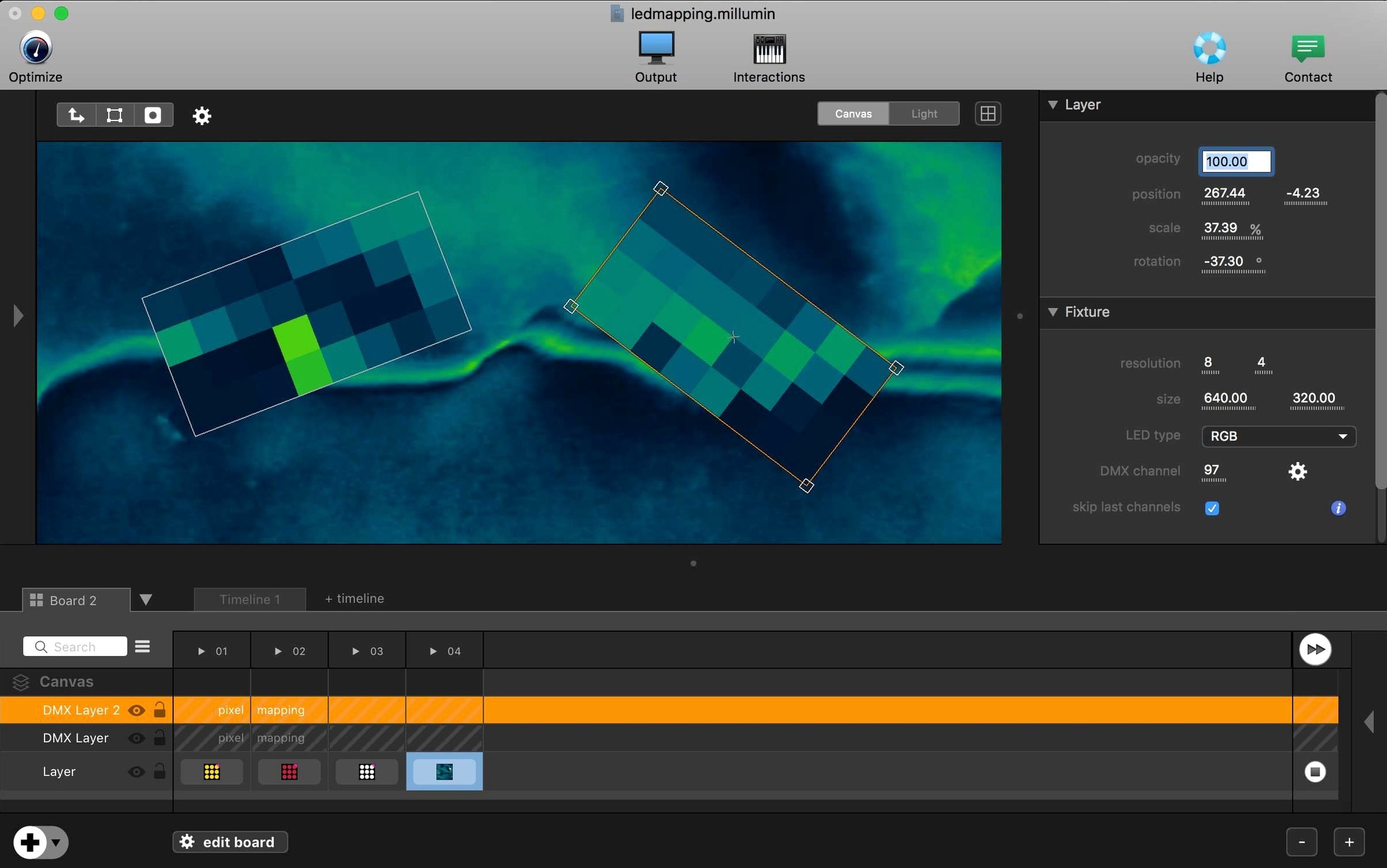
If you already use your Mac for presentations or video playback, Millumin takes that further into the world of live shows and interactive storytelling. It is a creative tool for building audiovisual performances, connecting video, lights, and sound into one timeline.
Creating audiovisual shows from theater to installations
- Creating audiovisual and interactive shows, from small theater pieces to larger installations.
- Working with a growing number of devices and software, so you can link the tools you already own.
- Learning as you go: the app opens with contextual help, and online tutorials are included.
Help center and macOS support for the latest version
- The help center is for Millumin V5, so you'll find support for the latest version.
- Millumin V5 supports recent macOS versions, including Tahoe 26 and Golden Gate 27.
- It runs on Intel Macs and needs macOS 11 Big Sur or later.
Built-in tutorials guide you through adding media and cue lists
Millumin opens with contextual help, which is worth watching the first time. The built-in tutorials guide you through the basics: adding media, building a cue list, and assigning outputs. Spend an hour with the included sample material if it is available, just to see how the timeline responds to changes.
Start with a single video file and one output. Set up a simple cue — play, pause, loop. Then try adding a second layer. This keeps the learning curve gradual. The interface can feel dense at first, but the contextual help reappears when you hover over unfamiliar buttons.
Test your show file on the same Mac you plan to use for the actual performance. Millumin V5 runs on Intel Macs with macOS 11 or later, so check that your machine matches before the rehearsal day. A quick run-through of all cues prevents surprises.
Use MIDI controllers and OSC to map cues to external triggers
Millumin connects a growing number of devices and software. If you use MIDI controllers, lighting desks, or OSC-enabled apps, check the connection panel early. You can map cues to external triggers, which saves clicking during a live show.
The app saves your workspace layout. If you rearrange the preview window, timeline, or output monitor, that arrangement sticks between sessions. Close and reopen the project to confirm it remembers.
Online tutorials are included for a reason. They cover specific workflows like videomapping calibration or cue timing. Bookmark the Millumin V5 help center — it is the same version you are using.
Millumin focuses on visuals and videomapping where QLab focuses on audio
Vs. QLab. QLab is the standard for theater sound and video cues. Millumin focuses more on visuals and interactive elements, while QLab leans toward audio playback and simple video cues. If your show involves videomapping or real-time interaction, Millumin gives you more control over layers and effects. For straight playback of sound and video, QLab may feel more direct.
Vs. Resolume Arena. Resolume is built for VJ culture and fast, improvisational mixing. Millumin is designed around timelines and precise cue sequencing, which suits theater and structured shows. Resolume excels at live manipulation; Millumin excels at pre-planned storytelling. Both handle multiple outputs, but Millumin’s approach is easier to teach to a team that does not come from a club background.
Vs. TouchDesigner. TouchDesigner is a node-based environment for interactive visuals, often used with sensors and cameras. Millumin is simpler to start with: you import media, arrange cues, and run a show. If you need to prototype an interactive installation quickly, Millumin gets you there with less wiring. TouchDesigner gives more flexibility for custom sensor inputs, but at the cost of a steeper learning curve.
Three scenes with video backdrops and a student-triggered sound effect
Monday morning, I open a new project for a school theater piece. The play has three scenes, each with a video backdrop and one moment where a student triggers a sound effect from a tablet.
I drag the first video file into the media bin. Millumin accepts it without conversion. I drop it onto the timeline, set the in and out points so it matches the scene length. For the second scene, I add a second video on a new layer and adjust the opacity so the two blend during a transition.
Then I connect the tablet. I open the connection panel and add an OSC input. I assign a cue to receive a specific OSC message. On the tablet, I send that message from a simple app. It works on the first try. I save the project.
Wednesday, the students rehearse. I launch the project and walk through the cues manually during the run. One transition is too fast, so I extend the fade time in the cue properties. The change takes effect immediately when I play the scene again.
Friday is the show. I open Millumin, check that the output matches the projector resolution, and start the first cue. The timeline advances automatically as the scenes progress. When the student triggers the sound effect from the tablet, the cue fires exactly on time. The show runs without me touching the keyboard.
Afterward, I close Millumin. The project file is small enough to email to the colleague who runs next week’s performance. No extra export step needed.
- macOS 11 Big Sur or later
- Intel architecture
Questions I keep getting
Does Millumin work with the latest macOS?
Yes, Millumin V5 supports recent macOS versions, including Tahoe 26 and Golden Gate 27.
How to install
- Mount the disk image and run Open Gatekeeper friendly to get started.
- Press Enter in Terminal to bypass Gatekeeper, so the app can open without restrictions.
- Drag the app to the Applications folder to install it.
- Launch the app when installation is complete.
Similar apps






Sign in or join the club to leave a comment.
Nobody has commented yet.