- Version
- 22.4.1
- Studio or maker
- Movavi
- Languages
- English, German, Spanish, Italian, Chinese (Traditional), Chinese (Simplified), Korean, Dutch, Polish, Portuguese, Turkish, French, Japanese
- Activation
- K'ed by TEAM HCiSO
- Runs on macOS
- macOS 10.13 or later
- Chip type
- Intel 64-bit
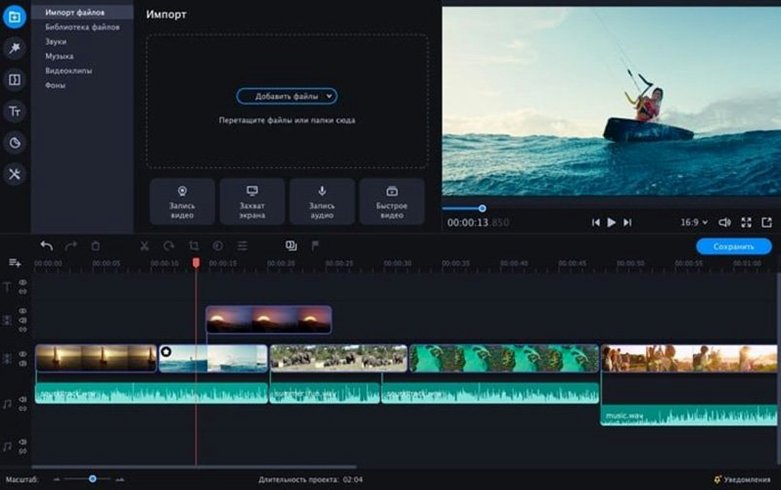
Movavi Video Editor runs on any Mac with macOS 10.13 or later, as long as it uses a 64-bit Intel processor. The current version is 22.4.1, and it is a separate video editor built specifically for Mac, not a port. After you copy the app into your Applications folder, you can launch it from Launchpad and start editing right away.
| Detail | Value |
|---|---|
| Version | 22.4.1 |
| Architecture | 64-bit Intel |
| macOS required | 10.13 or later |
Newcomers will find the interface straightforward: drag in a clip, cut it, add a ready-made intro or apply slow motion and reverse playback. Sound can be polished in a few clicks, which saves time when you need clean audio for a project. The app includes a range of effects, transitions, and titles that work without a steep learning curve.
Quick fixes for the hiccups I see most often
Even with a clean interface, a few hiccups tend to show up when you start pushing clips around. Here are the ones I see most often in the game club, along with fixes that work.
Video preview stutters or lags
If the timeline preview jumps or freezes, the usual cause is a high-resolution source file. Movavi Video Editor handles most formats, but 4K footage can make the preview sluggish. The workaround: create proxy files. Open the app's preferences and look for the option to generate lower-resolution proxies during editing. Once you export the final video, the full-quality source is used again.
Chroma key background not fully transparent
Green screen removal sometimes leaves a faint outline or speckles. This happens when the lighting on the original clip is uneven. In the chroma key settings, try adjusting the edge softness and the tolerance slider. A small change there often cleans up the edges. If the background is very uneven, consider using a different source clip with more even lighting.
Exported video looks different from the preview
This usually comes down to export settings. The app's preview window shows the timeline at your display's resolution, but the export preset might be set to a lower resolution or bitrate. Before you export, check the video format and resolution in the export window. Pick a preset that matches your intended output — 1080p at a reasonable bitrate should look close to what you saw on screen.
App stops responding during a long export
Long exports can push the processor hard. If the app freezes, force quit and restart. Then try exporting in smaller segments. Cut your timeline into a few parts, export each one, and rejoin them later. This also helps if you are working on a Mac with limited RAM.
Making a tutorial video with game clips and voiceover
Let me walk through one task I do regularly: making a short tutorial video that shows a game clip with a voiceover and text captions. This uses most of Movavi's core features without being complicated.
- Import your source clips. Drag the game recording and any intro or outro clips into the media bin. The app accepts common video formats without conversion.
- Arrange them on the timeline. Place the clips in order. Use the razor tool to cut away dead space or mistakes at the start and end of each segment. You can split a clip at the playhead position, then delete the unwanted parts.
- Add a ready-made intro. From the titles library, pick one of the built-in intros. Drag it to the beginning of the timeline. The text is editable — I usually change it to the lesson topic and the date.
- Record or import voiceover. Click the audio recording button in the toolbar (or import an audio file). Speak your explanation while watching the preview. The app records directly onto a separate audio track, so you can adjust volume levels independently.
- Apply slow motion to a key moment. Select a short segment where you want to emphasise something. The app creates smooth slow motion without dropping frames.
- Add text overlays. Use the titles tool to place captions or labels at specific points. The animated text overlays are helpful for highlighting buttons or terms on screen. Keep the text duration short to match the speaking pace.
- Polish the sound. Select the audio track and use the built-in noise reduction or volume levelling. A few clicks should make the voiceover clear and the background game sounds quieter but still present.
- Name the file and let the export run.
This whole process takes about fifteen to twenty minutes once you've done it a couple of times. The app's timeline is clean enough that you do not lose your place.
Where Movavi fits against simple trimmers and pro suites
Movavi Video Editor sits between simple trim tools and full professional suites. Here is how it compares with three other apps you might consider.
iMovie
iMovie comes free with every Mac and handles basic cutting, transitions, and titles well. For quick social clips or family videos, iMovie is often enough. But it lacks chroma key, slow motion controls, and the range of built-in intros that Movavi includes. If you need green screen effects or animated text overlays, Movavi is the step up without jumping to a pro app.
Adobe Premiere Pro
Premiere Pro is the industry standard, with deep editing tools, multi-cam support, and extensive plugin compatibility. You can do almost anything with it, but the learning curve is steep. Movavi is far easier to start with. For a school project or a vlog, Movavi gets you a polished video in a fraction of the time. Premiere Pro makes sense when you need advanced colour grading or complex audio work.
Final Cut Pro
Final Cut Pro is Apple's professional editor. It is faster than Premiere Pro on Mac hardware and has a magnetic timeline that many editors love. But it costs significantly more and its interface can overwhelm someone who just wants to edit a gameplay video. Movavi gives you a simpler toolset. If you later outgrow Movavi, Final Cut Pro is a natural next step — they share some design philosophy in keeping the timeline clear.
For most school and personal projects, Movavi Video Editor strikes a good balance. It does not require a tutorial to start, but it has enough depth to produce videos that look intentional.
Format handling improvements that save time daily
Version 22.4.1 keeps the same overall layout as earlier 22.x releases. The changes that matter day to day are mostly under the hood. The app now handles a wider range of video formats without prompting for conversion, which saves time when you are importing clips from different cameras or screen recorders. The chroma key processing is more reliable — edges that used to look fuzzy now come out cleaner with less fiddling.
The built-in intros and animated text overlays have been refreshed. They look more modern and align better with current video trends, which is helpful for social media posts. The sound polishing tools have also been updated. Noise reduction works more aggressively without making voices sound hollow. If you record voiceovers in a less-than-quiet room, this makes a noticeable difference.
One change that affects workflow: the export presets now include more options for social platforms. You can pick a preset that matches Instagram or YouTube dimensions directly, rather than manually entering pixel sizes. This is a small convenience, but it prevents misaligned exports when you are in a hurry.
For anyone using Movavi for regular projects, the version 22.4.1 update is a refinement rather than a redesign. The same drag-and-drop approach, the same simple interface, but with fewer friction points during import and export.
- macOS 10.13 or later
- 64-bit Intel processor
Questions I keep getting
Can I use Movavi Video Editor on an Apple Silicon Mac?
The app is built for 64-bit Intel architecture. It may run under Rosetta 2 on Apple Silicon, but Movavi does not list native support for M-series chips in version 22.4.1.
How to install
- Open the downloaded disk image file.
- Drag the Movavi Video Editor icon to your Applications folder.
- After the copy finishes, open the app from Launchpad to start editing.
Similar apps




Sign in or join the club to leave a comment.
Nobody has commented yet.