- Version
- 6.3 + NON CS
- Studio or maker
- Apple
- Languages
- English, German, Spanish, Chinese (Simplified), French, Japanese
- Activation
- K'ed by Antibiotics x TEAM EDiSO
- Runs on macOS
- macOS 15.6 or later
- Chip type
- Apple Silicon, Intel 64-bit
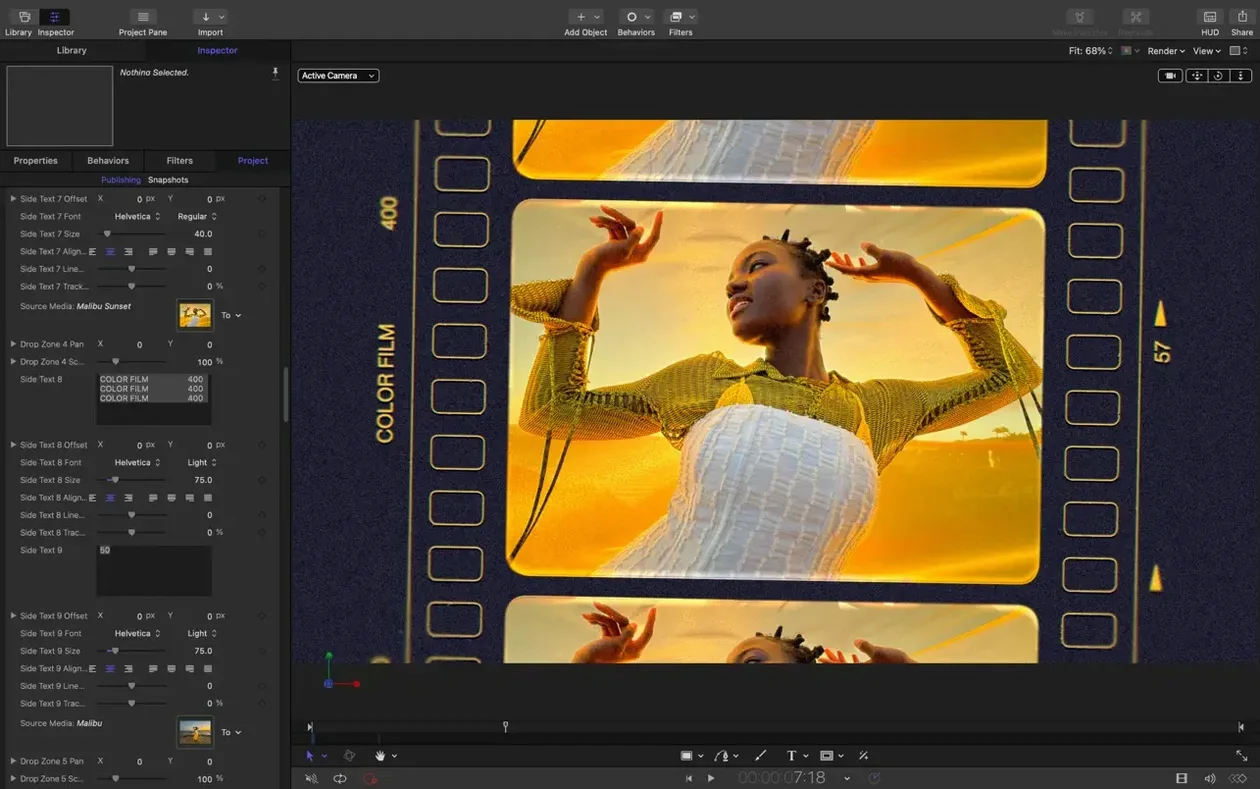
Bezier Mask vertex selection now works as expected. That fix alone saves time for anyone building precise mattes or rotoscoping in Apple Motion 6, a motion graphics app designed to run tightly with Final Cut Pro X. Below are the features that matter when you are already past the basics.
Real-time rendering engine
Motion creates cinematic 2D and 3D titles, transitions, and effects in real time. Particles, replicators, and 3D text update as you adjust parameters, so you see the result without waiting for a render.
Final Cut Pro X integration
Templates you build in Motion appear directly in Final Cut Pro X. This is how television programs, commercials, and presentations get consistent titles and lower thirds across a project.
SVG import
Import SVG files that scale cleanly to any size. Works for logos, vector art, or interface elements that need to stay sharp at 4K and beyond.
Performance and fixes
Version 6.3 includes performance updates for a fluid workflow. It fixes an issue where 3D text and particle emitters used the wrong texture media during playback, and corrects brighter rendering in some color correction filters on macOS 26.
A typical morning with Motion
Say you are preparing a set of lower thirds for a short documentary. You open Motion 6.3 and start a new project at 1920 x 1080. The first thing you do is import an SVG logo the client sent over. You drag the file into the project window. The logo scales instantly, no artefacts, no request to convert it first. You place it in the upper left corner of the composition.
Next you type the subject's name. You pick a clean sans-serif font from the text controls, add a subtle bevel, and let the app render the 3D depth in front of you. You adjust the lighting angle by dragging a handle. The preview updates while you move it. No need to guess. You set the animation to slide in from the left with a small bounce at the end. The transition editor shows you the easing curve, which you can refine if the bounce feels too strong. You save the template and switch to Final Cut Pro. There it is, ready in the Titles folder. You apply it to a clip, and the lower third appears with the same timing you set in Motion.
Now for a sequence of three interview clips. You want a transition that wipes between speakers with a particle effect. Back in Motion, you build a particle emitter that scatters small geometric shapes across the screen. You adjust the particle count, the spread, and the fade. The real-time engine keeps up as you tweak each parameter. You duplicate the effect for the second transition and reverse its direction using the new stagger controls. The clips now run forward, then reversed, then forward again. You save the whole set as a single template and apply it across all three cuts in Final Cut Pro. The whole session, from starting Motion to seeing the final sequence in the timeline, takes under twenty minutes.
Start with SVG import and text tools
If you are new to Motion, spend the first session on two things: the SVG import and the text tools. Import a simple vector graphic you use often — a logo, a map icon, a geometric shape. Scale it up and down to see how the app handles sharp edges at different resolutions. Then build a single line of 3D text. Rotate it, change the bevel, add a drop shadow. This gives you a feel for how the real-time rendering behaves. Once you are comfortable, try the particle emitter. Set it to a low particle count first, maybe fifty, so you can watch how each parameter affects the movement without overwhelming the preview.
Another useful early step: open Motion alongside Final Cut Pro and build one lower third template. Export the template and apply it to a clip in Final Cut Pro. That connection, seeing your Motion work appear inside a timeline, is the main reason to use the app. If you do not use Final Cut Pro, you can still export single frames or short video clips from Motion and bring them into another editing app. The SVG import and the 3D text tools work just as well on their own.
Templates appear in Final Cut Pro without conversion
Motion is part of Apple Creator Studio, which means it shares a visual language with Final Cut Pro and Apple Compressor. Templates you build in Motion appear in Final Cut Pro without extra conversion. Apple Compressor takes the output from either app and encodes it for delivery. For broadcast or film work, that chain keeps colour space and metadata consistent.
On the macOS side, Motion uses standard file pickers and system fonts. If you install a custom typeface, it shows up in Motion the same way it shows up in Pages or Preview. SVG import works with files from any vector editor, including Illustrator, Inkscape, or Figma. You can drag SVGs from the desktop or a folder into the Motion window. The app also reads common image formats, so you can bring in PNG or JPEG backgrounds without conversion. For projects that need multiple languages, the interface supports English, German, Spanish, Simplified Chinese, French, and Japanese. You can set the app language in the system preferences, and it stays until you change it.
Save time on repeated graphics like lower thirds
Video editors who already use Final Cut Pro get the clearest benefit. Every template saved from Motion becomes a drag-and-drop title or transition inside Final Cut Pro. That saves time on repeated graphics like lower thirds, credit rolls, or end cards. Editors at television stations or production houses that produce weekly episodes will appreciate the consistency: one template, applied across dozens of segments, keeps the look uniform.
Motion graphics designers who work mostly in vector art will find the SVG import and 3D text tools directly useful. If you design titles for a living and want real-time feedback, the app gives you that without rendering a test file first. Filmmakers making short films or artistic video works can use the particle and replicator tools for abstract visual effects that would require a plugin in other apps. Presenters building slides or conference visuals can generate clean titles and transitions without learning a full animation suite.
Template integration only works with Final Cut Pro
Does it work with DaVinci Resolve or Premiere Pro?
Motion templates are designed for Final Cut Pro. You can export short video clips or still images from Motion and import them into other editors, but the direct template integration only works with Final Cut Pro.
Is 6.3 a big update or a minor patch?
Version 6.3 adds SVG import and the stagger controls, which are new features, plus the fixes listed in the version notes. It is a minor update with meaningful additions.
Can I use Motion without Final Cut Pro?
Yes, but you lose the template workflow. The 3D text, particle effects, and SVG import work on their own. You can render out a video file or a still from Motion and bring it into any editor.
Will it run on my older Intel Mac?
The app supports both Apple Silicon and Intel 64-bit architectures. It requires macOS 15.6 or later, so check your system version before installing.
How do I get the SVG files into Motion?
Drag them from Finder into the project window, or use the import menu. The app scales them to any size without losing sharpness.
Is the interface in English only?
The app ships in English, German, Spanish, Simplified Chinese, French, and Japanese. You can switch languages in the macOS system settings.
The app supports both architectures natively, so older Macs are not left behind.
- Import SVG files that scale to any size and keep graphics sharp at any resolution.
- Adds controls to stagger, cascade, or reverse clips.
- Includes performance updates.
- Fixes Bezier Mask vertex selection.
- Fixes incorrect texture media during playback for some 3D text and particle emitters.
- Fixes brighter rendering for some color correction filters on macOS 26.
- macOS 15.6 or later
- Intel 64-bit or Apple Silicon Mac
How to install
- Open the downloaded disk image.
- Drag the app into the Applications folder alias.
- After copying finishes, open the app from Launchpad.
Similar apps





Sign in or join the club to leave a comment.
Nobody has commented yet.