
- Version
- 12.4 CS
- Studio or maker
- Apple
- Languages
- English, German, Spanish, Chinese (Simplified), French, Japanese
- Activation
- Not required
- Runs on macOS
- macOS 15.6 or later
- Chip type
- Apple Silicon, Intel 64-bit
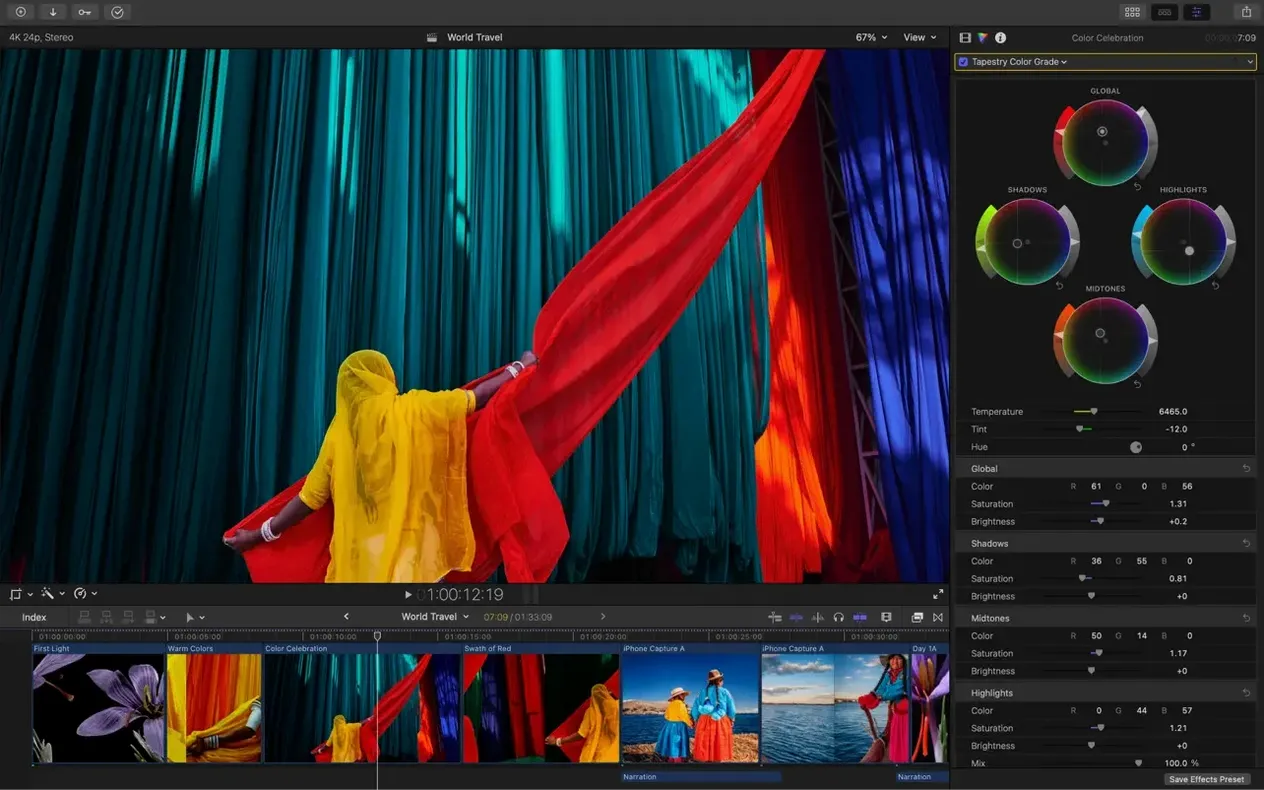
Leave the default library alone for a day or two
When you open Final Cut Pro 12.3 for the first time, the app creates a default library in your Movies folder. I would suggest leaving that initial library alone for a day or two. Instead, start a new empty library for your first project. Libraries are how Final Cut Pro organizes all your media, events, and projects — treat each library as a self-contained workspace for one project or a group of related projects.
Drag a short clip into the timeline and try the Magnetic Timeline. If you move a clip, the ones after it slide to close the gap automatically. That is the main behavior to get comfortable with, because it changes how you think about cutting. On older video editors, a cut leaves an empty space you have to fill. Here, the timeline behaves more like a row of magnets.
After your first edit, open the new Generate Captions feature. It is under the Modify menu. The app scans your timeline and places captions on spoken dialogue. You can adjust the font, size, and position in the caption inspector. For a classroom project or a quick social video, this saves a lot of manual typing.
Set aside ten minutes to explore the Object Tracker. Attach a title or a color correction to a moving face or object, and the tracker follows it through the clip. The tracking markers show up as small dots on the viewer — you can see them update in real time as you scrub through the clip.
Check for macOS 15.6, 8 GB RAM, and 5.8 GB free
Before you install, check that your Mac meets the listed requirements. The app needs macOS 15.6 or later, 8 GB of RAM, and about 5.8 GB of free disk space for the application itself. Media files take additional space, so plan accordingly. For Intel Macs, a Metal-capable graphics card is required. Apple Silicon Macs have integrated graphics that already meet the Metal requirement.
Some features will be available only on Apple Silicon. Auto Mask, for example, uses the neural engine to isolate objects. If you are on an Intel Mac, you can still edit, apply color corrections manually, and use the Magnetic Timeline, but certain newer tools may not appear or may run differently.
The app works on both Intel and Apple Silicon architectures, so you can install it on either type of Mac. The download is a single disk image that works for both. If you are migrating from an older Mac, the library format is the same, so you can move your projects between computers by copying the library file.
An internet connection is required for some features — specifically for downloading additional content or for features that rely on Apple's servers. Most editing work happens locally without needing a connection.
Three rivals: DaVinci Resolve, Premiere Pro, and iMovie
Three other video editors you might consider alongside Final Cut Pro are DaVinci Resolve, Adobe Premiere Pro, and iMovie. Each has a different workflow philosophy.
DaVinci Resolve focuses heavily on color grading and audio post-production. Final Cut Pro's Magnetic Timeline feels faster for assembling a rough cut, especially if you work alone. Resolve's node-based color tools are more flexible for advanced color work, while Final Cut Pro's Match Color and Auto Mask handle common corrections with less manual effort.
Adobe Premiere Pro uses a traditional track-based timeline. Editors who learned on that system may find Final Cut Pro's clip connections and magnetic behavior unfamiliar at first. Premiere Pro relies on external applications for encoding and media management, whereas Final Cut Pro keeps everything inside a single library. For multicam editing, Final Cut Pro supports up to 64 angles with automatic sync, which is higher than what iMovie offers and comparable to Premiere Pro's multicam workflow.
iMovie is simpler and comes free with every Mac. It is fine for short home videos, but lacks captions, object tracking, multicam support, and third-party plugins. Final Cut Pro builds on the same basic design language as iMovie, so the transition feels natural — the interface shares the same skimmable timeline and the same inspector layout.
None of these options is universally better. The choice depends on how you prefer to organize your clips and how much color or audio work you do outside the edit.
Generate Captions, Auto Mask, Match Color, and Edit Detection
The four features added in 12.3 — Generate Captions, Auto Mask, Match Color, and Edit Detection — each change a routine task.
Before 12.3, adding captions meant typing every line yourself or importing a separate caption file. Generate Captions now reads the audio in your timeline and places captions automatically. For a 10-minute interview, the captions appear in a few seconds. You still review them for accuracy, but the work shifts from typing to proofreading.
Auto Mask replaces the old method of using a shape mask or a color key to isolate a subject. You draw a rough rectangle around a person or object, and the app tracks the edges. This is useful for color grading a face without affecting the background, or for applying a blur effect behind a moving subject. The mask updates as the subject moves, so you do not need to keyframe the shape.
Match Color compares the color of one clip to a reference clip and adjusts the current clip to match. Before, you would use the color board manually and try to match by eye. Now you select a reference frame, and the app applies the correction. It works across different camera models and lighting conditions, which helps when you combine footage from multiple shoots.
Edit Detection splits a long rendered video — like a screen recording or a downloaded video file — into separate clips at the points where cuts originally occurred. This is helpful if you receive a finished video and want to re-edit individual sections without manually cutting at every transition.
Smart Converts turn landscape into square or vertical
Final Cut Pro includes several features that do not appear in the main menus but make daily editing smoother.
Smart Converts convert a standard landscape project to square or vertical format automatically. The app analyzes the frame and keeps the important content centered. This is in the File menu under Smart Conform. If you edit for social media, this saves you from rebuilding the timeline for each platform.
Clip connections work alongside the Magnetic Timeline. When you drag a clip over another clip in the timeline, it attaches as a connected clip. Connected clips stay linked to the primary clip even when you move or trim it. This is useful for placing B-roll, sound effects, or titles that should stay aligned with a specific moment.
The media import window lets you add custom keywords to clip ranges, not just whole clips. You can select a portion of a longer clip and tag it with a keyword like "interview" or "establishing shot." Later, smart collections gather all clips with that keyword into one filtered view. This works better than relying on file names or folder organization.
Proxy media is another time saver. When you import media, Final Cut Pro can create lower-resolution copies for editing. You edit with proxies, then switch back to original media for export. This keeps the timeline responsive on any Mac that meets the minimum requirements.
XML import and export let you move projects to other applications for color correction or audio mixing. If you work with a colorist who uses DaVinci Resolve, you can export an XML of your timeline, send it out, and import the finished version back into Final Cut Pro without losing your edit.
- macOS 15.6
- 8 GB RAM
- 5.8 GB disk space
- Metal-capable graphics card for Intel Macs
- Some features require an Apple Silicon Mac
- Some features require an internet connection
Questions I keep getting
Can I use third-party plugins with Final Cut Pro 12.3?
Yes, it supports third-party extensions and FxPlug plugins, so you can add effects and tools beyond what ships with the app.
Does Final Cut Pro 12.3 work on older Macs with Intel processors?
It works on both Intel and Apple Silicon Macs, but some features require an Apple Silicon Mac. Your Intel Mac needs a Metal-capable graphics card.
How to install
1. Mount the downloaded disk image so your Mac sees it as a drive. 2. Drag the app to the Applications folder alias — this copies it to the right place. 3. Launch the app from Launchpad after copying finishes.Similar apps





Sign in or join the club to leave a comment.
Nobody has commented yet.