
- Version
- 3.8
- Studio or maker
- Aiarty
- Languages
- English, German, Chinese (Traditional), Chinese (Simplified), Japanese
- Activation
- K'ed by TNT team
- Runs on macOS
- macOS 11 or later
- Chip type
- Apple Silicon, Intel 64-bit
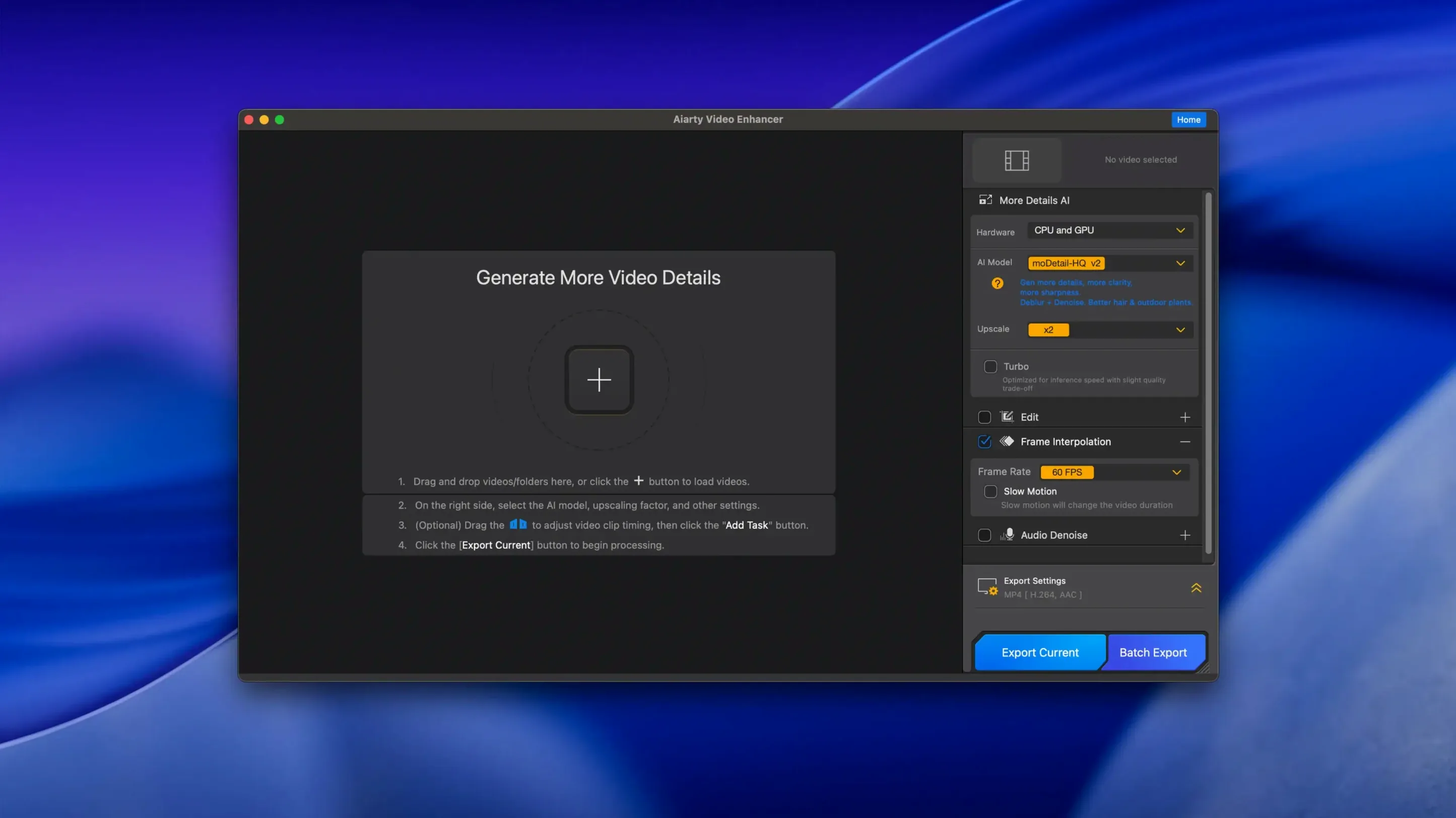
Old footage often looks soft, grainy, or shaky, and fixing it used to take hours of manual work. Aiarty Video Enhancer 3.8 for Mac is built to handle that job with AI models that add detail, remove noise and blur, upscale video, and restore damaged clips to 4K clarity. It also includes an Audio Denoise module that cleans up background noise and makes voices clearer in one click.
- Resumable exports mean you can pause a long render and pick up where you left off.
- MKV support lets you work with a wider range of video files.
- Frame interpolation generates smooth 8X and 16X slow motion.
- Audio Denoise improves voice clarity without extra steps.
- Intel Macs with a dedicated GPU are supported, as long as macOS 13.0 or higher is installed.
- Both Apple Silicon and Intel architectures are covered, so the app runs on most current Macs.
Before you install, check that your Mac meets the minimum requirements: 8 GB of RAM and, for Intel models, a dedicated graphics card with 4 GB VRAM. If you have that, Aiarty Video Enhancer gives you a straightforward way to breathe new life into your video library.
Default output format to change for editing
When you first open Aiarty Video Enhancer, the default settings are sensible, but a few adjustments will save you time and produce better results for your particular footage. Start with the output format. If you plan to edit the enhanced video later, choose a format that your editor accepts natively. If the video is going straight to social media, the platform's preferred format saves a conversion step.
Next, set the upscaling target. The app gives you options for how much detail to add, and the right choice depends on the source. Old DVD captures benefit from a larger upscale, while slightly soft 1080p footage needs only a modest boost to reach 4K. Selecting the smallest upscale that meets your needs keeps processing time down and preserves the original look.
Check the audio settings before you start. If your footage has background hum or wind noise, the Audio Denoise module is worth enabling from the beginning. It works in one click, and it is easier to clean audio before you export than to go back and redo the whole render.
Finally, turn on resumable exports. Version 3.8 added this feature, and it is a quiet lifesaver. Long renders can be interrupted by a closed laptop lid or a power nap setting, and knowing you can resume instead of restarting is worth the small effort of enabling it before you begin.
Narrow focus on video enhancement, not full editing
Aiarty Video Enhancer sits in a specific corner of the video toolbox. It is not a full editor like Final Cut Pro or DaVinci Resolve, and it does not try to be. Instead, it focuses on a narrow set of tasks: upscaling, denoising, deblurring, and audio cleanup. That focus makes it different from two other kinds of tools you might already have.
Video editors with built-in enhancement filters, such as DaVinci Resolve, can do some of what Aiarty does. They give you fine control over sharpening and noise reduction, but they require you to learn color grading and node-based workflows first. Aiarty Video Enhancer skips that learning curve. You select a clip, pick your settings, and let the AI models do the heavy lifting. For a teacher or a hobbyist who just wants a watchable result, that tradeoff is often worth it.
Standalone upscalers that only increase resolution are another alternative. They handle the size increase but leave noise, blur, and audio problems untouched. Aiarty Video Enhancer bundles several fixes into one pass, which means you do not have to run footage through three different apps to get a clean 4K file. The frame interpolation for 8X and 16X slow motion is something most simple upscalers do not offer at all.
If you work with MKV files, the version 3.8 update matters. Many free tools struggle with this container format, so having native support built in removes a common obstacle before it appears.
A workflow for restoring a family video
Let me walk you through a typical task: restoring an old family recording shot on a camcorder in the early 2000s. The footage is grainy, slightly blurry, and the audio has a constant hiss. Here is the step-by-step process I would use.
- Import the video file into Aiarty Video Enhancer. The app accepts common formats, and version 3.8 added MKV support, so most captures from old tapes should load without conversion.
- Enable the denoise and deblur models. These two work together to clean up the sensor noise and the soft focus that comes from older lenses.
- Set the upscale target to 4K. Even if you do not plan to watch on a 4K screen, the extra resolution gives you room to crop and still keep a sharp image.
- Turn on Audio Denoise. One click removes the hiss and makes voices clearer, which matters more than the picture quality for family memories.
- If the footage has moments you want in slow motion, use frame interpolation to generate smooth 8X or 16X slow motion for those short segments.
- Choose your output format and start the export. With resumable exports enabled, you can close the laptop or take a break without losing the work.
The whole process takes minutes of your time. The AI models do the fiddly work, and you get a file that looks and sounds noticeably better than the source.
Improving mixed-source footage for a vintage tech channel
Consider a small YouTube channel that reviews vintage tech. The creator records interviews with older devices, and the footage often comes from a mix of sources: a modern camera, a phone, and occasionally a screen capture from a dusty VHS player. The contrast between these sources is jarring for viewers.
With Aiarty Video Enhancer, the creator can normalize the quality before editing. The modern camera footage gets a light touch, just a small upscale and a bit of denoising. The VHS captures get the full treatment: upscaling, deblurring, and audio cleanup to remove the tape hiss from the microphone. After processing, the clips sit together in the timeline without the visual jump between clean and grimy sources.
The resumable exports matter here too. A long video with many clips can take a while to render, and the creator often works late. Being able to pause the export and finish it the next morning means the video still goes up on schedule, without the frustration of losing a full render to a laptop that went to sleep.
For this kind of user, the appeal is not the technical specifications. It is the ability to spend less time fighting with footage and more time making the actual content.
- Resumable exports were added.
- MKV support was added.
- CUDA memory optimizations were added.
- macOS 13.0 or higher
- 8 GB RAM or more
- Dedicated GPU with 4 GB VRAM or more on Intel Macs
- Both Intel and Apple Silicon supported
Questions I keep getting
Does Aiarty Video Enhancer work on Intel Macs?
Yes, it supports Intel processors, but you'll need a dedicated graphics card with at least 4 GB VRAM.
What does the Audio Denoise module do?
It removes background noise and improves voice clarity in a single click, so you don't have to edit audio separately.
How to install
- Mount the disk image and run Open Gatekeeper friendly.
- Press Enter in Terminal to bypass Gatekeeper.
- Drag the app into the Applications folder.
- Open the app to start using it.
- Rosetta and a VPN may be needed.
Similar apps






Sign in or join the club to leave a comment.
Nobody has commented yet.