
- Version
- 2.1.22 [MAS]
- Studio or maker
- 成浩 吴
- Languages
- English, German, Italian, Chinese (Traditional), Chinese (Simplified), French, Japanese
- Activation
- K'ed by TNT team
- Runs on macOS
- macOS 11 or later
- Chip type
- Intel 64-bit
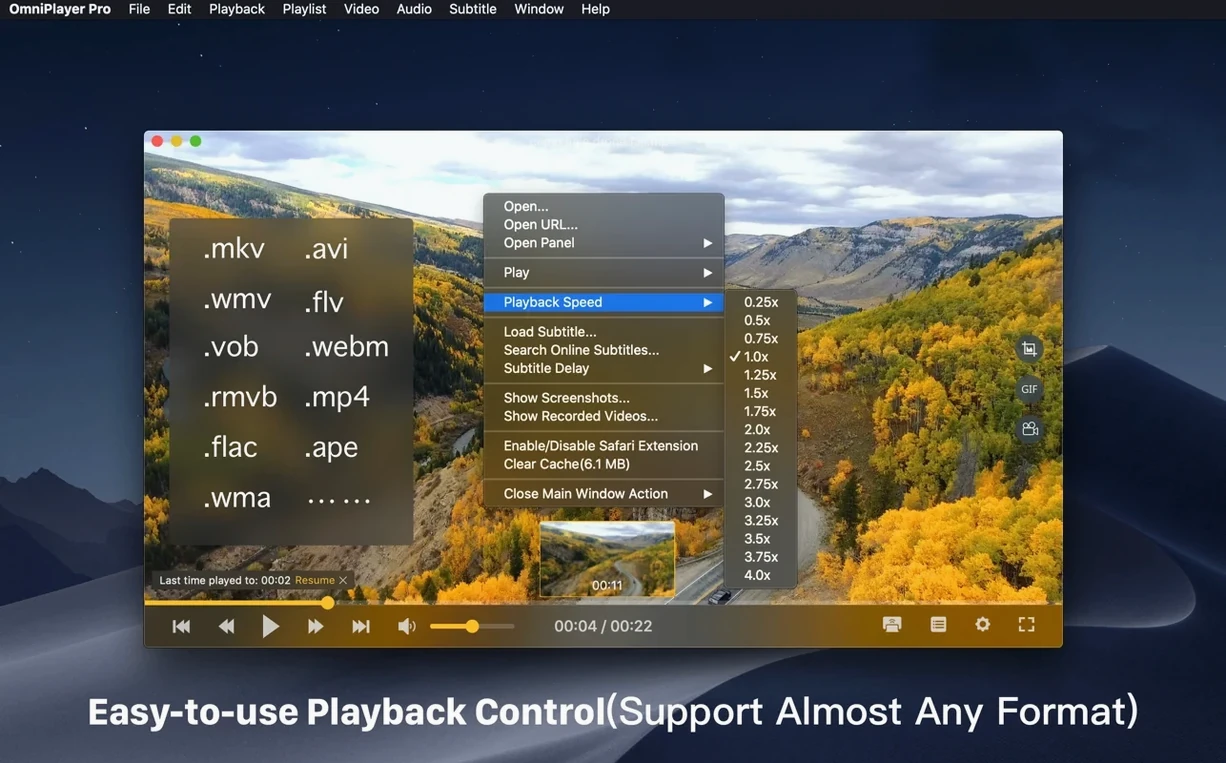
Version 2.1.22 of OmniPlayer Pro for Mac fixes a bug that appeared when loading a 30GB MKV file, which is good news if you keep large video files around. The rest of the player behaves as smoothly as before, so here are three tasks worth trying first.
Open a large MKV file
Drag a big MKV straight onto the window. The progress bar shows preview thumbnails, so you can scan for the right scene before you click.
Adjust playback to your taste
Use the video controls to change brightness, contrast, and saturation if the picture looks off. You can also rotate the video in any direction and tweak the audio delay when the sound is out of sync.
Send it to the big screen
If you have a Chromecast, DLNA device, or Roku, use the casting option to put the video on your TV. The playback position is saved after auto stop, so you can pick up where you left off.
Plays existing media files without converting
When I recommend OmniPlayer to colleagues and friends, a few questions come up repeatedly. Here are the answers I usually give.
Will it play my existing media files without converting them? Yes. OmniPlayer handles many video and audio formats natively on macOS. You can open local files, and it also works with remote media over SAMBA and FTP. If you have files on a network drive, you can play them directly without copying them to your Mac first.
What about online videos? You can play media over HTTP and HTTPS, and it can even load YouTube and Vimeo videos from a web page URL. That is handy when you want to watch a video without keeping a browser tab open.
How does subtitle support work? You can load subtitles from local files in real time, search and download them online by video title or hash, and change their color, size, and encoding to match different languages. It is flexible enough for most viewing situations.
Can I create clips or screenshots? Yes. You can take screenshots in different formats and create GIF images up to 60 seconds long. This is useful for making short highlights or sharing a funny moment.
Does it remember where I stopped? The player saves the last playback position after auto stop, so you can resume later. Playlists are cleared when the player exits, and you can add, search, delete, and change repeat modes for playlist items.
Handles 30GB MKV files for large video libraries
OmniPlayer suits different types of Mac users, but a few groups benefit especially. If you work with large video libraries, the ability to load a 30GB MKV file without issues is a practical advantage. Teachers, content reviewers, and video editors who need to review files quickly will appreciate the preview thumbnails on the progress bar.
People who watch media on multiple devices will find the DLNA, Chromecast, and Roku support useful. You can play a file on your Mac and send it to a TV without extra software. The playback speed controls, from 0.25x to 4x, are helpful for language learners or anyone who wants to skim through long recordings.
Users who prefer a clean interface will like the auto-hide controls during playback. You can adjust video size, aspect ratio, rotation, brightness, contrast, and saturation without leaving the player. The audio track selection and delay correction are practical for multilingual files or poorly synced recordings.
Drag files from Finder and access home server files
OmniPlayer works alongside your existing workflow without forcing you to change habits. You can drag files from Finder or other apps directly into the player window. The SAMBA and FTP support means you can access files on a home server, NAS, or shared network folder without mounting them in Finder first.
For quick media management, you can create screenshots and GIFs that you then paste into presentations, emails, or notes. The subtitle search and download feature reduces the need to visit separate websites for subtitle files. If you use Chromecast, DLNA, or Roku regularly, OmniPlayer becomes a central hub for playing local media on your TV.
The player runs on macOS 11 and later on Intel Macs. It does not rely on Rosetta emulation for its core functions, so it works as a native Intel application. For classroom or office use, the multi-language support (English, German, Italian, French, Chinese, Japanese) makes it easier to recommend to colleagues who prefer a different interface language.
OmniPlayer Pro plays MKV videos smoothly on Mac for users who need reliable media playback. It complements tools like VLC or IINA by offering a different set of controls and casting options, so you can keep it alongside other players depending on the task at hand.
- Fixed a bug when loading a 30GB MKV file.
- Fixed some general bugs.
- macOS 11 or later
- Intel (x86 64-bit)
Questions I keep getting
Can OmniPlayer Pro handle very large MKV files?
Yes, version 2.1.22 fixed a bug that occurred when loading a 30GB MKV file, so large files should play more reliably now.
Does OmniPlayer Pro support casting to TVs?
Yes, it supports Chromecast, DLNA, and Roku for wireless display.
Can I create GIFs with OmniPlayer Pro?
Yes, you can create GIF images up to 60 seconds long from your video.
How to install
- Mount the disk image and run Open Gatekeeper friendly.
- Press Enter in Terminal to bypass Gatekeeper.
- Drag the app into the Applications folder.
- Launch the app.
Similar apps






Sign in or join the club to leave a comment.
Nobody has commented yet.