
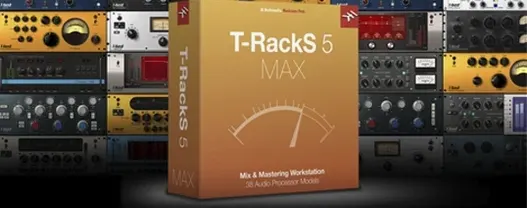
- Version
- 6.3.2
- Studio or maker
- IK Multimedia
- Languages
- English
- Activation
- K'ed by MORiA
- Runs on macOS
- macOS 10.15 or later
- Chip type
- Apple Silicon, Intel 64-bit
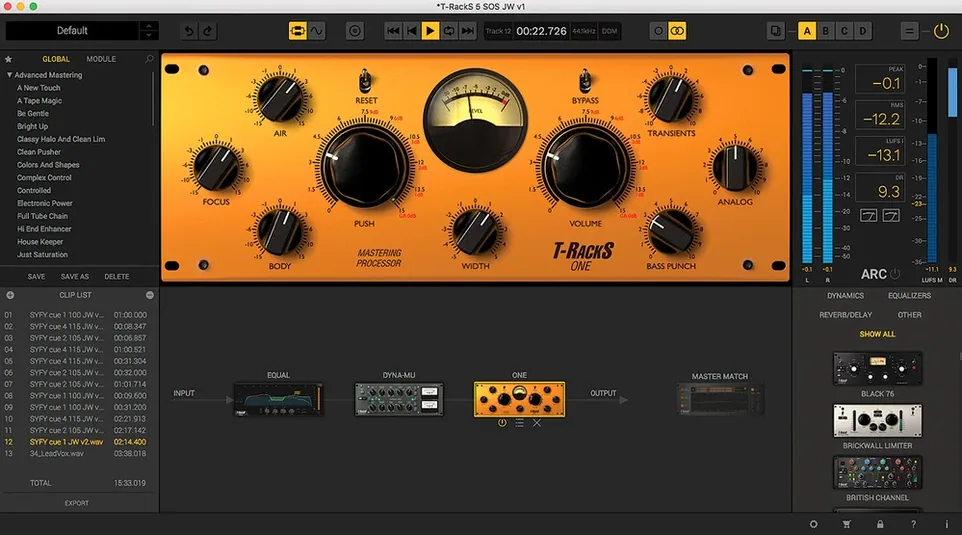
You have a stereo drum bus that needs glue, a vocal track that could use some harmonic color, and the master bus could benefit from a gentle limiter before export. T-RackS 6 is modular mixing and mastering software that works as a plug-in suite or as a standalone Mastering Console. Its 9 processors — including the newer Master Match, Dyna-Mu, EQual, and ONE — let you handle each job with a dedicated module.
Insert on a track or chain on a bus
Track — insert a single processor (EQ, compressor, saturator) on a vocal, guitar, or synth track. Each plug-in loads as AU, VST 3, or AAX.
Bus — chain several modules on a drum or instrument bus. The Module Manager keeps everything organized.
Master bus — use the chain as a full mastering strip, optionally with Master Match X for referencing. Four dithering options are available at the final stage.
Standalone — the Mastering Console runs on its own, so you can process stereo files without opening a DAW.
Works as AU, VST 3, or AAX in Logic, Pro Tools, and more
T-RackS 6 works alongside your DAW as standard Audio Units, VST 3, or AAX plug-ins. That means it shows up in Logic Pro, GarageBand, Ableton Live, Pro Tools, Cubase, and any other host that supports these formats. You do not need to launch the standalone version to use the processors — each module appears in your plug-in list like any other effect.
The standalone Mastering Console handles stereo files directly. If you export a mix from your DAW as a WAV or AIFF file, you can open it in T-RackS, apply your chain, and export the finished version. This workflow suits people who prefer to separate the mixing and mastering stages. You can also use it to process audio files that are not part of a session, such as a stereo stem or a reference track.
macOS features interact with T-RackS in a few practical ways. The plug-ins respect the system audio routing, so you can send output to built-in speakers, an external interface, or AirPods without extra configuration. The standalone app appears in the Dock and can be assigned to a specific desktop space if you use Mission Control. File management uses the standard macOS open and save dialogs, so your recent files show up in the Finder's Recents folder.
Fix module manager and display glitches
Plug-ins not appearing in your DAW
After installation, your DAW may not list the T-RackS plug-ins right away. This usually happens because the host needs to rescan its plug-in folder. In Logic Pro, open the Plug-in Manager and click Reset & Rescan Selection. In Ableton Live, hold Option while rescanning Custom Folder. In Pro Tools, restart the software and check the AAX Plug-ins folder. If the issue persists, verify that the installation placed the components in /Library/Audio/Plug-Ins/Components for AU, /Library/Audio/Plug-Ins/VST3 for VST 3, or the correct AAX location.
Standalone app does not see audio interface
If the Mastering Console opens but you get no sound, check that your audio interface is selected in the app's audio preferences. macOS may have reassigned the default device after a system update or a USB disconnect. Go to the settings, pick your interface, and apply the change. If the interface does not appear, disconnect and reconnect it, then restart the app.
Processor chain not loading saved presets
Occasionally a saved preset does not recall the exact module order or settings. Double-check that the preset file was saved after the chain was fully assembled. The Module Manager can help here: use it to save the entire chain as a single preset rather than saving individual module presets. This way, the slot order, processor type, and all parameters are stored together.
High CPU usage with multiple instances
Running several T-RackS processors on different tracks can increase CPU load, especially on older Intel Macs. Two approaches help: use the standalone Mastering Console for final mastering instead of inserting plug-ins on the master bus, or freeze tracks in your DAW after processing. On Apple Silicon Macs, the native support handles most sessions well, but it is still good practice to disable unused modules in the chain.
Maintenance update refines module manager and GUI
Version 6.3.2 is a maintenance update. It refines the stability of the Module Manager and addresses a few display issues in the redesigned graphical user interface. In daily use, the changes are subtle: the Module Manager reacts faster when you drag modules between slots, and the interface redraws more reliably when switching between the standalone mode and the plug-in suite. No new processors were added, and the existing four — Master Match, Dyna-Mu, EQual, and ONE — behave the same as before. The update is recommended if you are on an earlier 6.x build, but it does not introduce new workflow steps.
Load the mastering console first to learn the signal flow
Start by opening the standalone Mastering Console and loading a finished mix. This gives you a feel for the signal flow without the distraction of a DAW session. Add one module at a time and listen to what it does. The four new processors are a good place to begin: Master Match for referencing, Dyna-Mu for compression, EQual for equalization, and ONE for overall tone shaping.
Spend a few minutes with the Module Manager. Drag a module to a different slot, change it from serial to parallel processing, and see how the chain reacts. Understanding the modular layout early makes later sessions faster.
Try the Master Match X feature on a track you already know well. Import a reference track and let T-RackS analyze the difference. The result is not meant to be an exact copy, but it can point you toward EQ or dynamic adjustments you might not have considered. Adjust by ear after the analysis.
Export a short segment in two formats — for example, a high-resolution WAV and a 16-bit WAV with one of the four dithering options. Listen to both on headphones and speakers to hear what dithering does to the noise floor. This test builds confidence for when you need to deliver a final master.
Keep the plug-in versions handy for mixing sessions. Insert a single EQual on a vocal track or a Dyna-Mu on a drum bus. The modular approach means you can use the same processor in different roles depending on where you place it in the chain.
- macOS 10.15 Catalina or later
- 64-bit CPU and 64-bit operating system
- Intel or Apple Silicon Mac
Questions I keep getting
Does T-RackS 6 run on Apple Silicon Macs?
Yes, T-RackS 6 supports both Apple Silicon and Intel 64-bit Macs, so it works natively on M-series machines.
What plug-in formats does T-RackS 6 include?
It supports Audio Units, VST 3, and AAX formats. You can install the full plug-in suite or individual plug-in formats for your DAW.
How do I install T-RackS 6 on a Mac?
After downloading the file, run the standard installation procedure. The installer handles the rest.
How to install
- Download the file and run the standard installation procedure. The installer places the plug-ins and standalone app in the correct locations automatically.
Similar apps
Sign in or join the club to leave a comment.
Nobody has commented yet.