- Version
- 7.0.0 fix
- Studio or maker
- PreSonus Audio
- Languages
- English
- Activation
- Included
- Runs on macOS
- macOS 12.4 or later
- Chip type
- Apple Silicon, Intel 64-bit
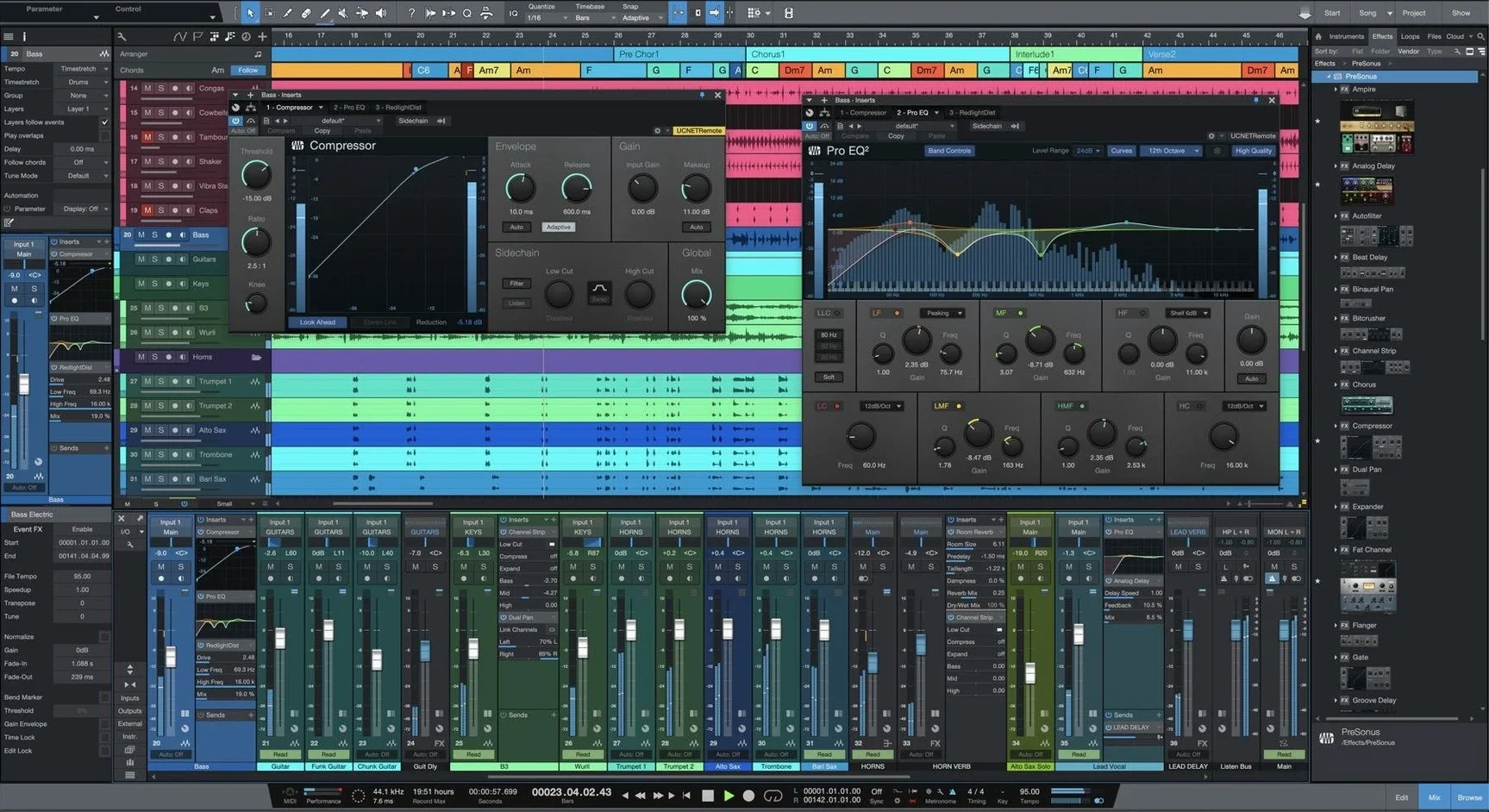
Studio One 7 is a digital audio workstation from PreSonus for recording, producing, mixing, mastering, and performing music. The current version adds unlimited Launcher Scenes and Playlists, AI-powered offline stem separation, and advanced tempo detection. It installs as a new application alongside earlier versions, so nothing gets overwritten.
What it is and who it is for
Digital audio workstation — a complete environment for recording audio and MIDI, editing, mixing, and mastering. It works for songwriting, podcasting, or live sets.
Smart Templates — pre-configured song setups that skip the blank-project staring. Choose a template and start recording or producing right away.
Song page — the main workspace with unlimited tracks and buses. Includes virtual instruments for synthesis, sample playback, instrument performance, and rhythm.
Drag-and-drop workflow — drag audio, MIDI, or instrument sounds directly onto tracks. No menu hunting.
System support — runs on macOS 12.4 or later, on both Apple Silicon and Intel 64-bit Macs. English interface.
Questions about installation
Can I keep my existing Studio One 6 installation?
Yes. Studio One 7 installs as a separate application, not an update that replaces the previous version. Both can live on the same Mac, and version 7 will open songs, projects, and shows you created in version 6. That said, once you save a project in version 7, the file format updates. Earlier versions cannot open it, so if you need to keep working on a project with a collaborator who still runs version 6, keep a backup copy of the original file.
Offline use after activation
You need a connection during installation and activation. After that, Studio One 7 works offline for recording, editing, mixing, and mastering. The AI-powered stem separation also runs offline — nothing is sent to a server.
Will my old plug-ins still work?
Most VST, AU, and Native Effects plug-ins from earlier versions should work. One thing that changed: Studio One 7, like version 6, no longer supports ReWire. If you relied on ReWire to connect other audio software, you will need an alternative routing method, such as audio routing via virtual cables or a supported protocol.
Skipping the setup guide
Not reading the installation and activation guide. The included instructions walk through the steps in order. Skipping ahead usually leads to a moment of wondering why the application won't start. The guide is short; read it once.
Ignoring Smart Templates. Beginners commonly open Studio One 7, see a blank Song page, and feel lost. Smart Templates exist exactly to avoid that. Pick one for recording, mixing, or production, and the workspace fills with reasonable defaults — tracks, buses, effects — so you can start working instead of configuring.
Forgetting to check the audio device settings. Studio One 7 uses whatever audio interface macOS has selected. If you plug in an external interface after launching the application, the audio device might not switch automatically. Open the audio setup panel and choose the correct device before wondering why you hear nothing.
Overlooking the customizable interface. New users sometimes assume the layout is fixed. The interface can be rearranged to match how you work. Moving frequently used panels to the edges or hiding toolbars you rarely touch makes a noticeable difference over a long session.
Starting with a Smart Template after school
Friday after school, I close the classroom door and open the iMac. The students have left their calculators and pencil shavings behind. I launch Studio One 7.
Starting with a template. I pick the Smart Template for recording vocals. The Song page opens with a handful of tracks already armed — one for a click track, one for a stereo audio input, and one for a virtual instrument. I delete the instrument track because today I am recording voice.
Setting up. I check the audio device. My USB microphone shows up. I arm the audio track, adjust the input level until the meter sits comfortably in the green zone. No clipping, no silence.
Recording. I press the record button and sing a scratch vocal for a song I am writing — a silly tune about parallelograms. When I finish, I stop and the waveform appears on the track. The new advanced tempo detection analyzes the recording and suggests a tempo. I accept it, and the project tempo aligns to my natural timing.
Adding instruments. I drag a virtual instrument from the browser onto a new track. The built-in sample player loads a piano sound. I play a few chords on a keyboard controller and record them. The drag-and-drop workflow means I never dig through menus to find what I need.
Editing and mixing. I trim the vocal, move a few notes in the piano part, and open the mix console to balance levels. Native Effects plug-ins are already on the master bus: a compressor and a limiter. I adjust them until the mix sounds clear on headphones.
Exporting. The song is not finished, but it is late. I export a rough mix as an MP3 and close the application. Tomorrow I can open it again exactly where I left off.
macOS 12.4 or later required
Studio One 7 requires macOS 12.4 or later. It works on both Apple Silicon Macs and Intel 64-bit models — no difference in features between the two architectures. The interface is in English.
The application installs as a new program, leaving any existing Studio One installation untouched. Version 7 can open projects, songs, and shows created in earlier versions, so your existing work is not stranded. Because it is a full DAW with virtual instruments, effects, and stem separation capability, the application is substantial. It will occupy a meaningful amount of disk space; check that you have room before installing.
During installation, you must follow the included activation instructions. The activation step is straightforward but required. After that, the software works without a persistent internet connection.
App won't start after installation
Snag: The application will not start after installation. This usually happens when the activation step was skipped or the instructions were not followed in order. Open the installation and activation guide again. Go through each step. If it still does not start, restart the Mac and try launching again.
Snag: Audio sounds glitchy or has latency. Check your audio device settings. Make sure the correct interface is selected and that the buffer size is appropriate for your system. A larger buffer reduces glitches but increases latency; a smaller buffer does the opposite. Adjust it depending on whether you are recording or mixing.
Snag: A plug-in from Studio One 6 is missing. Plug-ins installed for version 6 might need to be re-scanned. Look for the plug-in manager in Studio One 7 and run a scan. If the plug-in is a ReWire-based one, it will not appear — ReWire is not supported. For other plug-ins, check that they are compatible with macOS 12.4 or later.
Snag: The stem separation feature seems grayed out. The AI-powered offline stem separation works on audio tracks that contain a single clip. Select a clip, then look for the stem separation option. If an entire track is selected instead of a clip, the feature may remain inactive. Select the specific region you want to separate.
Snag: I cannot find a project I opened in version 6. Studio One 7 opens version 6 files, but it does not move or copy them. Browse to the original file location. If you saved the project on a cloud drive or external disk, make sure it is mounted before opening Studio One 7.
- Unlimited Launcher Scenes and Playlists
- AI-powered offline Stem Separation
- Advanced tempo detection
- macOS 12.4 or later
- Apple Silicon or Intel 64-bit processor
Questions I keep getting
Does Studio One 7 replace my older version?
No. Version 7 installs as a new application and does not overwrite an existing Studio One installation.
How to install
- Open the included installation and activation instructions.
- Follow the instructions inside the package to install and activate the app.
Similar apps


Sign in or join the club to leave a comment.
Nobody has commented yet.