

- Version
- 4.0 Build 4215
- Studio or maker
- Sublime HQ Pty Ltd
- Languages
- English
- Activation
- K'ed by TNT team
- Runs on macOS
- OS X 10.9 or later
- Chip type
- Apple Silicon, Intel 64-bit
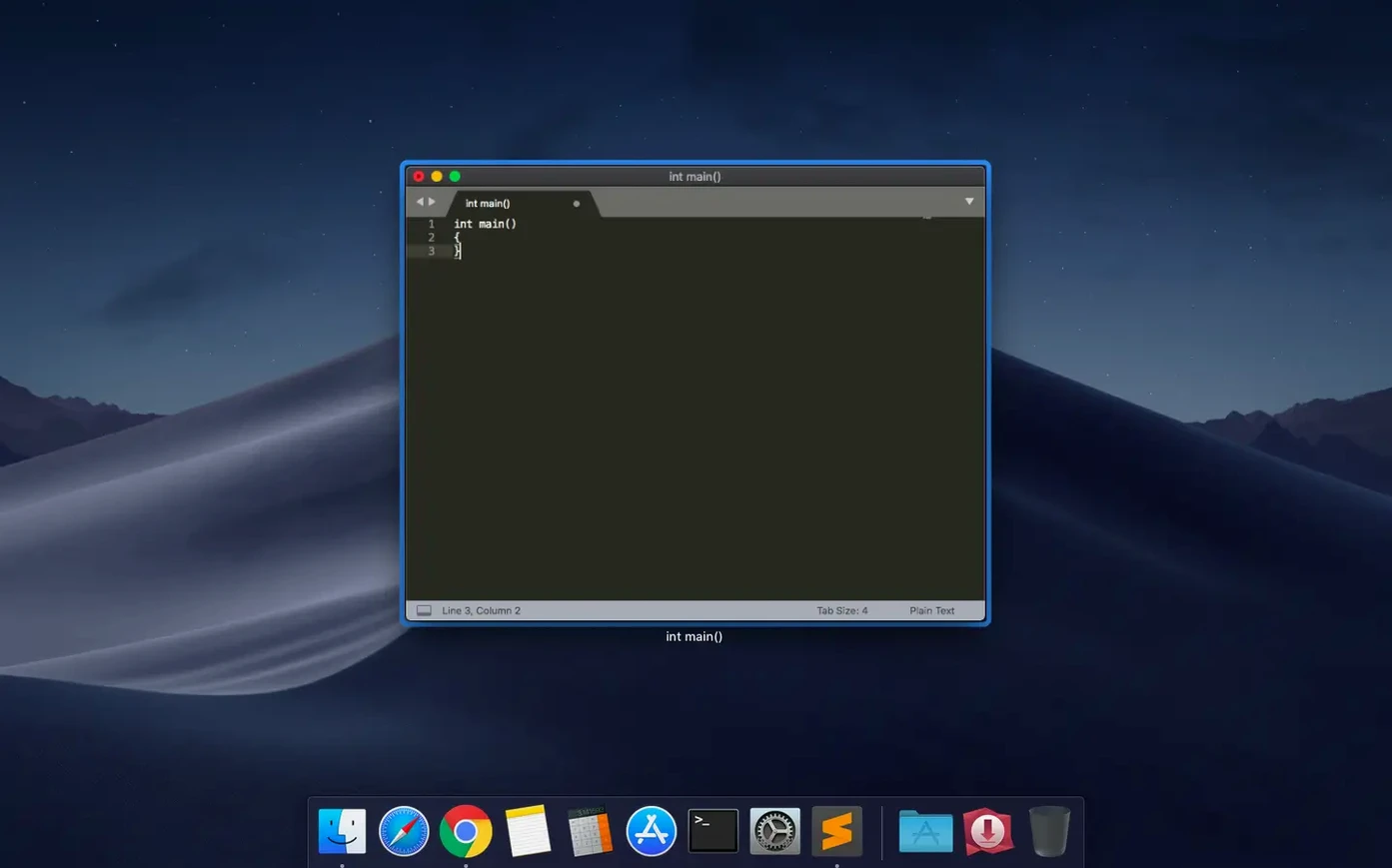
When you spend hours editing code or markup, the little delays add up. Sublime Text 4 Build 4215 for Mac solves that by staying responsive even with large files, and by putting the tools you need right where you can reach them.
- Fuzzy file navigation – Open any file in your project by typing part of its name. No clicking through folders.
- Multiple cursors and column selection – Edit several lines or columns at once, a huge time-saver for repetitive changes.
- Built-in package manager – Install, update, or remove packages without restarting the app. Packages stay current automatically.
- Minimap – A small overview of your code on the right side helps you jump to sections quickly.
- Autocomplete for code and variables – Suggests completions as you type, including custom variables you define.
- Auto-save – Never remember to save again; the editor saves your work as you go.
This build also fixes a vintage M command issue and improves compatibility with older macOS versions. If you want a text editor that stays out of your way, Sublime Text is worth a look.
Settings that make Sublime Text feel like yours
A few settings can make Sublime Text feel more like yours right away. Open Sublime Text, go to Preferences > Settings, and the default settings appear on the left. The file you edit on the right overrides them. Here are three I tend to change early.
Turn on word wrap for markup and prose
If you work with Markdown, LaTeX, or any text that should wrap at the window edge, add "word_wrap": true to your user settings. By default, Sublime Text keeps long lines scrolling horizontally, which works for code but feels wrong for paragraphs.
Adjust the tab size
The default indent is four spaces. If your project uses two spaces, set "tab_size": 2 and "translate_tabs_to_spaces": true. This keeps your files consistent with team conventions and avoids mixed indentation.
Disable the minimap if you prefer a cleaner look
Some people love the minimap. Others find it distracting. Add "minimap": false to hide it. You can always toggle it back from the View menu if you miss it.
What Sublime Text can do before you install anything
Will Sublime Text run on my older Mac?
Yes. Build 4215 fixes a compatibility issue with macOS 10.13 and 10.14, so even those older systems are supported. The app is a Universal 2 binary, which means it works on Intel Macs and Apple Silicon Macs alike. No Rosetta translation needed on an M-series Mac.
Sublime Text works out of the box for most languages
Not at all. Sublime Text works well out of the box for C, C++, C#, CSS, HTML, Java, JavaScript, Python, Ruby, SQL, and many more languages. The package manager is there when you want extra language support or new themes, but the editor itself already covers a lot of ground.
Same settings file works on Mac, Windows, or Linux
Sublime Text uses the same settings files across all three platforms. Copy your user preferences from your Mac to the other system, and the editor looks and behaves the same way. This is handy if you work on multiple machines.
Does the auto-save get in the way?
Auto-save saves your file a few seconds after you stop typing. It does not interrupt your workflow. You can turn it off in the settings if you prefer to control when files are saved, but most people find it a relief once they get used to it.
Drag a folder onto Sublime Text for instant fuzzy navigation
Command-P lets you open files by typing part of the name
Drag your main project folder onto the Sublime Text icon or use File > Open Folder. This enables fuzzy file navigation: press Command-P, type part of the filename, and press Return. It is faster than clicking through the sidebar.
Try multiple cursors on a real task
Select a word, then press Command-D repeatedly to select the next occurrence of the same word. Edit all of them at once. This works for renaming variables, changing a value in multiple places, or adding a prefix to several lines. It takes a few tries to feel natural, but it saves a lot of time.
Install one package to explore the ecosystem
Open the command palette with Command-Shift-P, type "Package Control: Install Package", and browse. Pick something small like a color scheme or a syntax highlighter for a language you use. This shows you how packages update automatically without restarting the editor.
Use the build system for quick tests
If you write Python, JavaScript, or another interpreted language, set up a build system by selecting Tools > Build System. When you press Command-B, Sublime Text runs your file and shows the output in a panel. No need to switch to a terminal window for quick checks.
These first steps get you comfortable with the editor's rhythm. After a few days, the shortcuts and commands start to feel like second nature.
- Fixed the vintage M command not working.
- Fixed a compatibility issue with macOS 10.13 and 10.14.
- macOS 10.13 or later
- Intel or Apple Silicon processor
Questions I keep getting
Does Sublime Text 4 support both Intel and Apple Silicon Macs?
Yes, Sublime Text 4 is a Universal 2 binary that runs natively on both Intel and Apple Silicon processors.
How do I install packages in Sublime Text?
Use the built-in package manager to find, install, update, remove, enable, or disable packages without restarting the app.
What was fixed in Build 4215?
Build 4215 fixed the vintage M command not working and addressed a compatibility issue with macOS 10.13 and 10.14.
How to install
- Mount the disk image and launch Open Gatekeeper friendly.
- Press Enter in the Terminal window to bypass Gatekeeper.
- Drag the app to the Applications folder.
- Open the app when installation is complete.
Similar apps






Sign in or join the club to leave a comment.
Nobody has commented yet.