
- Version
- 8.4.1 [MAS]
- Studio or maker
- ImageTasks Inc
- Languages
- English
- Activation
- K'ed by TNT team
- Runs on macOS
- macOS 11 or later
- Chip type
- Apple Silicon, Intel 64-bit
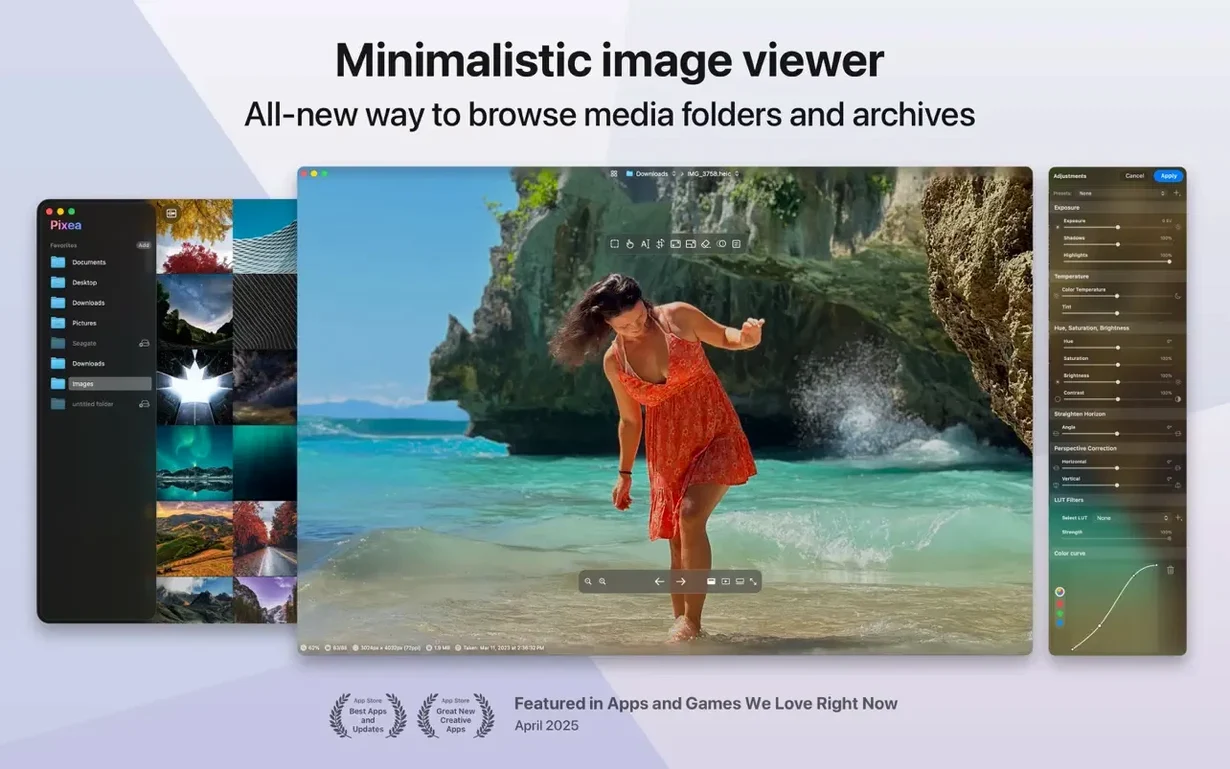
You grab a folder of photos from a memory card, double-click one, and expect a quick look without waiting for a full library app to load. Pixea Plus is that kind of viewer: it opens images instantly and lets you flip, rotate, or zoom with keyboard shortcuts and trackpad gestures. If you work with ZIP archives of pictures, you can peek inside without extracting them first.
Before you download, check compatibility. Pixea Plus runs on macOS 11 and later, and it supports both Apple Silicon and Intel Macs, so it works on older and newer machines alike. The app is built as an image viewer with editing basics, plus a color histogram and EXIF data for those who like technical detail.
Once installed, you get straightforward viewing and light editing in one window. It is not a Photoshop replacement, but for quick looks and small fixes, it does the job without clutter.
Why raw previews look flat with newer cameras
A few things trip people up when they first run Pixea Plus. The most frequent one: opening a raw file from a newer camera and seeing a flat, washed-out preview. This is not a bug. The app reads the embedded JPEG preview rather than fully decoding the raw data, so the colors can look dull until you apply adjustments. A quick exposure or saturation tweak usually brings it back to life.
Another snag happens with ZIP archives that contain images. You double-click the archive in Pixea Plus and it opens, showing the file list, but you cannot seem to navigate inside subfolders. The app flattens the archive view to one level, so if the ZIP was created with nested folders, those files simply do not appear. The workaround is to extract the archive first with Finder or another utility, then open the folder directly.
Some users report that HEIC files from iPhones open, but edits do not save back to the same format. Pixea Plus can save edits to JPEG, TIFF, PNG, and other formats on the list, but the original HEIC stays unchanged unless you export a copy. If you want to preserve your adjustments in a reusable way, use the Pixea Image format before closing the file. That format saves masks, non-destructive adjustments, and extra data so you can pick up where you left off later.
Trackpad gestures sometimes feel unresponsive at first. Go to System Settings and check that the gesture for zoom or rotate is enabled globally. Pixea Plus relies on the system's gesture handlers, so if you disabled them in macOS preferences, the app cannot override that.
Color histogram hidden in the info panel
The app includes a few features I wish every image viewer had, but they are not obvious at a glance.
- Color histogram in the info panel — Most people open the EXIF data to check shutter speed and aperture. That same panel, when you scroll down, shows a live RGB histogram. If you are adjusting exposure or contrast via masks, the histogram updates in real time. It helps you avoid clipping highlights without guesswork.
- Masks in the Pixea Image format — Masks are not just for advanced editors. If you have a photo where the sky is washed out but the foreground looks good, you can create a mask over the sky, reduce exposure there, and save the result as a Pixea Image file. Later you can reopen it and tweak the mask again because the adjustment is non-destructive.
- Undo and redo history — Pixea Plus 8.3 added undo and redo actions. Beginners sometimes forget this is there and re-open a file to revert changes. The undo stack works across edits like flips, rotations, and mask adjustments, so one press of the undo shortcut steps back through your changes.
Don't treat it like a photo library
The biggest mistake I see in my game club (and with colleagues who try the app) is treating it like a photo library. Pixea Plus does not manage albums, import libraries, or sync with iCloud. If you drag photos into the app and then delete them from the folder, they disappear from the viewer too. It is a file-based tool, not a catalog. Keep your files organized in Finder folders.
Another common error: clicking the close button on the window and assuming the app quits. It does not. The app stays running in the background, and the next time you open a file, it launches instantly. If you want to fully quit, use Command+Q or the menu bar. Otherwise, the app sits in the Dock and uses negligible resources, but some people prefer to close everything manually.
Beginners also overlook the format list when saving edits. They adjust an image and press Save, and the app saves over the original file only if the format matches. If you open a PSD or RAW file, the app prompts you to pick an export format. New users sometimes panic when that dialog appears, thinking they lost their work. Choose JPEG or PNG from the list, and the edited version saves as a separate file. The original stays untouched.
Editing photos from a Sony card last week
Let me walk you through a real session I had last week, because it shows how the app fits into a simple workflow.
I had a memory card from a weekend trip with photos from a Sony camera (ARW raw files) and a few iPhone HEIC shots. I copied the files into a folder on my desktop. Double-clicking the first ARW file opened Pixea Plus immediately. The raw preview looked a bit flat, but the histogram showed that the highlights were intact, so I did not need to adjust exposure.
I used the trackpad gesture to zoom in on a detail — the texture of a brick wall. Then I flipped through the next few photos using the keyboard shortcuts. Every image loaded in under a second, even the raw files. I noticed one photo had a distracting sign in the corner. I created a mask over that area, reduced saturation slightly so the sign blended into the background, and saved the result as a Pixea Image format file. That way, if I change my mind later, I can reopen the file and adjust the mask.
Later, I had a ZIP archive of scanned documents. I dropped the ZIP onto the Pixea Plus icon in the Dock. The app showed a thumbnail list of all the images inside. I found the one I needed, rotated it 90 degrees, and exported it as a JPEG. No extraction step needed. The whole session took maybe ten minutes, and I never opened a full photo editor.
If you want to try a similar workflow, the pixea download for mac is straightforward. The pixea dmg mounts, you drag the app to Applications, and you are ready. For those who want the extra features like masks and the Pixea Image format, the pixea plus version already includes those. The pixea mac download process has not changed between versions, so upgrading from an earlier copy is the same routine.
Version 8.4.1 adds a set of image adjustment tools and several workflow improvements. The new Reshape tool lets you adjust local geometry, while Spatial dehaze works with depth-based adjustments and Dehaze for clearer separation in hazy areas. A Clarity slider is now available too. The printing dialog has been improved with auto-rotate, scale, and images-per-sheet options. Copy to Clipboard gains a new option to maximize compatibility or preserve HDR statistics and headroom. Brilliance adjustment behavior has been refined, and there are general UI/UX improvements alongside the usual bug fixes.
- macOS 11 or later
- Apple Silicon and Intel 64-bit
Questions I keep getting
Does Pixea Plus work on Intel Macs?
Yes, Pixea Plus supports both ARM and 64-bit x86 architectures, so it runs on Intel and Apple Silicon Macs.
Can I open ZIP files with Pixea Plus?
Yes, the app can open ZIP archives without extracting them, which is handy for browsing compressed image collections.
How to install
- Mount the disk image and run Open Gatekeeper friendly, so the app gets permission to launch.
- Press Enter in Terminal to bypass Gatekeeper if needed, which lets the app run without extra prompts.
- Drag the app to the Applications folder to install it properly.
- Open the app when installation is complete and start viewing images.
Similar apps


Sign in or join the club to leave a comment.
Nobody has commented yet.