
- Version
- 7.16.3
- Studio or maker
- Renewed Vision
- Languages
- Russian, English, German, Spanish, Korean, Norwegian, Portuguese, French
- Activation
- K'ed by TNT team
- Runs on macOS
- macOS 10.15 or later
- Chip type
- Apple Silicon, Intel 64-bit
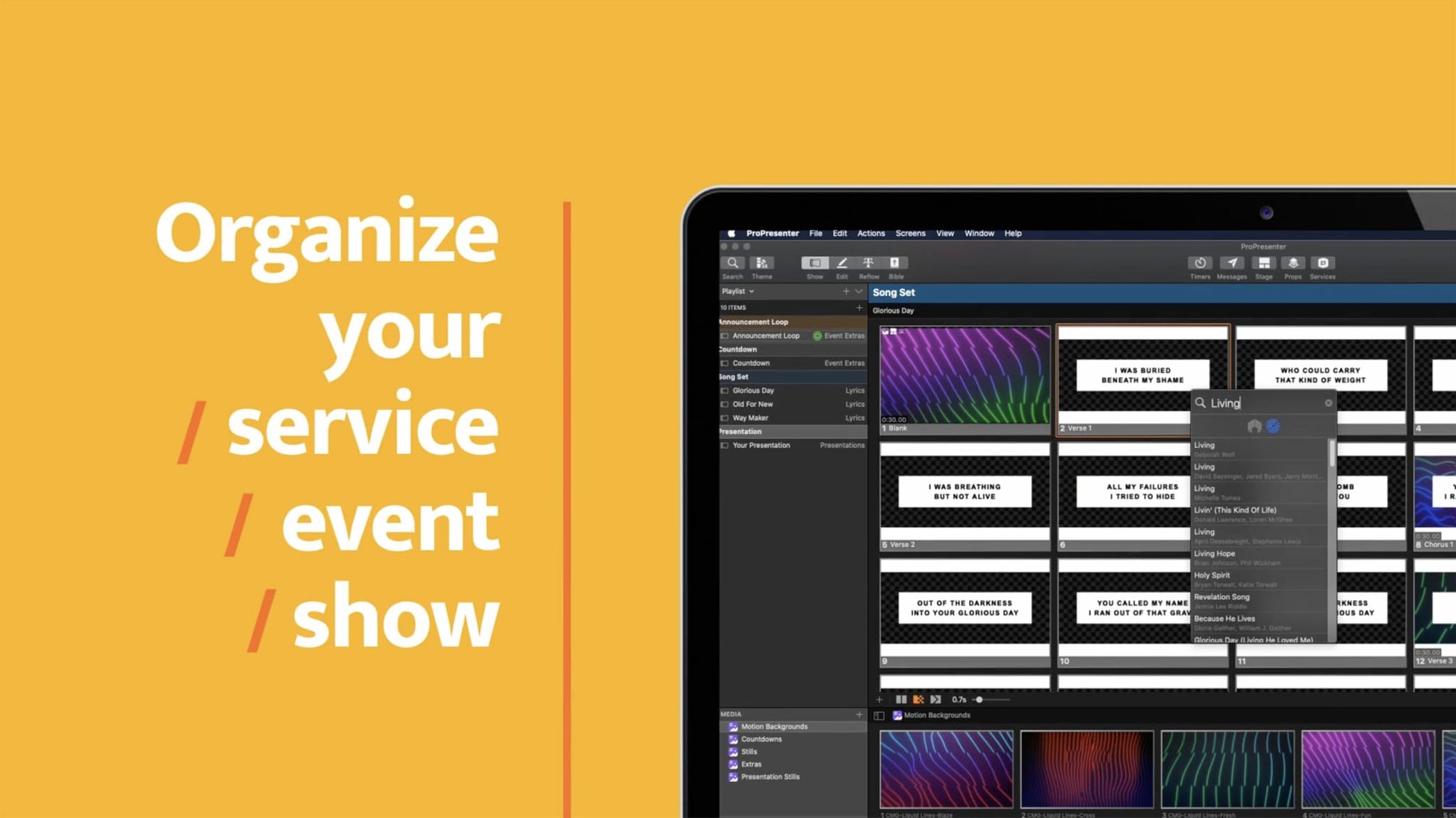
ProPresenter is the tool that keeps worship services, corporate events, and broadcast studios on schedule. It is the backbone of many a live production, and version 7.16.3 for macOS brings the same reliable performance to your Mac.
Build multi-screen presentations
Arrange your slides and soundtrack sequences ahead of time. With support for multi-screen output, you can send a different feed to the stage, the house screens, and the live stream without missing a beat.
Edit slides with eight layers
The advanced slide editor lets you stack up to eight layers of content. Use it to compose lower thirds, overlay graphics, or keep a logo visible while the main content changes.
Stream and record with multiple cameras
ProPresenter handles HD video playback and multi-camera streaming and recording. It also shares its output with other compatible apps on your Mac, so you can route the presentation wherever it needs to go.
Runs on any Mac from 2019 to current M-series
ProPresenter 7.16.3 runs on any Mac with macOS 10.15 or later, and it works on both Intel and Apple Silicon machines. That covers every Mac from the 2019 Catalina era through the current M-series models. The app is built as a universal binary, so you do not need to choose between architectures during installation.
Because the software is designed for live production, it expects a capable machine. The installer itself is a disk image that requires a quick Gatekeeper bypass step, and depending on your security settings, you may need to disable SIP. Neither step is unusual for professional creative apps that rely on low-level video and audio access.
Once installed, ProPresenter occupies a moderate amount of disk space. The interface feels familiar if you have used any broadcast presentation tool before, with a clean main workspace and several floating windows for media bins, outputs, and stage display control. The eight-layer slide editor, video player, and audio tools are all accessible from the main toolbar.
Three other Mac apps serve a similar audience
Three other Mac apps serve a similar audience: EasyWorship, MediaShout, and QLab. Each has its own strengths, but ProPresenter stands apart in a few ways.
ProPresenter vs. EasyWorship
EasyWorship is a straightforward presentation tool for churches. It handles slides, lyrics, and announcements well, but its video and streaming features are more limited. ProPresenter offers deeper multi-camera support and more flexible stage display options. If your setup involves multiple camera angles or a dedicated broadcast feed, ProPresenter gives you more control out of the box.
ProPresenter vs. MediaShout
MediaShout also targets houses of worship and includes video playback. It has a simpler interface, which can be a benefit for volunteers who rotate every week. ProPresenter’s eight-layer slide editor and confidence monitors with timers are features that MediaShout lacks. For productions that need precise timing and complex overlays, ProPresenter is the more capable choice.
ProPresenter vs. QLab
QLab is a professional show-control application used in theater and live events. It excels at cue-based playback of audio, video, and lighting triggers. ProPresenter is designed for presentation flow rather than show cues. If your event is a scripted theater piece, QLab might be a better fit. If you are presenting a service with slides, songs, and video clips arranged in order, ProPresenter’s workflow is more direct.
A technical director managing multiple screens and a livestream
Consider a technical director at a midsize church that runs two Sunday services plus a Wednesday evening gathering. The setup includes a main sanctuary screen, two stage confidence monitors, a lobby feed, and a separate stream for online viewers.
Before using ProPresenter, this director managed slides in PowerPoint, played videos from a separate media player, and routed audio through a patchwork of cables and adapters. It worked, but every transition carried a small risk: a video that would not start, a slide that appeared on the wrong screen, or a lyric cue that arrived late.
With ProPresenter, the director builds the entire service sequence in one project. Slides are arranged in order, song texts are imported from the integrated song database, and video clips are embedded as part of the same playlist. Stage displays show countdown timers and the next slide so the worship team stays on track. The lobby feed runs a separate loop of announcements and welcome slides. The online stream receives a clean feed that does not include the stage display or any backstage notes.
After the service, the director exports a report showing which slides were used and how long each segment lasted. This helps plan future services with better timing.
Configure display and stage screen layout first
When you open ProPresenter for the first time, a few settings can make the experience smoother from the start.
- Display and stage setup. Go to the workspace preferences and configure your screen layout before importing any content. Tell the app which screen is the main output, which is the stage display, and whether you need a third screen for the operator. Getting this right early avoids confusion later when you are running a live event.
- Video playback preferences. Set the default video output to match your display resolution. The app supports HD video playback, so choose 1080p or the native resolution of your screens. This prevents the application from upscaling or downscaling unnecessarily.
- Audio routing. If you use an external audio interface or a separate sound system, set the audio output device in the preferences. This ensures that video clips and soundtracks play through the correct speakers and not through your Mac’s built-in audio.
- Language selection. ProPresenter is available in Russian, English, German, Spanish, Korean, Norwegian, Portuguese, and French. If you need a language other than the system default, change it in the preferences before you start building presentations. The interface updates immediately, and all menus and dialogs switch to your chosen language.
Build a test service with five slides, one song, and one video
Getting familiar with ProPresenter takes a little time. These tips can help you settle in without the pressure of a live event.
- Build a test service. Create a small project with five slides, one song, and one short video. Practice advancing through the presentation, using the keyboard shortcuts, and switching between the slide editor and the live output. This gives you a feel for the workflow without any real stakes.
- It lets you control the presentation from anywhere in the room. Test the connection by running the remote app alongside the desktop application during your practice session.
- Learn the slide editor layers. Open a blank slide in the editor and add a background image, a text box, and a logo. Try moving each layer and adjusting its opacity. Understanding the layer system early makes it easier to create polished slides later.
- Test your video files. Drag a few video files into a project and play them through the main output. Check that the audio and video sync correctly and that the playback controls respond as expected. If you encounter issues with a specific format, convert the file to a standard codec like H.264 in an MP4 container.
- Set up a backup plan. Keep a spare copy of your ProPresenter project file on a USB drive or cloud folder. If something goes wrong during a live event, you can open the backup on another Mac without losing your sequence.
- macOS 10.15 or later
- Intel or Apple Silicon
Questions I keep getting
Can ProPresenter run on an Intel Mac?
Yes, ProPresenter 7.16.3 supports both Intel and Apple Silicon Macs.
Does ProPresenter work with multiple screens?
Yes, it supports multi-screen presentations, which is essential for stage and broadcast setups.
What languages does the interface come in?
The interface is available in Russian, English, German, Spanish, Korean, Norwegian, Portuguese, and French.
How to install
- Mount the disk image and run Open Gatekeeper friendly. This prepares the installer for the next step.
- Press Enter in the Terminal window to bypass Gatekeeper. That allows the app to run even though it is not from the App Store.
- Drag the app to the Applications folder. This installs it in the standard location.
- Disable SIP if required. Some features may need it, so check the included notes for details.
Similar apps


Sign in or join the club to leave a comment.
Nobody has commented yet.