- Version
- 2026.11
- Studio or maker
- Pilotmoon Software
- Languages
- Russian, English, German, Spanish, Italian, Chinese (Simplified), Korean, Dutch, Portuguese, French, Japanese
- Activation
- K'ed by TNT team
- Runs on macOS
- macOS 13.5 or later
- Chip type
- Apple Silicon, Intel 64-bit
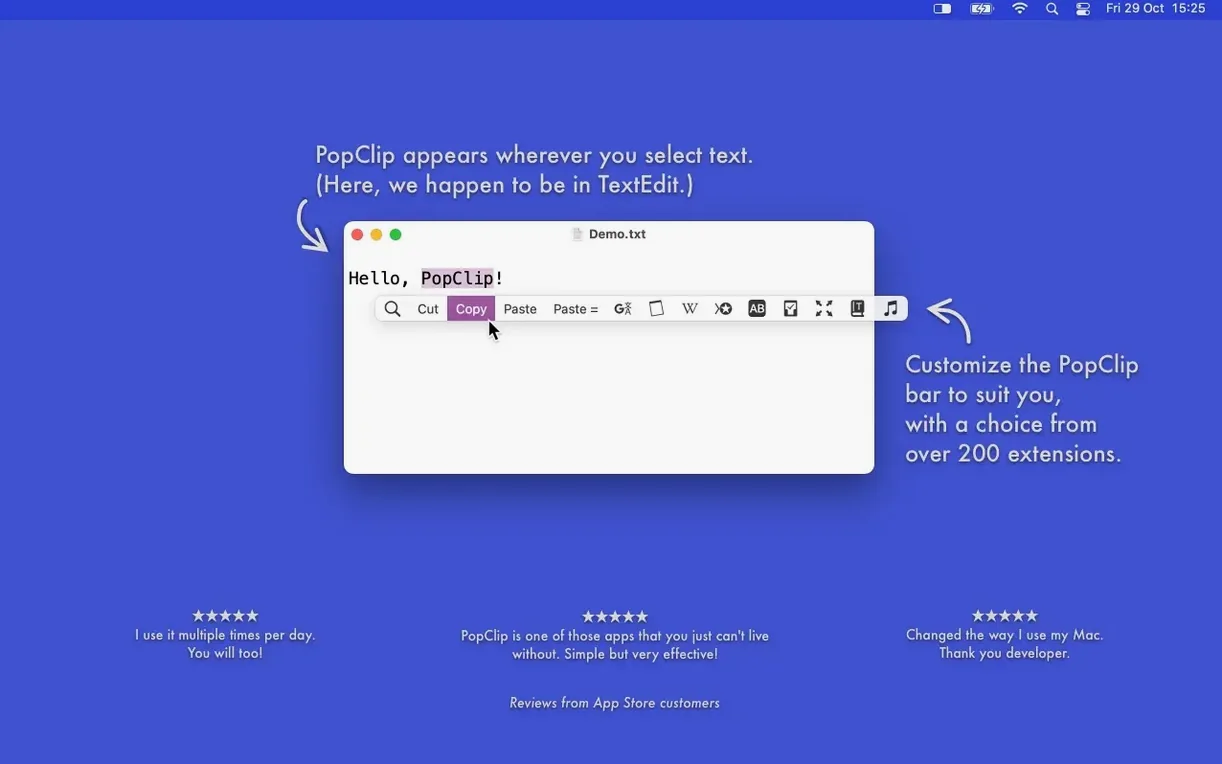
You select a word in a document, and a small toolbar appears with actions like copy, define, or translate. That is PopClip in its simplest form. It works with almost any Mac app that supports text selection, and it can save you a few clicks every day.
Requirements and compatibility first
- macOS 13.5 Ventura or later
- Apple Silicon or Intel 64-bit processor
- Available in English, German, Spanish, French, Italian, Portuguese, Dutch, Russian, Japanese, Korean, and Chinese (Simplified)
If your Mac runs Ventura or newer, you are set. PopClip supports both Apple Silicon and Intel machines, so it does not matter which one you have.
What you get after installation
PopClip extends text selection with context-aware actions. It can look up a word in the dictionary, open a selected URL or file path, convert case, count words, and even send text to Evernote. It also suggests spelling corrections for misspelled words. Extensions and your action layout sync through iCloud, so your setup carries over between Macs.
How PopClip fits with other apps and macOS features
PopClip does not replace your usual tools. It sits on top of them and steps in only when you select text. In Safari, it gives you a quick way to search a phrase, open a link, or copy a URL without reaching for a menu. In Mail or Messages, you can select an address and have it open in Maps, or grab a line of text and send it to a note. The key is that PopClip works with whatever app you are already using, not instead of it.
Because it syncs through iCloud, your chosen actions and extensions stay the same on a MacBook at home and an iMac at school. That matters if you switch machines during the day. The sync is automatic after you sign in to iCloud on each Mac, and you do not need to reconfigure anything.
PopClip also plays well with macOS quick actions and services. If you have a shortcut or a service set up for selected text, PopClip can call it through an extension. It is not a walled garden — it opens a door from text selection to whatever you already have running.
Try these actions in your first few days
PopClip is not the kind of app you configure once and forget. It rewards a little exploration early on. Here are a few practical things to try in your first few days.
Start by selecting a word in a web page. PopClip should appear near your cursor. Try each action to see what it does. The dictionary lookup works on single words; the search action sends the selected text to your default search engine. These two alone cover a lot of quick tasks.
Next, select a URL or a file path. PopClip shows an open action that launches the link or reveals the file in Finder. That is especially handy when you are reading a document full of references or working with log files.
If you write a lot, select a misspelled word and look for spelling suggestions. Then try the case conversion actions — they can switch a heading from uppercase to title case in one click. The word count extension is useful for short pieces of text where you do not want to open a separate tool.
Finally, open PopClip Settings from the menu bar icon. Browse the extension list. There are over 100 free extensions, including paste and style matching, translation, and sending to Evernote. You can enable or disable each one and drag them to reorder how they appear when you select text.
A morning email session with PopClip
Let me walk through a session that shows how PopClip fits into regular work. I start my morning by checking emails. A student has sent a message with a link to a resource page. I select the link, and PopClip shows an open action. One click, and the page opens in my browser. No right-click, no copy-paste.
Later, I am reviewing a draft worksheet in Pages. I notice a word that does not look right. I select it, and PopClip suggests a correction. I click the suggestion, and the word is replaced. That saves me from opening the Edit menu or using a keyboard shortcut I would have to remember.
I then copy a paragraph from an online article to include in a handout. I select the text, copy it with PopClip, and paste it into my document. But the formatting does not match. I select the pasted text again, and PopClip offers paste and style matching. That strips the formatting and matches the font and size of the rest of the document.
Before lunch, I am sorting through a list of student project topics. I select each line and use the case conversion extension to make sure all titles are in sentence case. It is a small thing, but doing it without PopClip would mean retyping or opening a separate tool.
At the end of the day, I have a few notes I want to keep. I select the text and use the Evernote extension to send it straight to a notebook. PopClip does not replace Evernote's own tools — it just makes the transfer faster.
That session is typical for me. PopClip never interrupts; it just waits for a selection. And because it syncs through iCloud, the same actions are available whether I am at my desk or working from a different room.
- macOS 13.5 or later
- Works on Apple Silicon and Intel Macs (64‑bit)
Questions I keep getting
Does PopClip work on Intel Macs?
Yes, PopClip supports both Apple Silicon and Intel 64-bit processors, as long as your Mac runs macOS 13.5 Ventura or later.
Can I sync my PopClip settings between Macs?
Yes, PopClip uses iCloud to sync installed extensions, action layout, and action settings between your Macs.
How to install
A tidy 7 MB download that asks only for macOS 13.5 or later, fitting comfortably on Apple Silicon and Intel 64-bit Macs alike.
- Mount the disk image and run the Open Gatekeeper friendly helper. This small tool prepares the system so macOS doesn't block the app on first launch.
- When the Terminal window appears, press Enter. The script runs a quick command to register PopClip with Gatekeeper.
- Drag the PopClip app icon into your Applications folder — the standard step for any Mac program you want to keep.
Similar apps




Sign in or join the club to leave a comment.
Nobody has commented yet.