

- Version
- 1.8.6.41
- Studio or maker
- MyMixApps
- Languages
- Russian, English, German, Spanish, Italian, Chinese (Simplified), French
- Activation
- K'ed by TNT team
- Runs on macOS
- macOS 11 or later
- Chip type
- Apple Silicon, Intel 64-bit
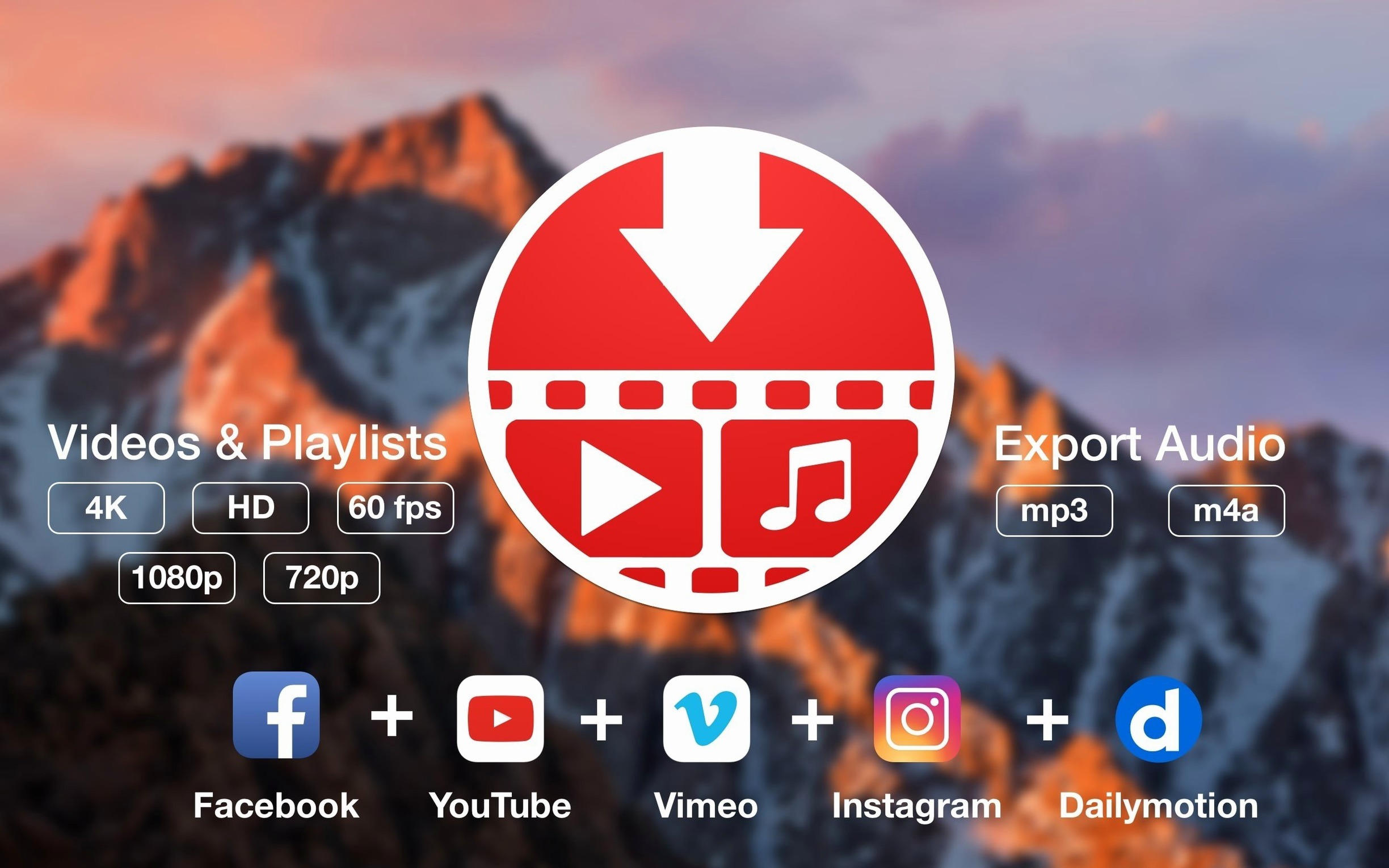
You find a long playlist you want to keep for the weekend trip, but the bus Wi-Fi drops every few minutes. PullTube handles that by grabbing the whole playlist at once, so you do not have to babysit each link.
Paste the playlist link
Copy the URL from your browser and paste it into PullTube, or drag the link straight into the window. The app detects that it is a playlist and lists every video with its title, duration, and thumbnail before you commit to anything.
Pick the quality and format
Choose the highest, 4K, HD, or normal quality depending on your storage and screen. If you only need the soundtrack, switch to audio-only mode and skip the video files entirely. There is also an option to append the quality to the file name, which helps when you sort downloads later.
Start the download
Hit download and let it run. Subtitle support is built in, so you can fetch those too. PullTube works on both Apple silicon and Intel Macs, and supports more than 1,000 websites, which covers most of what you will come across.
How PullTube Compares with Similar Mac Applications
On the Mac there are a few other downloaders that do similar work, though each takes a different approach. One popular option is a command-line tool like yt-dlp, which is powerful but requires typing commands and understanding flags. If you are comfortable with the terminal, yt-dlp gives you fine control over formats, subtitles, and playlist handling. PullTube gives you those same capabilities through a visual interface, which saves time if you do not remember command syntax or prefer not to open the terminal each time.
Another common choice is an older application like 4K Video Downloader, which focuses on a limited set of websites and often relies on one protocol at a time. PullTube covers more sites and handles playlists and audio extraction in the same workflow. It also shows thumbnails and durations before you download, which the other app does not always do. Neither app is better in every situation, but PullTube feels more like a one-stop tool if you visit many different video platforms.
A third type is the browser extension that saves videos, but those usually depend on the browser running and can stop working after the browser updates. PullTube runs as its own application, so it does not interfere with your browsing and keeps working even after macOS updates change the browser.
Drag links directly into the window
PullTube integrates well with the Mac desktop in a few practical ways. You can drag a link from your browser or from a text file directly into the PullTube window instead of copying and pasting, which works quickly when you have multiple tabs open. The app also respects macOS file management, so downloads appear in your Downloads folder or wherever you set your default save location, and you can then open them in any media player or editing software on your machine.
Because PullTube saves standard file formats like MP4, M4A, and MP3, the files play in VLC, iTunes, QuickTime Player, and most video editors without conversion. If you use Apple's native Photos or iMovie, the audio and video files import directly. The file name option that appends the quality also helps when you sort by name in Finder, since you will see "1080p" or "4K" next to the title.
On macOS, you can use Spotlight to find PullTube quickly, or pin it to your dock if you download often. The app also works well with multiple monitors, so you can keep the download window open on one screen while browsing on another.
Fix downloads stuck at 0 percent
A few things trip people up the first time they use PullTube. Here is what I see most often and how to fix it.
The download stays at 0 percent or does not start. This usually happens when the website changed its video player or when your internet connection cuts out. First, check that the link still works in your browser. If it does, restart PullTube and paste the link again. If it still does not start, try a different quality setting; sometimes the highest quality is not available for every video.
Playlist downloads stop partway through. Long playlists or slow internet can cause one video to time out. PullTube often continues to the next video on its own, but if it stalls, pause the download and resume it later. You can also download the playlist in smaller batches by copying groups of links instead of the entire list.
Subtitles do not appear in the saved file. Make sure you select the subtitle option before starting the download. Some videos do not have embedded subtitles, and PullTube can only download what exists on the site. If the subtitles are separate files on the website, the app may not always catch them; in that case, downloading the video and then adding subtitles manually in a media player is the most reliable workaround.
The app shows a Gatekeeper warning on first launch. This is normal on macOS, which blocks applications it does not recognize. The install instructions tell you to open the Terminal and press Enter to let the app run. After that first time, the warning does not appear again.
Keep the app open until downloads finish
Do I need to keep the app open while it downloads? Yes, PullTube does the downloading itself, so it needs to stay running until the files finish. You can set it to quit automatically after all downloads are complete, which is useful if you start a big playlist before heading out.
Does it download private or age-restricted videos? PullTube downloads what it can access from the public website. If a video requires you to log in or prove your age in the browser, the app cannot reach that content because it does not log into accounts. For public videos and playlists, it works normally.
Will it slow down my internet for other tasks? Downloading a video uses bandwidth, same as watching it in a browser. You can use the quality setting to reduce the file size, which also lowers bandwidth use. The app does not throttle or prioritize its own traffic, so other applications will share the connection normally.
Can I use it on older Macs? The developer says PullTube works on macOS 11 or later, and the app supports both Intel and Apple silicon Macs. If your Mac runs macOS 11 or newer, it should work regardless of the processor type.
Does it work with pulltube mac torrent or pulltube for mac search terms? Those terms often lead people to the same application, so yes, you are looking at the right tool. The full product name is PullTube, version 1.8.6.40, and it is made by MyMixApps for macOS.
- macOS 11 or later
- Apple silicon or Intel Mac
Questions I keep getting
Can PullTube download subtitles along with the video?
Yes, the developer states that PullTube can download video, audio, playlists, and subtitles from more than 1,000 websites.
Does PullTube work on Apple silicon Macs?
The developer says the app is compatible with both Apple silicon and Intel Macs.
How to install
- Mount the disk image and open the installer package. The first run may be blocked, so choose Open from the Gatekeeper prompt.
- Press Enter in Terminal when asked to bypass Gatekeeper. This step is part of the app's normal setup on macOS.
- Drag PullTube into the Applications folder to finish installing.
- Launch the app from Applications and start pasting links.
Similar apps






Sign in or join the club to leave a comment.
Nobody has commented yet.