

- Version
- 5.12.6
- Studio or maker
- Arturia
- Languages
- English
- Activation
- K'ed by LOST
- Runs on macOS
- macOS 11 or later
- Chip type
- Apple Silicon, Intel 64-bit
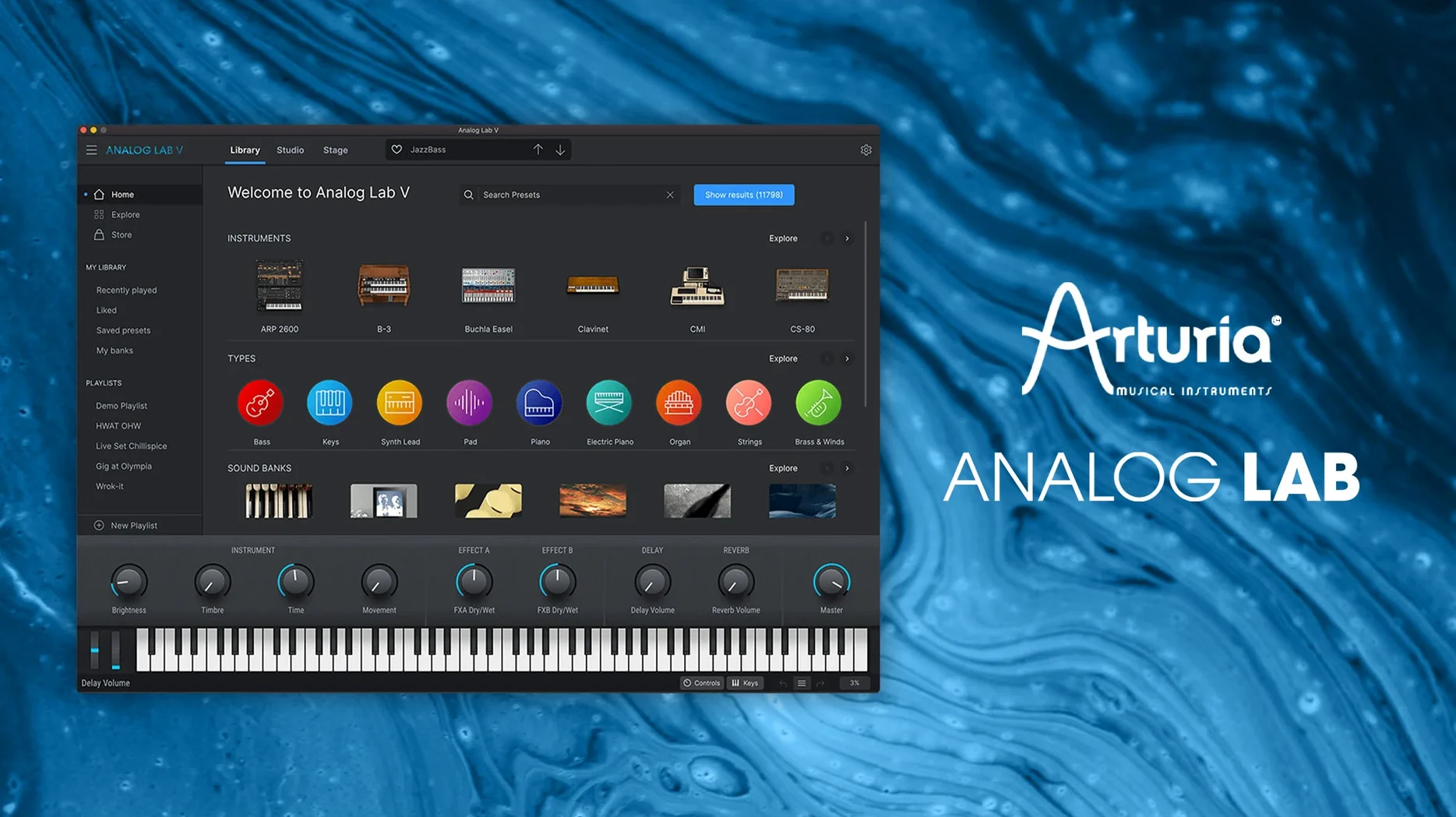
You are setting up a track and need a warm electric piano or a punchy synth lead. Instead of opening each instrument separately, you launch Analog Lab V and browse its library of Arturia presets in one place. The intelligent filter narrows choices by type, character, or style, so you find the right sound quickly.
Macro knobs change tone and texture without opening the full editor
- Macro knobs — each preset comes with four assignable controls (cutoff, resonance, envelope, effects mix). Turning them changes the tone and texture of the part without opening the full synth editor, which keeps the mix session moving.
- Effects section — reverb, delay, chorus, and distortion sit on each layer. Adding a short plate reverb or a subtle chorus pushes the instrument back or forward in the stereo field, adjusting its place in the arrangement.
- Layer and split modes — stack two sounds or assign them to different keyboard ranges. Layering a pad under a lead thickens the midrange, while splitting lets you play bass in the left hand and chords in the right, filling more frequency space from one instance.
Standalone and plugin in one package
Analog Lab V works as a standalone application for quick sketching and as an Audio Units, AAX, VST2, or VST3 plugin inside your DAW. It runs on both Intel and Apple Silicon Macs under macOS 11 or later. The interface and all controls are in English.
Because the library contains presets from dozens of instruments, you never have to think about which synth engine is loaded in the background. You hear a sound, you play it, and you move on. That distinction matters in a live set or a writing session where stopping to tweak oscillators pulls you out of the flow.
Runs on macOS 11 and later for both ARM and Intel Macs
The current build of Analog Lab V, version 5.12.0 (6227), runs on macOS 11 and later and supports both ARM and Intel Macs. During installation you follow the standard Arturia procedure — no extra steps beyond what you would do for any Audio Units or VST instrument. The plugin shows up in your DAW as Analog Lab V, and the standalone application lands in your Applications folder under Arturia. Both the plugin and the standalone interface are in English.
No special routing or extra configuration is needed. The plugin scans your system once and loads the preset library. If you already own a V Collection license, Analog Lab V can open the full instrument views, letting you dig deeper into the synth or keyboard engine for each preset. Without that license, you still get the macro controls and effects section, which cover the most common adjustments in a mix or performance.
From a keyboard player's perspective
You are a church pianist who also plays in a cover band on weekends. On Sunday morning you need a clean grand piano for hymns and a warm pad for the meditative part of the service. Friday night you need a biting lead synth for the bridge of a pop song and a rich organ for the oldies medley. Before Analog Lab V, you had to load three or four separate plugins and find the right patch in each one, which took time between songs.
With Analog Lab V you set up two layers on one instance: organ on the lower half of the keyboard, piano on the upper half, saved as a Multi. During the service you tap the next preset on your controller and the sound changes instantly. For the cover band, you scroll the intelligent filter to "Lead" and "Aggressive," find a preset that cuts through the guitars, and adjust the macro cutoff knob until it sits in the mix. You do not touch an oscillator or an envelope generator. You just play.
Komplete Kontrol is tied to Kontakt while Analog Lab V is standalone
Native Instruments Komplete Kontrol does a similar job for the Native Instruments library. Its browser organizes sounds by category and lets you map macros to your keyboard. The difference is that Komplete Kontrol is tied to the Kontakt and Reaktor ecosystems, while Analog Lab V focuses on Arturia's own synthesizer and keyboard models. If your sound library comes from Arturia, Analog Lab V is the natural home for it.
UVI Falcon offers a deeper editing environment and a huge sound library, but its browsing is less immediate for live use. You can layer and split sounds inside Falcon, but the setup takes more steps. Analog Lab V is simpler: load a preset, adjust two or three knobs, and you are ready.
Spitfire Audio's BBC Symphony Orchestra Discover is a different kind of instrument — orchestral samples rather than synths and keyboards — but it shares the idea of giving you curated presets with macro controls. The Spitfire plugin opens one section at a time (strings, brass, woodwinds) and the macros control dynamics and expression. Analog Lab V gives you the same instant-access approach for synth and keyboard sounds, with a much wider variety of instrument types in one place.
Two-hour session: replacing a thin pad and electric piano
Wednesday evening, you have two hours to finish a track for a client. The arrangement is mostly done, but the main synth pad sounds thin and you want to replace the electric piano with something more present.
You open the project in your DAW and insert Analog Lab V on the pad track. The intelligent filter is already set to "Pad" from your last session, so you scroll through a dozen options. One preset called "Warm Swell" has a slow attack and a long release, exactly what the chorus needs. You pull up the macro section and turn the effects mix knob to add a little reverb, then adjust the cutoff so it does not mask the vocal.
Next, you duplicate the track for the electric piano. You set the filter to "Electric Piano" and "Bright" and land on a preset with a clear attack. You split the keyboard range so your left hand plays bass notes from a third instrument (a simple synth bass you layer in) and your right hand plays the piano part. The whole sound replacement takes about six minutes. You play through the song once, tweak the macro controls for level balance, and move on to editing the vocal takes.
The session ends with a clean mix and no time wasted browsing individual synth editors.
Use the intelligent filter to learn presets by type and character
- Use the intelligent filter right away — instead of scrolling through all presets, set the type (Pad, Lead, Bass, Key) and a character (Warm, Bright, Dark, Aggressive) to see a short list. This teaches you the library faster than clicking randomly.
- Save your own Multi presets — when you find a combination of layers and splits that works for a song, save it as a Multi. Next time you need that sound, it loads in one click.
- Map the macro knobs to your controller — most modern MIDI keyboards let you assign knobs or sliders. Map the four macro controls (cutoff, resonance, envelope, effects mix) to physical controls so you can adjust them without clicking on screen.
- Try the same preset in different contexts — a synth lead that sounds harsh soloed might sit perfectly in a dense mix. Do not judge a preset by itself; audition it with the other instruments playing.
- Keep the effects section simple at first — start with the preset's own effects chain and only add reverb or delay if the sound needs space. Adding too much too early can muddy the mix and make it harder to hear what the preset itself does.
- Check the instrument name in the preset browser — each preset shows which Arturia instrument it comes from. Over time you learn which instruments match certain styles, and that helps when you want to open the full editor for deeper changes later.
After a few sessions, browsing becomes second nature. You know that a "Warm" filter with "Electric Piano" type gives you the sound for a ballad, and that "Aggressive" with "Lead" type covers your rock chorus. The library is large, but the filter and macro controls keep it manageable.
- macOS 11 or later
- Intel or Apple Silicon processor
- Interface language: English
How to install
- Run the installer package. The standard installation places the plugin files in the correct system folders for your DAW and the standalone app in your Applications folder.
- Authorize the software. Launch Analog Lab V once to complete the activation step.
Similar apps
Sign in or join the club to leave a comment.
Nobody has commented yet.